Chapter 8.
PARTtemplateDesigner - Create data sheets
|  |
| Prev | Next |
Table of Contents
In the PARTtemplateDesigner you create your own templates for the 3D PDF data sheet function, which are then available on the various output platforms (3Dfindit).
For catalog suppliers decisive arguments for use are:
No changes need to be made to the catalogs to create the 3D PDF data sheet, as the data sheet is automatically filled with the existing eCATALOG 3Dfindit catalog data.
Support for end-user: All catalogs at all working places produce identical datasheets, which improves the internal documentation. Furthermore the user of the 3D PDF datasheet gets all information at a glance, what essentially supports the product selection.
Once the 3D model is displayed, the datasheet function is available as well. Through support of the 3D function it is an innovative method with little susceptibility to errors.
The datasheet contains different elements:
| ||||
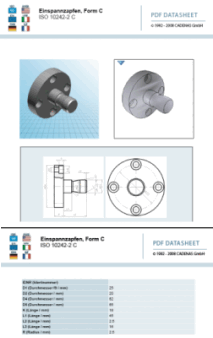
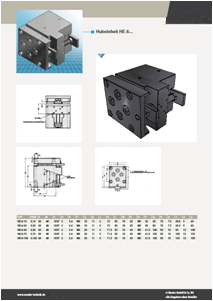
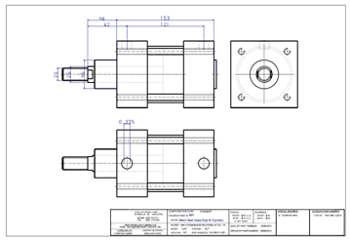
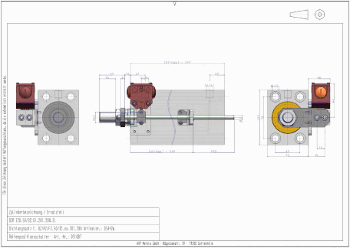
In the following you can see some datasheet examples:
In the PDF data sheet, the Shaded display [Shaded view] setting can also be selected for the 2D derivation. The creation is much faster and as no real line representation is required in most cases, this is a good alternative.
You can display the Windows user name and the mass of the part/assembly in the PDF data sheet. The mass information is important for calculating freight costs, among other things. The user name is interesting for internal company data sheets, e.g. for incoming orders when the data sheet is enclosed with the order.
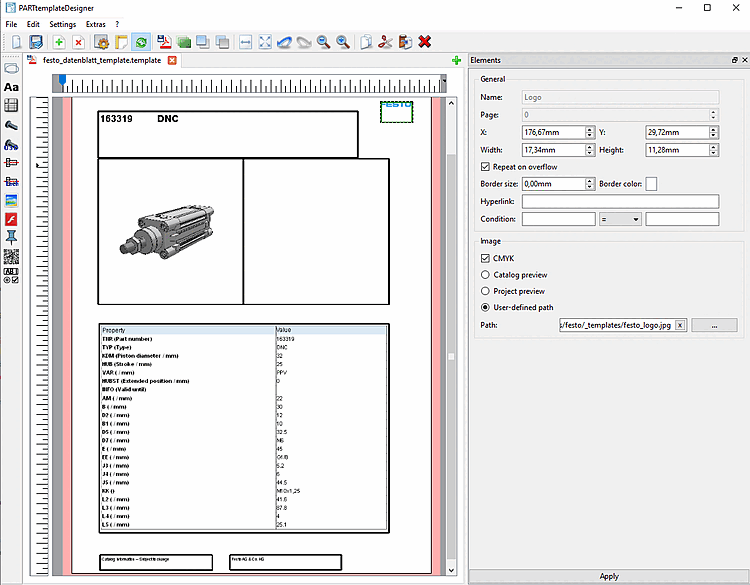
The following figure shows an exemplary section of the PARTtemplateDesigner user interface.
![[Note]](images/note.png)