2.1.6.
Search and Part Selection
2.1.6.4.
Search
methods
|  |
| Prev | Next |
By default, only the full text search [Full-text search] is visible and activated. The other search methods are "collapsed"  . However, the area can be expanded at any time
  and other search methods can be added or used alternatively.
Enter a search term in the input field and click on .
![[Note]](images/note.png) | Note |
|---|---|
You can combine textual and numerical terms. Both the table (ERP columns and characteristic attributes) and topological values are searched. | |
In addition to the full text search [Full-text search], several other search methods are available, which can also be combined with each other:[38] [39]
Beside or instead of the full-text search other search methods can be used.
Expand the search methods area using the arrow button to open it.
-> Then you will see a listing of all search methods.
Click on the link of the desired search method.
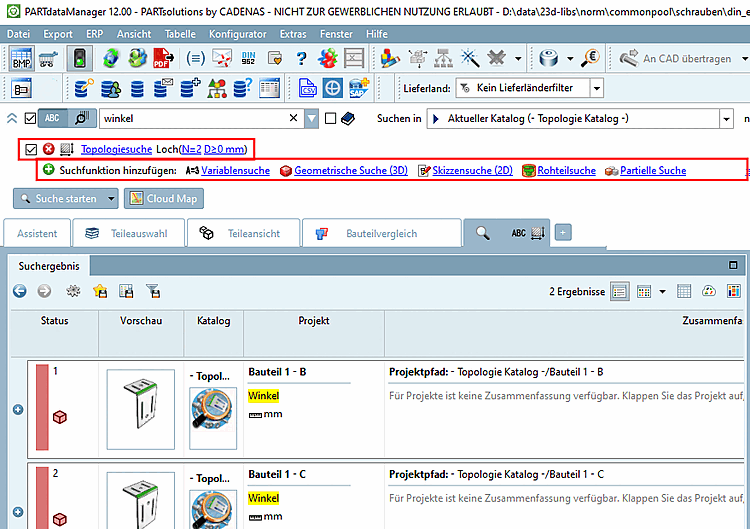
-> The respective settings dialog opens. Once the settings have been accepted, the search method is displayed below the full text search [Full-text search] with a checkbox and remove button  button. In addition to the search method, you will also see the setting parameters used.
In this exemplary illustration, all search methods have already been used once and are therefore listed. The full text search [Full-text search] and the topology search [Topology search] are activated and will be used during the next search run.
Click on the
"Remove" button .
In order to add a
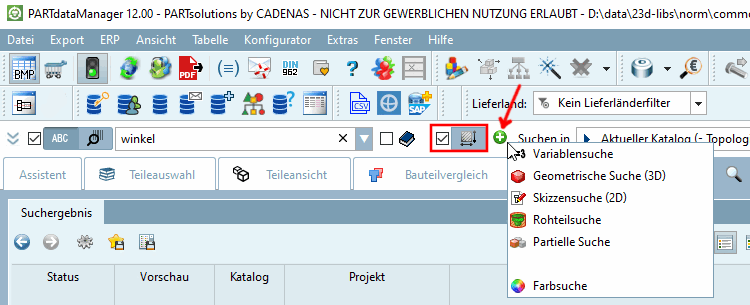
search method click on the green plus button  and then on the desired method.
-> The respective settings dialog opens. Once committing the settings the respective icon of the selected method is displayed with activated checkbox.
Beside using the search functions, of course you can manually search the directory structure.
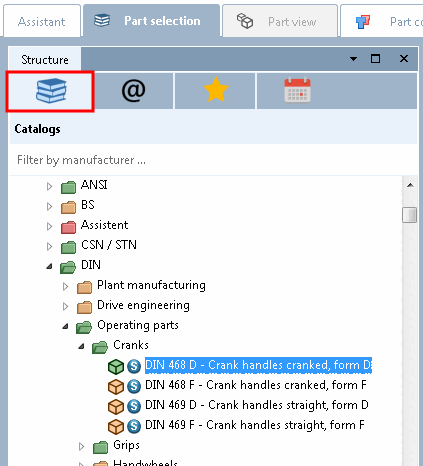
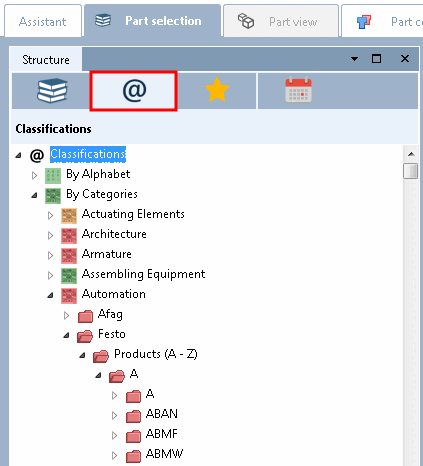
For example, select the sub-item Catalogs or Classifications on the Parts selection [Part selection] tab page and search the respective directory structure for the desired part.
Detailed information on the individual sub-items (Catalogues [Catalogs] | Classifications | Favorites | History ) can be found at Section 2.1.6.4.12, “ Part selection via directory structures ”.
[38] only sketch search (2D) [Sketch search (2D)] and geometric search (3D) [Geometric Search (3D)] not with each other
[39] Full text search [Full-text search] and variable search [Variables search] are always available as standard. The "CNS200x*PSADDONS*COMPLEXSEARCH" license is required for the other search methods.
Information on how to check whether a specific license is available can be found at Section 3.5.1, “ License information ”.
![Search with the "Full text search [Full-text search] "](resources/img/img_5736aa584ce344dc9997ce8f28794f73.png)


![In this exemplary illustration, all search methods have already been used once and are therefore listed. The full text search [Full-text search] and the topology search [Topology search] are activated and will be used during the next search run.](resources/img/img_101029c25ce441c29de258a7affd9485.png)