2.1.6.4.12.
Part selection via directory structures
2.1.6.4.12.5.
Favorites " selection
|  |
| Prev | Next |
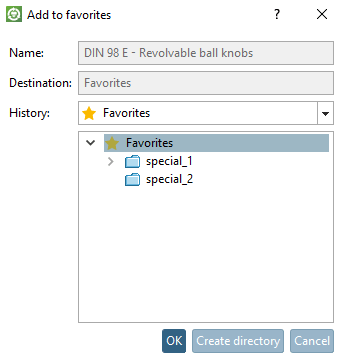
You can save frequently used directories or projects using the context menu command Add to favorites on the Favorites tab page.
You will find the Add to favorites context menu command on the Catalogs, Symbols, Details, Classifications, History and Search results dialog pages.
"Add to favorites [Add to favorites] " for example under "Catalogues [Catalogs] " or "Symbols [Symbols] "
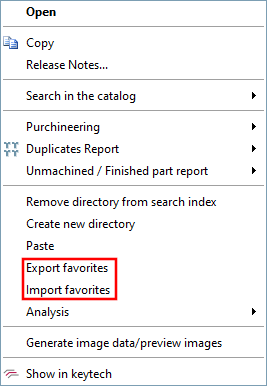
Exporting [Export favorites] favorites / Importing favor [Import favorites] ites
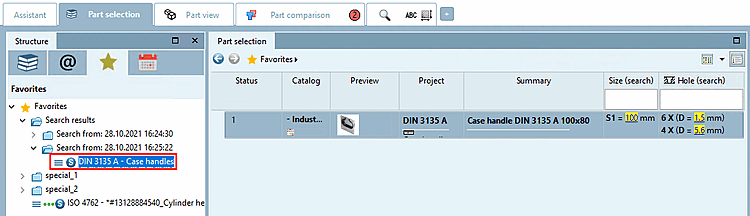
For favorites that you have saved on the Search results tab page using the Save search results in favorites
 method, the same column information will be available again later on the
  Favorites tab page in the Search results section, the same column information is also available again. See also Section 2.1.6.7.5, “
Save search results: in favorites / in file”.
Favorites tab page in the Search results section, the same column information is also available again. See also Section 2.1.6.7.5, “
Save search results: in favorites / in file”.
On the tab page
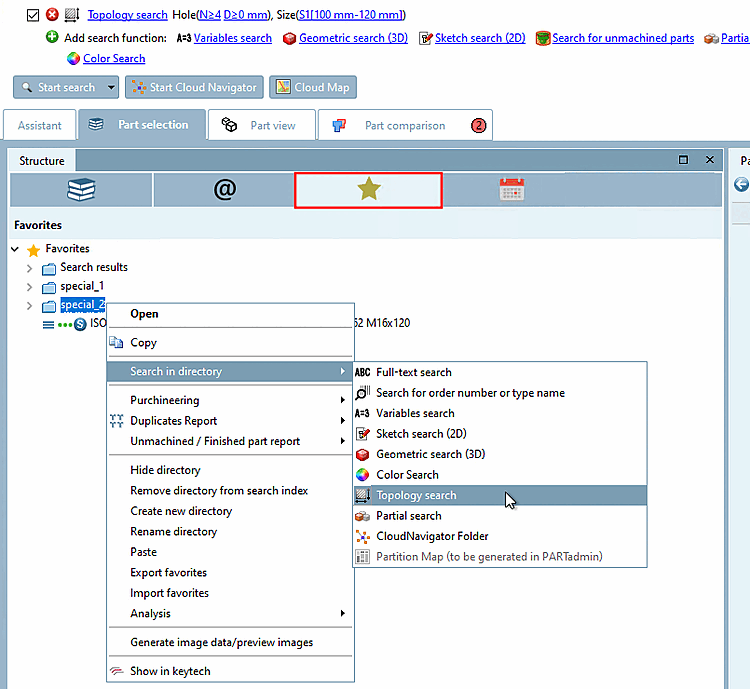
Favorites tab page, you can perform any other searches based on search results using the context menu command.
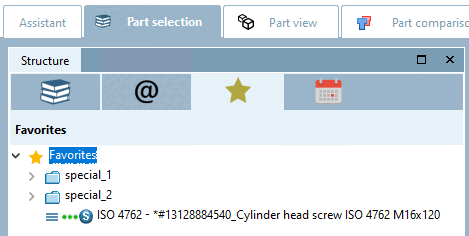
!["Add to favorites [Add to favorites] " for example under "Catalogues [Catalogs] " or "Symbols [Symbols] "](resources/img/img_5fc1d13219a94a86b846988c6d5e7dc4.png)
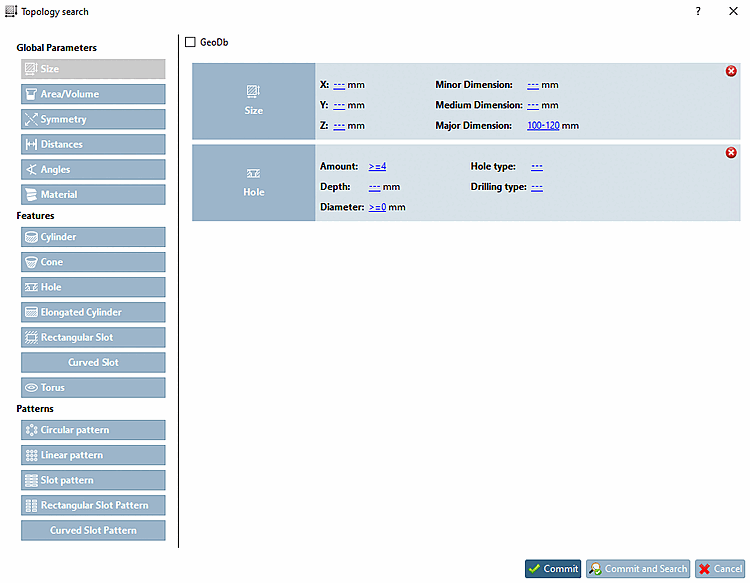
![Topology search with "Size [Size] " and "Drill holes [Boreholes] "](resources/img/img_53ac50fd3880473faf67392b94be2fe0.png)