2.1.
PARTdataManager
2.1.10.
Create 2D derivation
|  |
| Prev | Next |
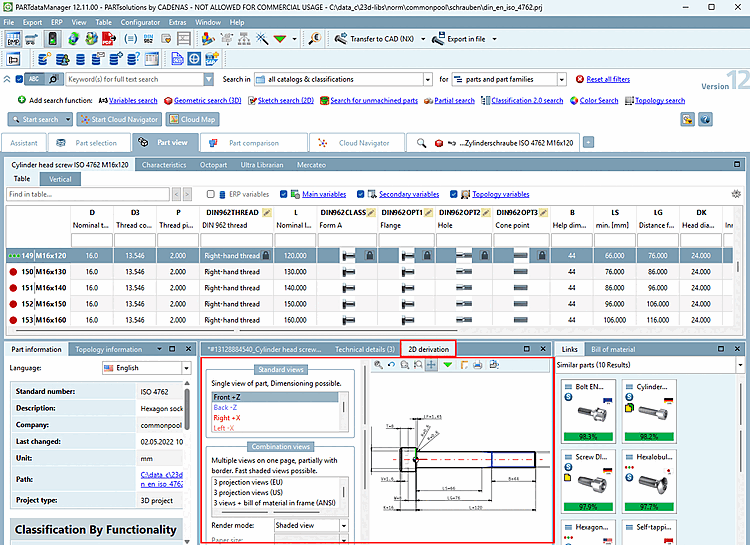
To be able to insert 3D components/assemblies from 3Dfindit into a 2D CAD system, you must create a 2D derivation of the 3D object.
To select the desired 2D derivation, depending on the setting options (Tools [Extras] menu -> Settings... -> Transfer to CAD [Export to CAD] )[97] two different dialog boxes are used:
2D view dialog box (details at Section 2.1.10.1, “ 2D view" dialog box ”)
(Corresponding setting option: Transfer active 2D derivation if 2D window is open, otherwise transfer the 3D model [Export selected 2D derivation view if 2D window is open, else export 3D model] or a default derivation ) (default setting )
Call up of the dialog box happens via:
Select the desired view in the 2D view dialog box and then export it using :
| ||||
[a] Create your own dimensions before transferring to the CAD system | ||||
Select view to be transferred [Choose view to pass...] dialog box... (Details at Section 2.1.10.2, “ "Select view to be transferred..." dialog box ”)
(Corresponding setting option: Always ask if several options are available [Always ask, if more than one alternative exists] )
For 2D CAD systems or CAD systems with the 2D option, clicking on the  Transfer to CAD button, the Select view to be transferred [Choose view to pass...]... dialog box opens. regardless of whether the 2D view dialog box (opened using the
  2D derivation ) is open and the settings in this dialog always have priority.
| ||||

![[Note]](images/note.png)
![PARTdataManager -> Extras menu -> Settings [Settings...]..](resources/img/img_bc50619b0dba4e91a7a3b97a5f988b8d.png)