1.1.
Article assignment (initial filling of the LinkDB)
1.1.2. User interface
and processes at a glance |  |
| Prev | Next |
1.1.
Article assignment (initial filling of the LinkDB)
1.1.2. User interface
and processes at a glance | |
| Prev | Next |
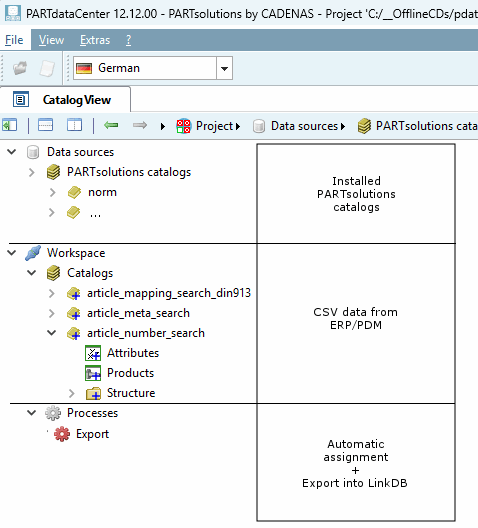
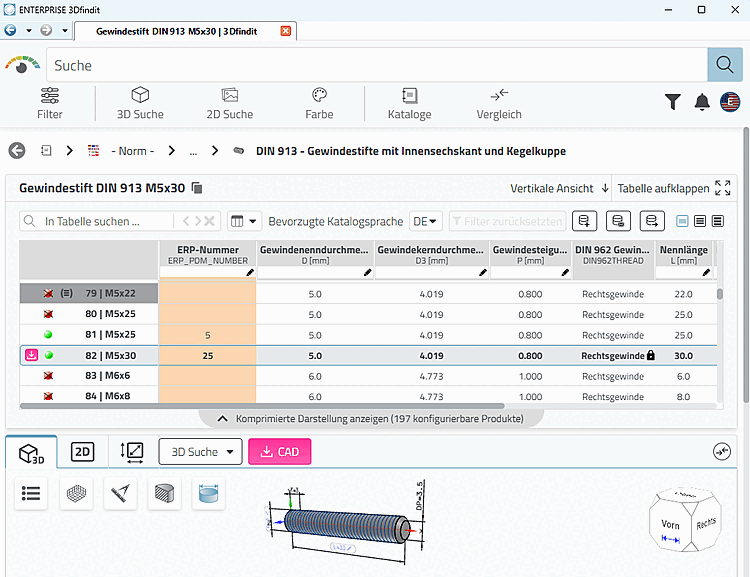
The following figure shows how the article assignment between CSV data and PARTsolutions data is displayed in the user interface of PARTdataCenter.
Import of CSV files from ERP/PDM system
Under Catalogs you will find the context menu command Import catalog -> Import CSV [Import from CSV].
Customizable templates for article assignment and export to the LinkDB can be selected under Processes.
The data structure determines the template to be used: (only one "default" template is currently available for the wizard)
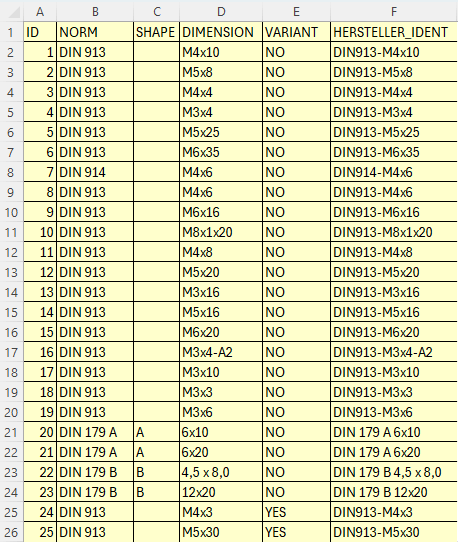
Dimension search (see Section 1.1.5, “ Dimension search (with "Article Assignment Wizard" for standard parts)”):
ID;NORM;SHAPE;DIMENSION;VARIANT;HERSTELLER_IDENT
1;DIN 913;;M4x10;NO;DIN913-M4x10
2;DIN 913;;M5x8;NO;DIN913-M5x8
3;DIN 913;;M4x4;NO;DIN913-M4x4
4;DIN 913;;M3x4;NO;DIN913-M3x4
5;DIN 913;;M5x25;NO;DIN913-M5x25
6;DIN 913;;M6x35;NO;DIN913-M6x35
7;DIN 914;;M4x6;NO;DIN914-M4x6
8;DIN 913;;M4x6;NO;DIN913-M4x6
9;DIN 913;;M6x16;NO;DIN913-M6x16
10;DIN 913;;M8x1x20;NO;DIN913-M8x1x20
11;DIN 913;;M4x8;NO;DIN913-M4x8
12;DIN 913;;M5x20;NO;DIN913-M5x20
13;DIN 913;;M3x16;NO;DIN913-M3x16
14;DIN 913;;M5x16;NO;DIN913-M5x16
15;DIN 913;;M6x20;NO;DIN913-M6x20
16;DIN 913;;M3x4-A2;NO;DIN913-M3x4-A2
17;DIN 913;;M3x10;NO;DIN913-M3x10
18;DIN 913;;M3x3;NO;DIN913-M3x3
19;DIN 913;;M3x6;NO;DIN913-M3x6
20;DIN 179 A;A;6x10;NO;DIN 179 A 6x10
21;DIN 179 A;A;6x20;NO;DIN 179 A 6x20
22;DIN 179 B;B;4,5 x 8,0;NO;DIN 179 B 4,5 x 8,0
23;DIN 179 B;B;12x20;NO;DIN 179 B 12x20
24;DIN 913;;M4x3;YES;DIN913-M4x3
25;DIN 913;;M5x30;YES;DIN913-M5x30
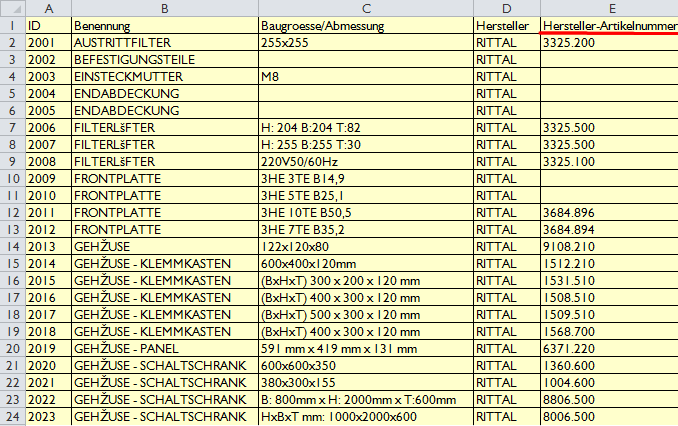
Article number search [Article Number Search] (see Section 1.1.8, “ Part Number Search - Automatic assignment based on the manufacturer's part number (old method) ”):
ID;Benennung;Baugroesse/Abmessung;Hersteller;Hersteller-Artikelnummer 2001;AUSTRITTFILTER;255x255;RITTAL;3325.200 2002;BEFESTIGUNGSTEILE;;RITTAL; 2003;EINSTECKMUTTER;M8;RITTAL; 2004;ENDABDECKUNG;;RITTAL; 2005;ENDABDECKUNG;;RITTAL; 2006;FILTERLÜFTER;H: 204 B:204 T:82;RITTAL;3325.500 2007;FILTERLÜFTER;H: 255 B:255 T:30;RITTAL;3325.500 2008;FILTERLÜFTER;220V50/60Hz;RITTAL;3325.100 2009;FRONTPLATTE;3HE 3TE B14,9;RITTAL; 2010;FRONTPLATTE;3HE 5TE B25,1;RITTAL; 2011;FRONTPLATTE;3HE 10TE B50,5;RITTAL;3684.896 2012;FRONTPLATTE;3HE 7TE B35,2;RITTAL;3684.894 2013;GEHÄUSE;122x120x80;RITTAL;9108.210 2014;GEHÄUSE - KLEMMKASTEN;600x400x120mm;RITTAL;1512.210 2015;GEHÄUSE - KLEMMKASTEN;(BxHxT) 300 x 200 x 120 mm;RITTAL;1531.510 2016;GEHÄUSE - KLEMMKASTEN;(BxHxT) 400 x 300 x 120 mm;RITTAL;1508.510 2017;GEHÄUSE - KLEMMKASTEN;(BxHxT) 500 x 300 x 120 mm;RITTAL;1509.510 2018;GEHÄUSE - KLEMMKASTEN;(BxHxT) 400 x 300 x 120 mm;RITTAL;1568.700 2019;GEHÄUSE - PANEL;591 mm x 419 mm x 131 mm;RITTAL;6371.220 2020;GEHÄUSE - SCHALTSCHRANK;600x600x350;RITTAL;1360.600 2021;GEHÄUSE - SCHALTSCHRANK;380x300x155;RITTAL;1004.600 2022;GEHÄUSE - SCHALTSCHRANK;B: 800mm x H: 2000mm x T:600mm;RITTAL;8806.500 ( 2023;GEHÄUSE - SCHALTSCHRANK;HxBxT mm: 1000x2000x600;RITTAL;8006.500 2024;GEHÄUSE - SCHALTSCHRANK;HxBxT mm: 2000x1200x600;RITTAL;8206.500 2025;GEHÄUSE - SEITENWÄNDE;0 mm x 2.000 mm x 600 mm;RITTAL;8106.235 2026;GEHÄUSE - SOCKEL;Fr Schränke/Pulte:800x100x400;RITTAL;2901.200 2027;GEHÄUSE - STANDPULT;800 mm x 960 mm x 400 mm;RITTAL;2668.500 2028;GEHÄUSE - ZUBEHÖR;706,5 - 1006,6 mm;RITTAL;7063.890 2029;GEHÄUSE - ZUBEHÖR;;RITTAL;6053.300 2030;GEHÄUSE - ZUBEHÖR;600 mm x 800 mm;RITTAL;7828.680 2031;GEHÄUSE - ZUBEHÖR;;RITTAL;2468.000 2032;GEHÄUSE - ZUBEHÖR;;RITTAL;8611.070 2033;GEHÄUSE - ZUBEHÖR;B 25mm;RITTAL;1590.000 2034;GERÄTEADAPTER;"63A; 54mm breit";RITTAL; 2035;GERÄTEADAPTER;72x230;RITTAL; 2036;GERÄTEADAPTER;100A/Baub.90mm;RITTAL; 2037;GEWINDELEISTE;M2,5;RITTAL; 2038;GRIFF FÜR GERÄTEBODEN;;RITTAL; 2039;HALTERABDECKUNG;f.SV3418/27/33;RITTAL; 2040;AUSTRITTFILTER;255x256;RITTAL;3325.200 2041;BEFESTIGUNGSTEILE;;RITTAL; 2042;EINSTECKMUTTER;M9;RITTAL; 2043;ENDABDECKUNG;;RITTAL; 2044;ENDABDECKUNG;;RITTAL; 2045;FILTERLÜFTER;H: 204 B:204 T:83;RITTAL;3325.500 2046;FILTERLÜFTER;H: 255 B:255 T:31;RITTAL;3325.500 2047;FILTERLÜFTER;220V50/60Hz;RITTAL;3325.100 2048;FRONTPLATTE;3HE 3TE B14,10;RITTAL; 2049;FRONTPLATTE;3HE 5TE B25,2;RITTAL; 2050;FRONTPLATTE;3HE 10TE B50,6;RITTAL;3684.892 2051;FRONTPLATTE;3HE 7TE B35,3;RITTAL;3684.890 2052;GEHÄUSE;122x120x81;RITTAL;9108.211 2053;GEHÄUSE - KLEMMKASTEN;600x400x120mm;RITTAL;1512.211 2054;GEHÄUSE - KLEMMKASTEN;(BxHxT) 300 x 200 x 120 mm;RITTAL;1531.511 2055;GEHÄUSE - KLEMMKASTEN;(BxHxT) 400 x 300 x 120 mm;RITTAL;1508.511 2056;GEHÄUSE - KLEMMKASTEN;(BxHxT) 500 x 300 x 120 mm;RITTAL;1509.511 2057;GEHÄUSE - KLEMMKASTEN;(BxHxT) 400 x 300 x 120 mm;RITTAL;1568.701 2058;GEHÄUSE - PANEL;592 mm x 419 mm x 131 mm;RITTAL;6371.221 2059;GEHÄUSE - SCHALTSCHRANK;600x600x351;RITTAL;1360.601 2060;GEHÄUSE - SCHALTSCHRANK;380x300x156;RITTAL;1004.601
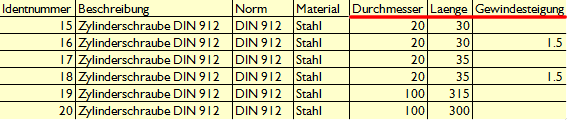
Article mapping search [Article Mapping Search] (see Section 1.1.12, “ Attribute mapping ”):
Identnummer;Beschreibung;Norm;Material;Durchmesser;Laenge;Gewindesteigung
15;Zylinderschraube DIN 912;DIN 912;Stahl;20;30;
16;Zylinderschraube DIN 912;DIN 912;Stahl;20;30;1.5
17;Zylinderschraube DIN 912;DIN 912;Stahl;20;35;
18;Zylinderschraube DIN 912;DIN 912;Stahl;20;35;1.5
19;Zylinderschraube DIN 912;DIN 912;Stahl;100;315;
20;Zylinderschraube DIN 912;DIN 912;Stahl;100;300;
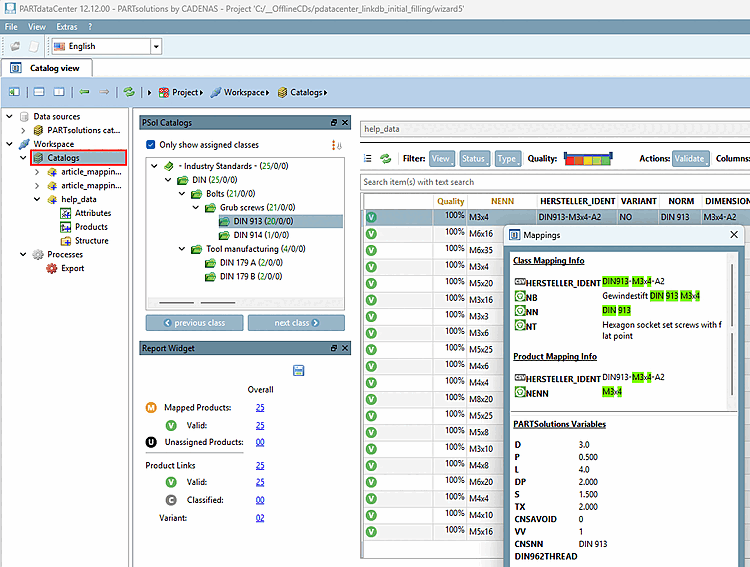
Under Data sources -> PARTsolutions catalogs you can see all the already installed PARTsolutions catalogs.
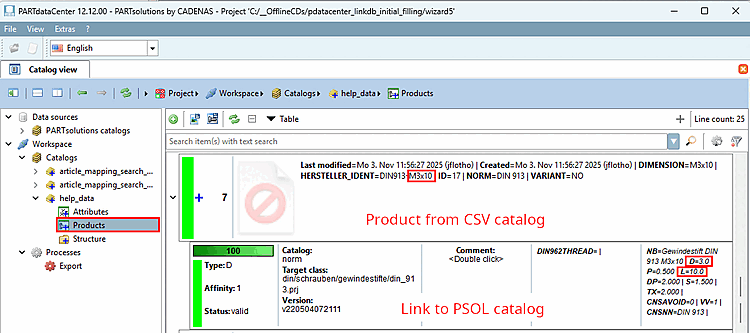
Once the item assignment has been completed, you will see the individual links between the CSV data record and PARTsolutions table row under Products.
The new interface with V12.12 is more convenient. After selecting catalogs, you can see the individual links / mappings in the Mappings docking window.
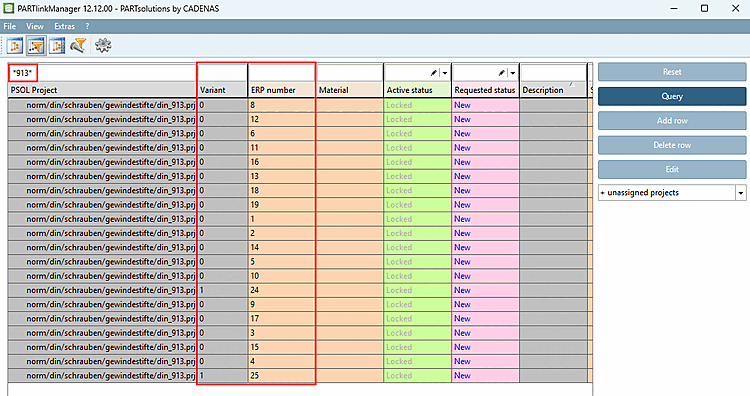
If the links are approved, execute the export into the LinkDB.
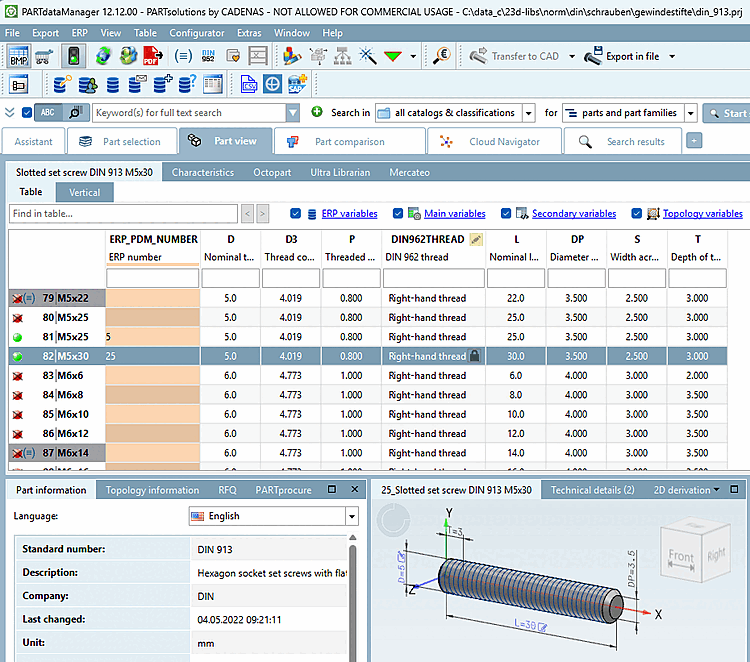
According to the set rules[1] the display takes place in PARTdataManager or 3Dfindit.
Result in PARTdataManager. The example only shows the column of the ERP number. After setting up the LinkDB accordingly, any other information (description, material, price, stock, etc.) from third-party systems can be mapped just as well.
[1] See Section 5.7, “ Set up ERP environment ” in ENTERPRISE 3Dfindit (Professional) - Administration.