1.1.
Article assignment (initial filling of the LinkDB)
1.1.3. Create catalog
from CSV file |  |
| Prev | Next |
1.1.
Article assignment (initial filling of the LinkDB)
1.1.3. Create catalog
from CSV file | |
| Prev | Next |
To be able to conduct assignments/links you have to create a catalog from your CSV data at first.
In the first step you read in a CSV file.
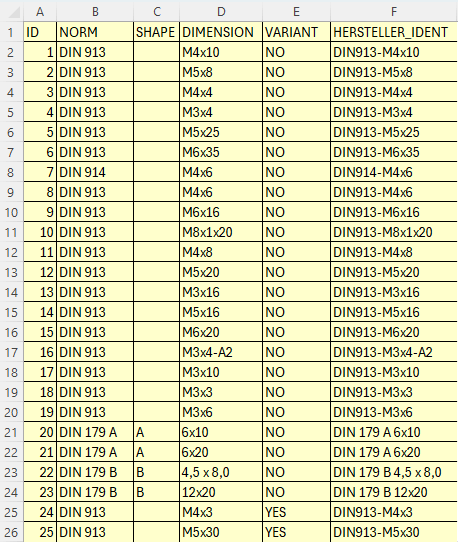
The following illustrations use the following CSV data:
ID;NORM;SHAPE;DIMENSION;VARIANT;HERSTELLER_IDENT
1;DIN 913;;M4x10;NO;DIN913-M4x10
2;DIN 913;;M5x8;NO;DIN913-M5x8
3;DIN 913;;M4x4;NO;DIN913-M4x4
4;DIN 913;;M3x4;NO;DIN913-M3x4
5;DIN 913;;M5x25;NO;DIN913-M5x25
6;DIN 913;;M6x35;NO;DIN913-M6x35
7;DIN 914;;M4x6;NO;DIN914-M4x6
8;DIN 913;;M4x6;NO;DIN913-M4x6
9;DIN 913;;M6x16;NO;DIN913-M6x16
10;DIN 913;;M8x1x20;NO;DIN913-M8x1x20
11;DIN 913;;M4x8;NO;DIN913-M4x8
12;DIN 913;;M5x20;NO;DIN913-M5x20
13;DIN 913;;M3x16;NO;DIN913-M3x16
14;DIN 913;;M5x16;NO;DIN913-M5x16
15;DIN 913;;M6x20;NO;DIN913-M6x20
16;DIN 913;;M3x4-A2;NO;DIN913-M3x4-A2
17;DIN 913;;M3x10;NO;DIN913-M3x10
18;DIN 913;;M3x3;NO;DIN913-M3x3
19;DIN 913;;M3x6;NO;DIN913-M3x6
20;DIN 179 A;A;6x10;NO;DIN 179 A 6x10
21;DIN 179 A;A;6x20;NO;DIN 179 A 6x20
22;DIN 179 B;B;4,5 x 8,0;NO;DIN 179 B 4,5 x 8,0
23;DIN 179 B;B;12x20;NO;DIN 179 B 12x20
24;DIN 913;;M4x3;YES;DIN913-M4x3
25;DIN 913;;M5x30;YES;DIN913-M5x30
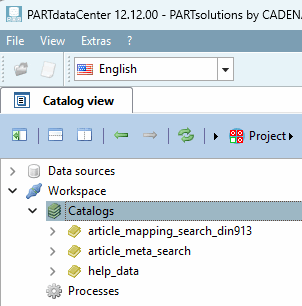
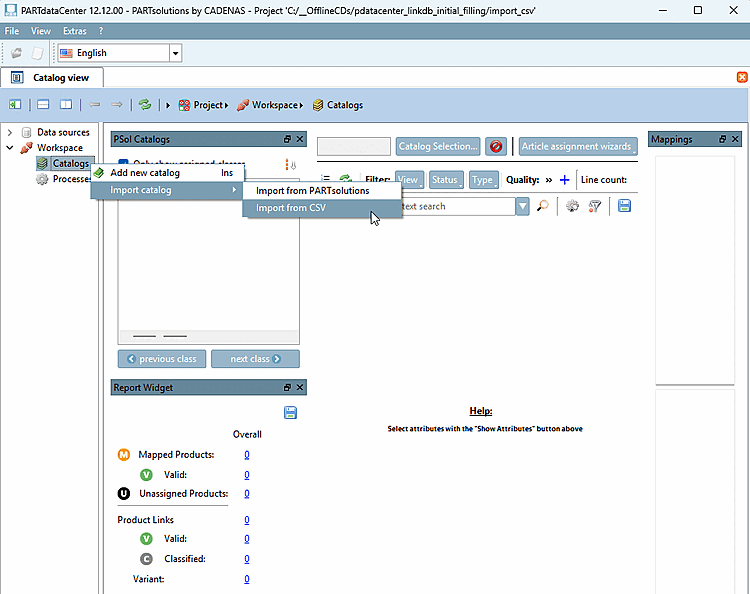
In the context menu of Workspace -> Catalogs -> Import catalog, click Import from CSV.
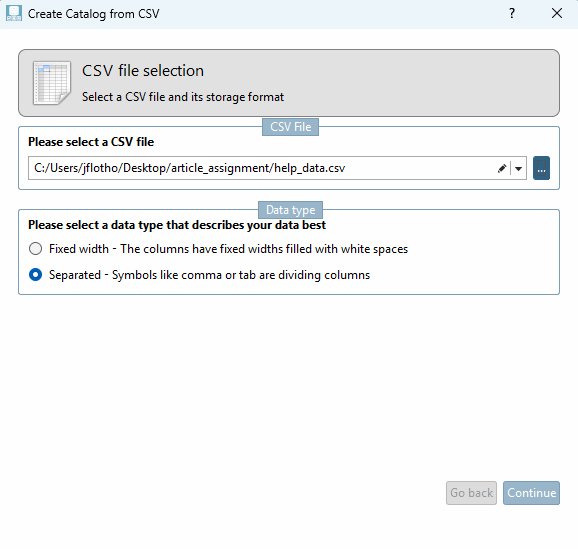
Select the desired CSV file by clicking on the Browse . button.
Determine the data type: Fixed column width or separated by comma for example
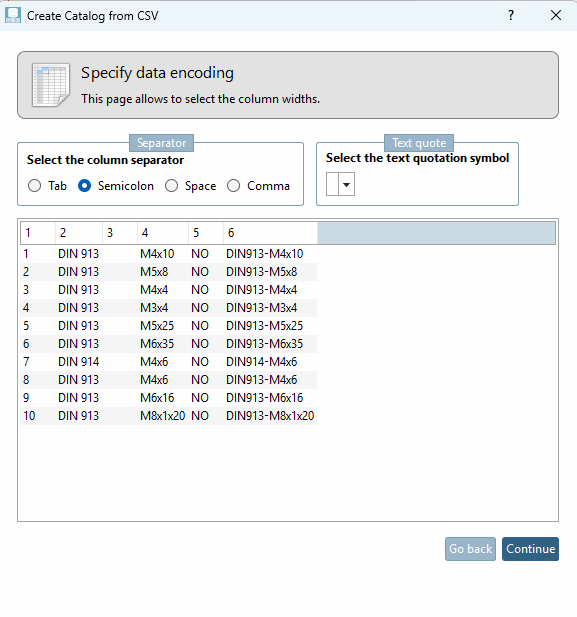
Specify the column separator and optionally a text separator.
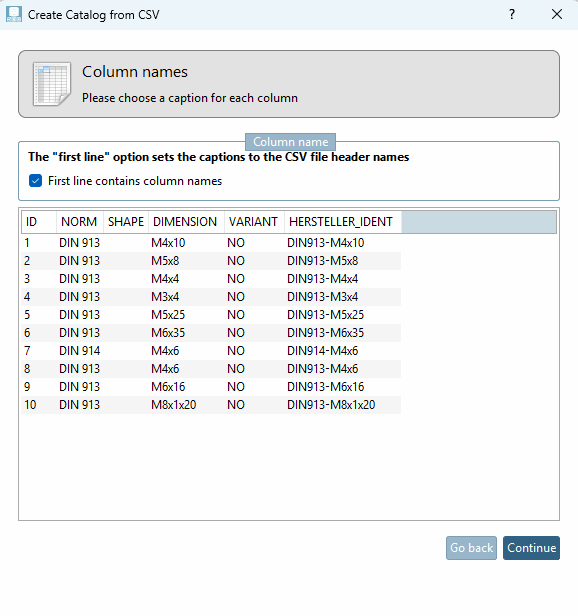
If the first line of the CSV file contains column names, activate the checkbox under Column names can be found in the first line [First line contains column names].
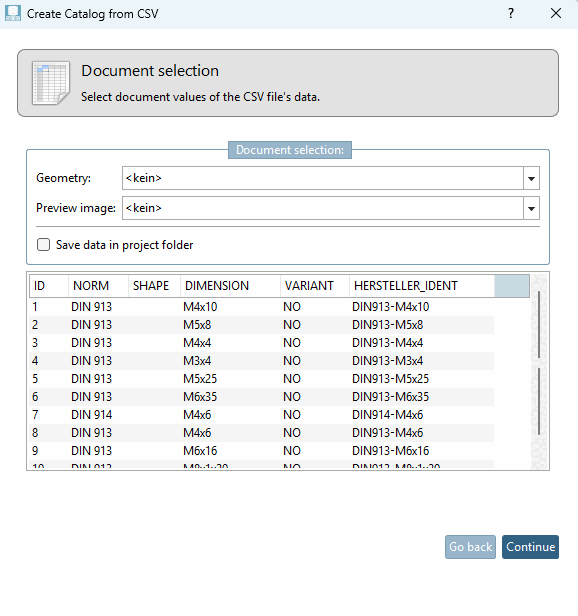
If the CSV file contains paths to geometries and preview images you can optionally choose the respective column name in the list field.
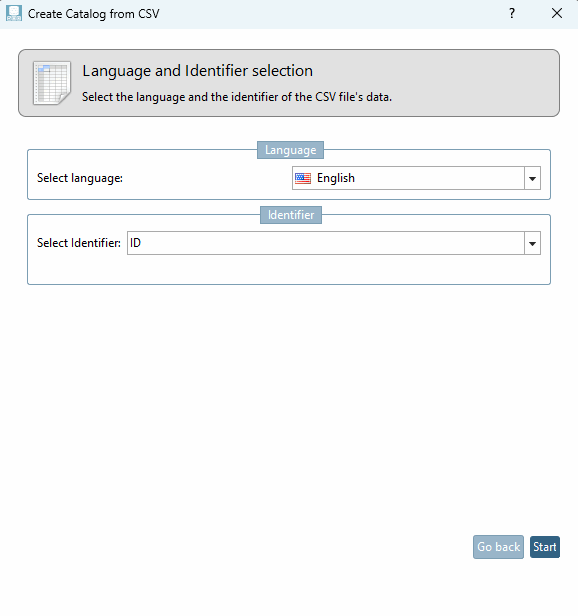
Language and Identifier selection
Determine the language and identifier. As the ident number is absolutely unique, please select this as the identifier.
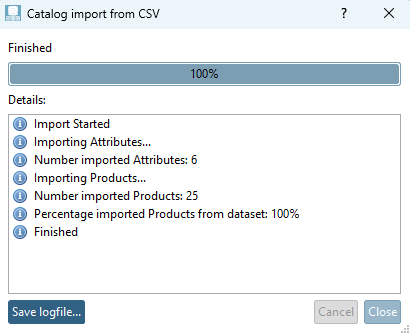
If the import of the CSV file is successful you can see 100% in the progress bar and "Finished" is displayed.
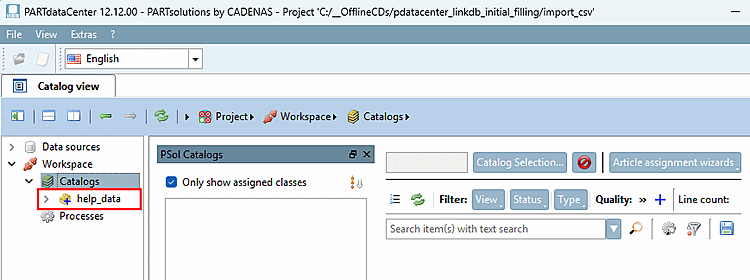
The CSV catalog that has just been imported is now displayed under Workspace -> Catalogs (in this example "help_data").
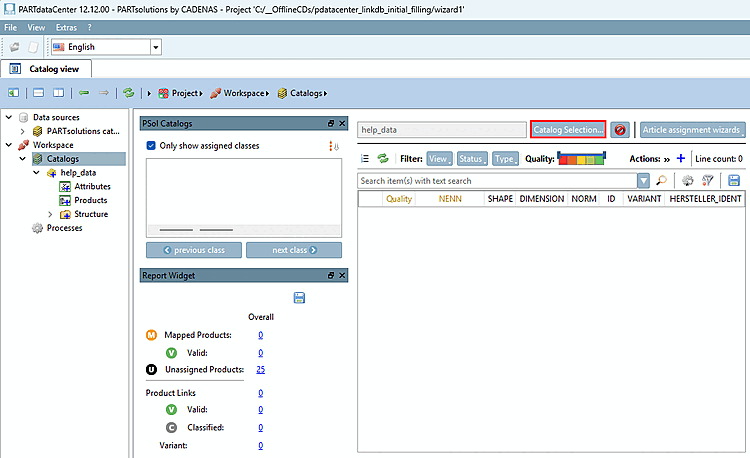
Select Catalogs on the left and click on the
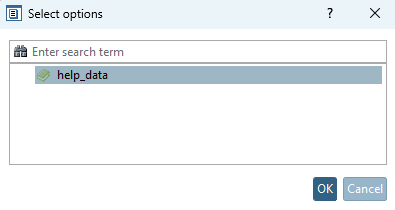
-> The Select options dialog box opens.
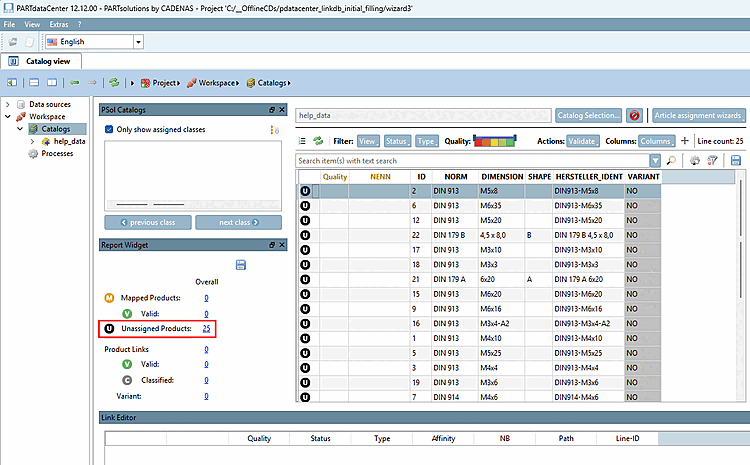
Under Unassigned Products, click on the number (here 25).
-> The CSV data is now displayed.
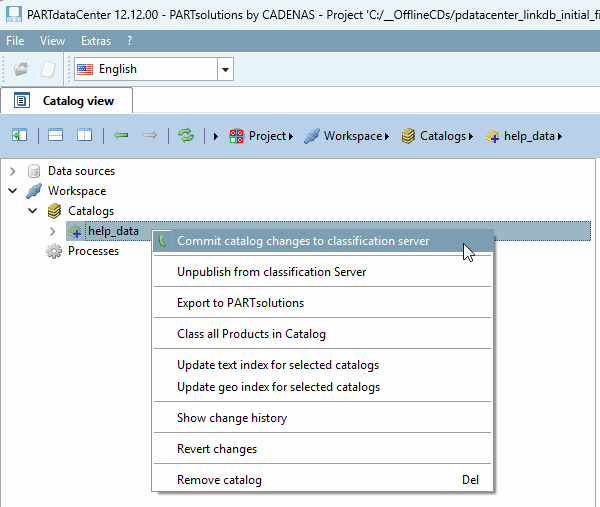
Optional: If you are not working locally, you can now commit your local changes.
Before committing the single items show a blue plus sign.
After committing the single items show a green checkmark.
![[Note]](images/note.png)