1.6.6.
Seamless - Detailed description
1.6.6.1.
Search " tab page
|  |
| Prev | Next |
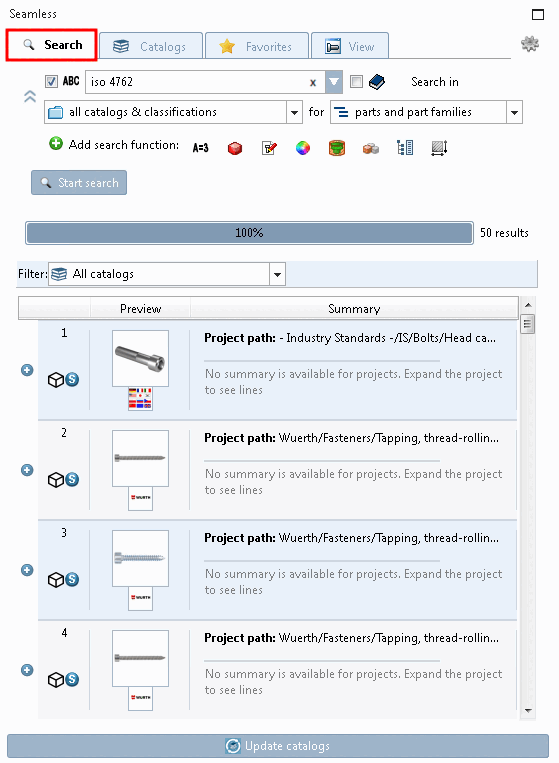
The setting options on the Search tab page are explained below:
With the "Search in all catalogs & classifications " option, you will not miss any possible hits, but you will have less of an overview.
With the option "Search in current selection " you may save yourself the trouble of filtering afterwards.
Select one of the following options from the list box:
all catalogs classifications [all catalogs classifications] (this is the default setting. In principle, there is nothing to be said against simply leaving it as it is)
Current selection is useful if you only want to search in a specific directory of a catalog or a specific catalog.
The value under Search in [Search in] changes analogously to the selected directory/catalog in the index tree. If you remain within a directory or catalog during index browsing, there is no change under Search in [Search in], i.e. the search always takes place in the directory/catalog that is currently selected in the index tree. Only when you change the directory or catalog during index browsing is the new selection set under Search in [Search in].
You can also select multiple directories or catalogs in the index tree. Multiple selection with the Ctrl key.
Fixed selection is useful, for example, if the search part in a geometric search is in a different catalog than the parts to be searched or if you already know that you will be searching this directory or catalog more often in the near future.
When you select a list field, it is fixed to the directory or catalog selected at that moment.
The display under Search in remains unchanged if you change the selection in the index tree. Only a new selection in the list field changes or removes the fixation.
User-defined selection... [Custom selection...]
For details, see Section 2.1.6.2, “ Custom selection... ”
Select one of the two options in the list field under Search for:
Search for  Individual parts [parts]
Searching for individual parts only makes sense if a result does not have too many lines. This is either because it only has a few rows or because the search has already filtered out rows. This is automatically the case with geometric searches (3D) [Geometric search (3D)] or with topology searches [Topology search] with specification of, for example, size or with full text searches [Full-text search] with additional specification of variable values.
Example for full text search [Full-text search]:
sechskantschraube 10 50
Search for  Part families and individual parts [parts and part families]
If you do not specify the search in the first step, this option is more favorable.
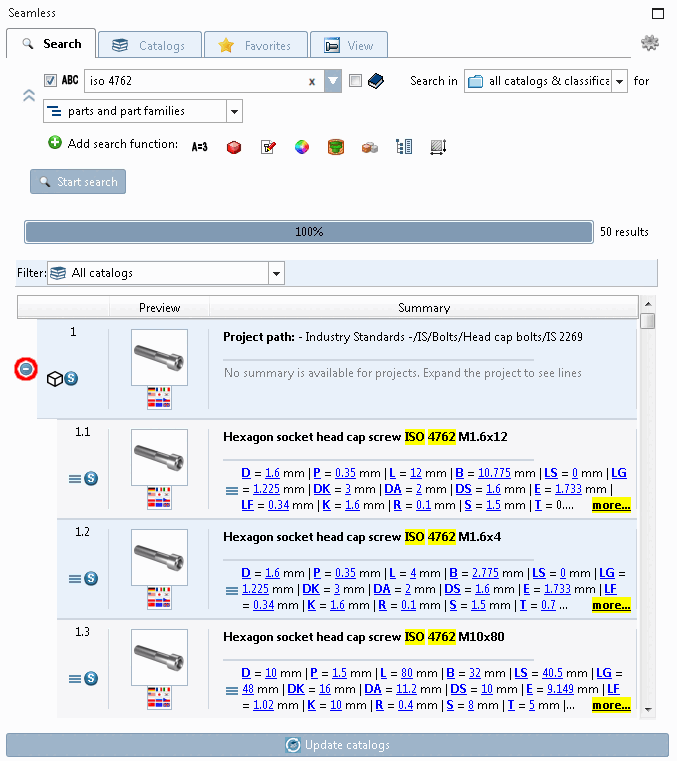
In this mode, you have access to both the part families and the characteristics within them. The results list is initially displayed in compressed form with part families only. However, if you click on the  -Button for a result part, all specific characteristics found are displayed below.
Full text search [Full-text search] with the following search term:
Sechskantschraube
You can then determine the characteristic in a further step. Double-click on an individual part to open it on the View Tabbed page, see Section 1.6.6.4, “ View " tab page - Variables in list view or table view | View | Technical specifications | 2D derivation | References | Topology ”.
There are basically two options: A manual search of the directory structures or the use of automated search methods.
Manual search of the directory structures:
Switch to the Catalogs Tabbed page. You can find detailed information on this at Section 1.6.6.2, “ Catalogs " tab page”.
Automated searching of directory structures using full text search [Full-text search].

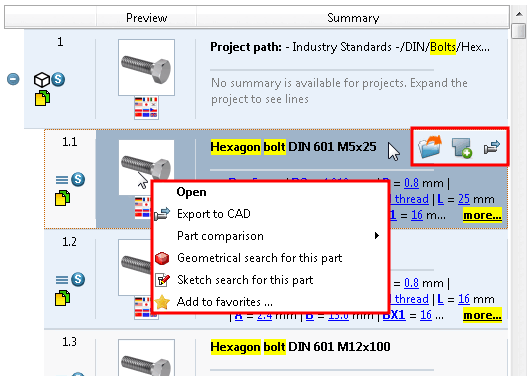
| Open: |
The view switches to the View tab page (alternatively, you can also double-click) See Section 1.6.6.4, “ View " tab page - Variables in list view or table view | View | Technical specifications | 2D derivation | References | Topology ”. At the level of the parts family, a middle line is initially displayed; at the level of the individual parts, the desired individual part is displayed.The command is available as a button and in the context menu. |


| Add to component comparison [Add to part compare] |
The Component comparison [Part comparison] dialog window opens and the seamless [Seamless] dialog area is now displayed in a window together with the component comparison [Part comparison]. As soon as the component comparison [Part comparison] is closed, the original seamless display [Seamless] is shown again.[a] Detailed information on component comparison [Part comparison] can be found under Section 2.1.6.10, “ Part comparison ”. The command is available as a button and in the context menu. |

| Transfer to CAD [Export to CAD]: |
The part is transferred directly to CAD. The placement dialog opens (see Section 1.6.2, “ Insert from the standard and purchased parts library via "PARTdataManager"”). The command is only available for individual parts (characteristics), not for part families. The command is available as a button and in the context menu. |

| Add to favorites... [Add to favorites ...] |
Save frequently used parts as favorites. See also Section 1.6.6.3, “ Favorites " tab page”. The command is available both at part family level and at individual part level. |
[a] Whether Seamless should be displayed to the left or right of the component comparison [Part comparison] can be set in the configuration file. See Seamless - Component comparison | Right-left setting. | ||
In
Depending on the listing of individual parts [Show parts]
 or part families and individual parts setting
list [Show parts and part families]
or part families and individual parts setting
list [Show parts and part families]
 the access to the individual parts
different. Whether the parent project (single part or assembly)
or a specific expression can be recognized by the corresponding
Icon:
the access to the individual parts
different. Whether the parent project (single part or assembly)
or a specific expression can be recognized by the corresponding
Icon:
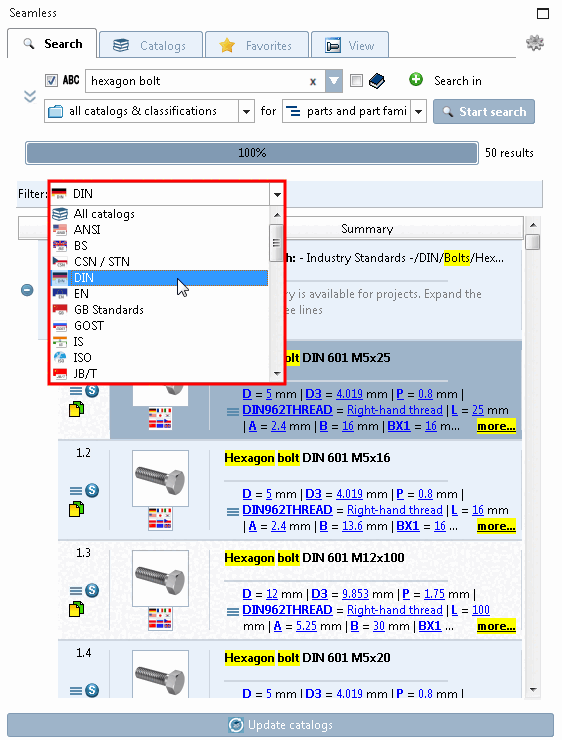
Narrow down search results with catalog filter
A catalog filter [Catalog filter] is displayed after a full text search [Full-text search] or variable search [Variables search]. If hits are obtained across several catalogs, you can subsequently restrict the results to a specific catalog.
The filter is reset after each new search.
For more than 50 results[16] the button will appear at the bottom of the As a rule, the desired results are among the first hits. If you still want to see more results, successively click on ... or
[16] If you want to change the default setting, click on the button at the bottom right and select the General tab.