2.1.6.
Search and Part Selection
2.1.6.2.
Custom selection...
|  |
| Prev | Next |
It is possible to use and save your own search templates for the full-text search [Full-text search] so that they are immediately available again at a later time.
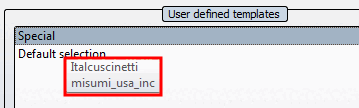
In addition, you can also define a default selection [Default selection] that is automatically displayed when you start PARTdataManager is automatically displayed under Search in.
Create and save search templates
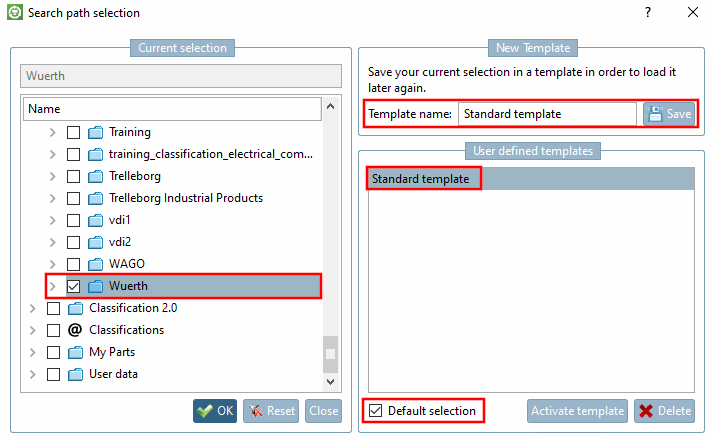
Under Search [Search in], select the list item User-defined selection.... [Custom selection...]
-> The Search path selection dialog box opens.
Activate any of the displayed selection options for the full text search [Full-text search] in the left-hand dialog area Current selection by ticking the box.
Enter a name under Template name and click to the right of it. Alternatively, you can also use the Return key.
-> The template is now displayed under User-defined templates [User defined templates].
Close the dialog by pressing . Alternatively, you can also use the Return key.
| ||||
In the list box (open with arrow), click on User-defined selection [Custom selection...]... to open the Search path selection dialog box.
Select a template on the right in the Custom templates [User defined templates] area and click .
-> The corresponding selections are now displayed again in the left-hand main window Current selection. If necessary, modify them and save the selection again as a template.
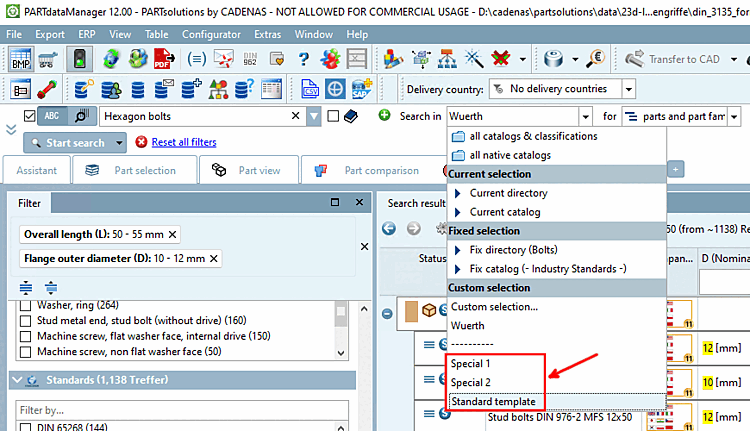
Already saved templates are displayed in the list field under the separator and can thus be directly selected.
![Full text search [Full-text search] with user-defined template](resources/img/img_52f1dee8b9b2404c8b2fb526078bda08.png)
![[Tip]](images/tip.png)
![[Note]](images/note.png)