1.7.7.2.2. Tweak
PARTdataManager user interface 1.7.7.2.2.2. menuvisibility_PARTdataManager.cfg |  |
| Prev | Next |
1.7.7.2.2. Tweak
PARTdataManager user interface 1.7.7.2.2.2. menuvisibility_PARTdataManager.cfg | |
| Prev | Next |
The menuvisibilty configuration file controls the visibility of menu items, buttons and context menu commands.
You can create different modes. Each mode contains a specific amount of actions = UI elements.
There are two levels by default:
Specification of the different modes
In the block [COMMON] the different modes are defined.
By default, these are Beginner and Professional.[46]
[COMMON]
MODE_BEGINNER=Beginner
MODE_PROFESSIONAL=Professional
Each mode (key) stated in the block [Common] requires a same-named block, which contains the desired actions.
[MODE_BEGINNER]
ViewPart=true
View2D=true
ExtrasPARTbom=true
etc.

[MODE_PROFESSIONAL]
ViewPart=true
View2D=true
ExtrasPARTbom=true
etc.
The explanations use the terms "key name" and "action name" synonymously.
The value range of keys is true (element visible) or false (element hidden).
If a key is missing in the list, then the state of visibility is "false".
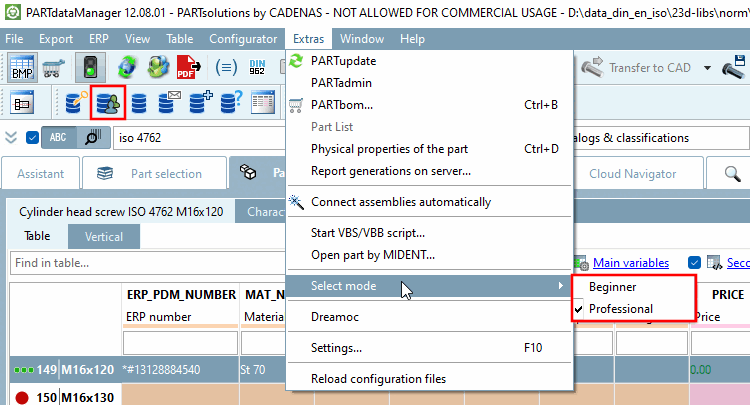
The desired mode is selected in PARTdataManager under Extras menu [Extras] -> Select mode. The default mode is defined in $CADENAS_DEFAULTUSER/partsolu.cfg -> Block [TWEAKMENU] -> Key "PARTdataManager_Mode" or "PARTproject_Mode". If the ModePreferences key is set to true in the relevant block, the corresponding menu item is displayed.
If you select Beginner mode, you will see a smaller number of functions (menu items, buttons, context menu commands) in the user interface.
The selected mode shows a checkmark.
If ERP is available then the display of UI elements can be designed role-dependent (in addition).
In order to avoid redundant settings the declaration of the elements happens in two levels:
At first all needed roles are assigned to types.
[ROLES]
DUMMY=TYP_A
LOC1=TYP_B
LOC2=TYP_A
LOC3=TYP_A
etc.
In a second step the desired actions (elements) are stated in the respective [TYP_] block.
[TYP_A]
MODE_BEGINNER=false
MODE_PROFESSIONAL=false
Bugreport_Clicked=true
din962=true
ShowHideAvoidPartsButton=true
prefcatalogs=true
StartupPageClicked=true
List view of parameters=true
Table view of parameters=true
etc.
[TYP_B]
MODE_BEGINNER=false
MODE_PROFESSIONAL=false
Bugreport_Clicked=true
din962=true
ShowHideAvoidPartsButton=true
prefcatalogs=true
StartupPageClicked=true
List view of parameters=true
Table view of parameters=true
etc.
If there is information in two different, valid blocks, then the information is merged.
![[Tip]](images/tip.png) | Tip |
|---|---|
Scroll through the section and have a look on the figures. In connection with the figures you can find the corresponding action names. Please also read the general information on using the Config Editor under User interface at a glance and Full text search. | |
The following shows figures of menus and toolbars with contained menu items and buttons. The corresponding action names (key names) can be found in connection with the respective figures.
In the following you can find a listing of the single functions with connected action name (key name):
| Icon | Display text or tooltip | Action name (key name) in menuvisibility_PARTdataManager.cfg
|
Occurrence in menu and toolbar (Corresponding specification under |
| Open | FileMenuContent | ||
| Save template as... | FileMenuContent | ||
|
see hasSubMenuAction [hasSubMenuAktions] AktionRecentFilesListName=
| FileMenuContent and actionRecentFilesListName | ||
| Exit | FileMenuContent |
The structure is created in the configuration file menustructure_PARTdataManager.cfg.
In the following you can find a listing of the single functions with connected action name (key name):
| Icon | Display text or tooltip | Action name (key name) in menuvisibility_PARTdataManager.cfg
|
Occurrence in menu and toolbar (Corresponding specification under | ||||
| ExportMenuContent | |||||||
| Transfer to CAD [Export to CAD] (submenu item) | ExportMenuContent and ExportToolbarContent | ||||||
| Not used | |||||||
| ExportToolbarContent and ExportMenuContent | ||||||
| currently not used | |||||||
| As native file | ExportMenuContent | ||||||
| ExportMenuContent | |||||||
| ExportFileMenuStatic | ExportMenuContent | ||||||
The structure is created in the configuration file menustructure_PARTdataManager.cfgfor menu see here, for toolbar see here.
In the following you can find a listing of the single functions with connected action name (key name):
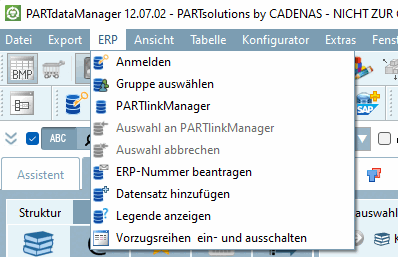
| Icon | Display text or tooltip | Action name (key name) in menuvisibility_PARTdataManager.cfg
|
Occurrence in menu and toolbar (Corresponding specification under |
|
| LinkDbLogin | LinkDatabaseToolbarContent and ErpMenuContent | |
|
| LinkDbChangeGroup | LinkDatabaseToolbarContent and ErpMenuContent | |
|
| CallLinkMgr | LinkDatabaseToolbarContent and ErpMenuContent | |
|
| LinkDbBackToMgr | LinkDatabaseToolbarContent and ErpMenuContent | |
|
| LinkDbCancelBackToMgr | LinkDatabaseToolbarContent and ErpMenuContent | |
|
| LinkDbSendMail | LinkDatabaseToolbarContent and ErpMenuContent | |
|
| LinkDbAddToDb | LinkDatabaseToolbarContent and ErpMenuContent | |
|
| LinkDbShowLegend | LinkDatabaseToolbarContent and ErpMenuContent | |
|
| LinkDbFilteronoff | LinkDatabaseToolbarContent and ErpMenuContent | |
|
| PreferredRanges | LinkDatabaseToolbarContent and ErpMenuContent | |
|
| LinkDbClassify | LinkDatabaseToolbarContent and ErpMenuContent |
| ||||
In the following you can find a listing of the single functions with connected action name (key name):
| Icon | Display text or tooltip | Action name (key name) in menuvisibility_PARTdataManager.cfg
|
Occurrence in menu and toolbar (Corresponding specification under |
|
| erp_psol_mm_vars | LinkDatabaseToolbarContent and ErpMenuContent | |
|
| Set the sorting order for currently opened project | SORTTABLE | LinkDatabaseToolbarContent and ErpMenuContent |
|
| erp_dbedit | LinkDatabaseToolbarContent and ErpMenuContent | |
|
| show_dbdata | LinkDatabaseToolbarContent and ErpMenuContent |
The structure is laid out in the
Configuration file menustructure_PARTdataManager.cfg:
Menu: See Section 1.7.7.2.2.1.1.1, “Menus”
Toolbar: See Section 1.7.7.2.2.1.1.2, “Toolbars”
| ||||
In the following you can find a listing of the single functions with connected action name (key name):
| Icon | Display text or tooltip | Action name (key name) in menuvisibility_PARTdataManager.cfg
|
Occurrence in menu and toolbar (Corresponding specification under |
|
| SAP MM creation | sap or erp_sap_showdis | LinkDatabaseToolbarContentor AddSapToolbarContent |
|
| Change material | ChangeMatButton | LinkDatabaseToolbarContent |
|
| Display material | DisplayMatButton | LinkDatabaseToolbarContent |
|
| Search material | SearchMatButton | LinkDatabaseToolbarContent |
The structure is created in the configuration file menustructure_PARTdataManager.cfgsee LinkDatabaseToolbarContent or AddSapToolbarContent.
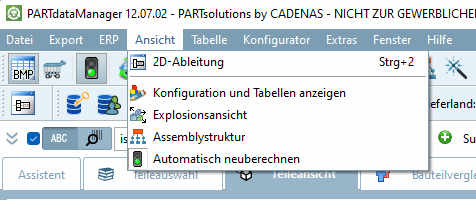
View Menu / Views Toolbar / Assembly Toolbar / Standard [Default] Toolbar
In the following you can find a listing of the single functions with connected action name (key name):
| Automatic recalc on/off | |||
| Display / hide options for DIN 962 standards | |||
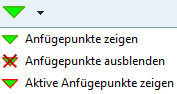
| Show/hide parts that should be avoided |
The functional control takes place in partsol.cfg -> Block [EOLService]. | ||
| Vote for catalogs | |||
| First steps | |||
| PARTsolutions User Portal | |||
| PDF Datasheet | |||
| "End of Life" for lines | |||
| storage area |
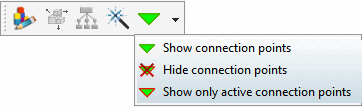
The structure is created in the configuration file menustructure_PARTdataManager.cfgsee Views Toolbar / View Menu / Extras Menu / Assembly Toolbar / Standard Toolbar.
In the following you can find a listing of the single functions with connected action name (key name):
The structure is laid out in the
Configuration file menustructure_PARTdataManager.cfg.
See Section 1.7.7.2.2.1, “menustructure_PARTdataManager.cfg”.
In the following you can find a listing of the single functions with connected action name (key name):
The structure is laid out in the
Configuration file menustructure_PARTdataManager.cfg.
See Section 1.7.7.2.2.1, “menustructure_PARTdataManager.cfg”.
In the following you can find a listing of the single functions with connected action name (key name):
| Icon | Display text or tooltip | Action name (key name) in menuvisibility_PARTdataManager.cfg
|
Occurrence in menu and toolbar (Corresponding specification under |
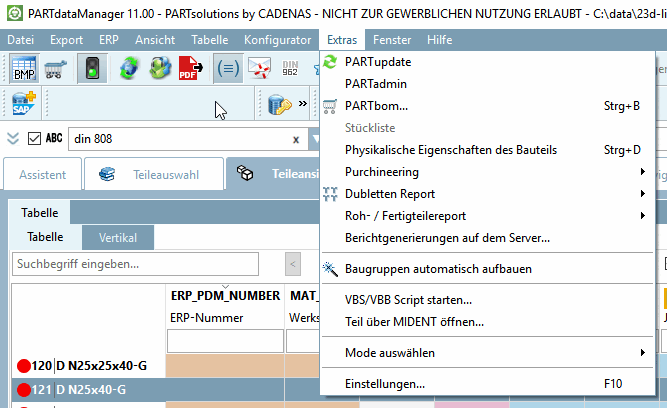
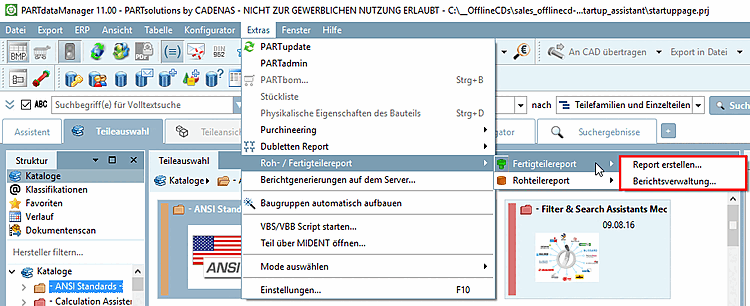
| PARTupdate | |||
| PARTadmin | |||
| PARTbom... | |||
| Bill of material | |||
| currently not used | ExtrasPARTbomSelected | ||
| Physical properties of the part | |||
| Purchineering |
To control sub-items, see below. |
| |
| Duplicates Report |
For control of sub-items, see below. |
| |
| Unmachined / Finished part report |
For control of sub-items, see below. |
| |
| Report generations on server... | ExtrasServerJobList | ||

| SunglassExport | ||
| Connect assemblies automatically | |||
| Start VBS/VBB script... | |||
| Open part by MIDENT | |||
| Select mode | ModePreferences | ||
| Settings... |
The structure is created in the configuration file menustructure_PARTdataManager.cfg.
Submenus of Purchineering ,Duplicate Report [Duplicates Report] and Raw / Finished Parts Report [Unmachined / Finished part report]
In order to provide submenus the block [hasSubMenuAktions] is used.
The sub-items of the Purchineering menu item are created in the configuration file menustructure_PARTdataManager.cfg
in the configuration file in the block [hasSubMenuAktions]. See Section 1.7.7.2.2.1.2, “
Block
[hasSubMenuActions]
”.
| Icon | Display text or tooltip | Action name (key name) in menuvisibility_PARTdataManager.cfg
|
Occurrence in menu and toolbar (Corresponding specification under |

|
Make-or-buy report [Make-or-Buy Report] -> Create report [Create report...].. | see[hasSubMenuActions] | |

| Find suppliers -> Create report [Create report...].. | see[hasSubMenuActions] | |

| Cost Mockup [Cost mockup] -> Create report [Create report...].. | see[hasSubMenuActions] | |

| Supplier locations [Supplier branches] -> Create report [Create report...].. | see[hasSubMenuActions] | |

| Kanban report [Kanban Report] -> Create report [Create report...].. | see[hasSubMenuActions] |
| Icon | Display text or tooltip | Action name (key name) in menuvisibility_PARTdataManager.cfg
|
Occurrence in menu and toolbar (Corresponding specification under |
|
|
Make-or-buy report [Make-or-Buy Report] -> Report management [Report management...].. | see[hasSubMenuActions] | |
|
| Find suppliers -> Report management [Report management...].. | see[hasSubMenuActions] | |
|
| Cost Mockup [Cost mockup] -> Report management [Report management...].. | see[hasSubMenuActions] | |
|
| Supplier locations [Supplier branches] -> Report management [Report management...].. | see[hasSubMenuActions] | |
|
| Kanban Report -> Report management [Report management...].. | see[hasSubMenuActions] |
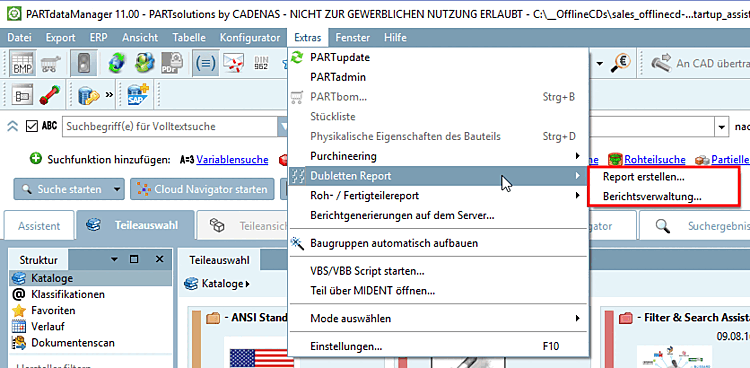
Submenus of "Create report [Create report...]..." and " Report management. [Report management...].."
The sub-items of the menu item Duplicate report [Duplicates Report] are created in the configuration file menustructure_PARTdataManager.cfg
in the block [hasSubMenuAktions]. See Section 1.7.7.2.2.1.2, “
Block
[hasSubMenuActions]
”.
| Icon | Display text or tooltip | Action name (key name) in menuvisibility_PARTdataManager.cfg
|
Occurrence in menu and toolbar (Corresponding specification under |
|
Duplicate report [Duplicates Report] -> Create report [Create report...].. | see[hasSubMenuActions] | ||
|
Duplicate report [Duplicates Report] -> Report management [Report management...].. | see[hasSubMenuActions] |
Submenus of Unmachined / Finished part report
The sub-items of the menu item Raw / finished part report [Unmachined / Finished part report] are created in the configuration file menustructure_PARTdataManager.cfg
in the configuration file in the block [hasSubMenuAktions]. See Section 1.7.7.2.2.1.2, “
Block
[hasSubMenuActions]
”.
| Icon | Display text or tooltip | Action name (key name) in menuvisibility_PARTdataManager.cfg
|
Occurrence in menu and toolbar (Corresponding specification under |

|
Finished parts report [Finished part report] -> Create report [Create report...].. | see[hasSubMenuActions] | |

|
Report on raw parts [Unmachined part report] -> Create report [Create report...].. | see[hasSubMenuActions] |
| Icon | Display text or tooltip | Action name (key name) in menuvisibility_PARTdataManager.cfg
|
Occurrence in menu and toolbar (Corresponding specification under |
|
|
Finished parts report [Finished part report] -> Report management [Report management...].. | see[hasSubMenuActions] | |
|
|
Report on raw parts [Unmachined part report] -> Report management [Report management...].. | see[hasSubMenuActions] |
In the following you can find a listing of the single functions with connected action name (key name):
The structure is created in the configuration file menustructure_PARTdataManager.cfg.
In the following you can find a listing of the single functions with connected action name (key name):
| Icon | Display text or tooltip | Action name (key name) in menuvisibility_PARTdataManager.cfg
|
Occurrence in menu and toolbar (Corresponding specification under |
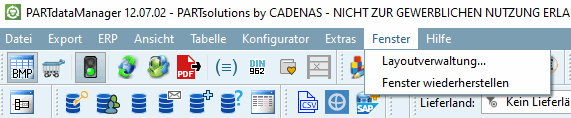
| Manage views | LayoutMenuContent | ||
| Recover standard | LayoutMenuContent |
The structure is created in the configuration file menustructure_PARTdataManager.cfg.
In the following you can find a listing of the single functions with connected action name (key name):
The structure is created in the configuration file menustructure_PARTdataManager.cfg.
Below you will find a list of the individual functions with the action name (key name):
| Icon | Display text or tooltip | Action name (key name) in menuvisibility_PARTdataManager.cfg
|
Occurrence in menu and toolbar (Corresponding specification under |
| ct_add_class | ClassificationToolbarContent | ||
| Remove class | ct_delete_class | ClassificationToolbarContent | |
| ct_edit_class | ClassificationToolbarContent | ||
| ct_move_class | ClassificationToolbarContent | ||
| ct_add_datasets | ClassificationToolbarContent | ||
| ct_delete_datasets | ClassificationToolbarContent | ||
| ct_edit_dataset | ClassificationToolbarContent | ||
| ct_move_datasets | ClassificationToolbarContent | ||
| ct_copy_dataset | ClassificationToolbarContent | ||
| ct_edit_views | ClassificationToolbarContent | ||
| ct_batch_update | ClassificationToolbarContent | ||
| ct_move_geomsearch | ClassificationToolbarContent | ||
| ct_update_tool | ClassificationToolbarContent | ||
| ct_create_classification | ClassificationToolbarContent |
The structure is created in the configuration file menustructure_PARTdataManager.cfg.
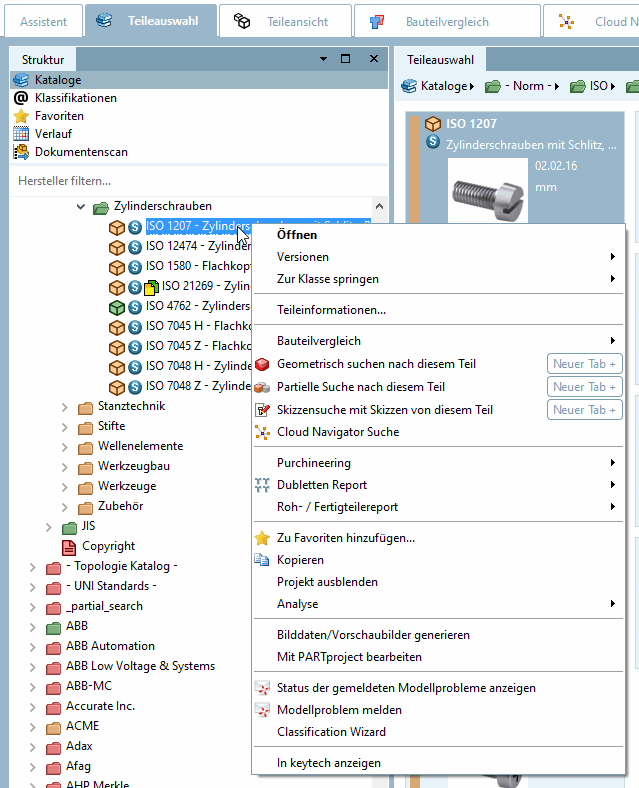
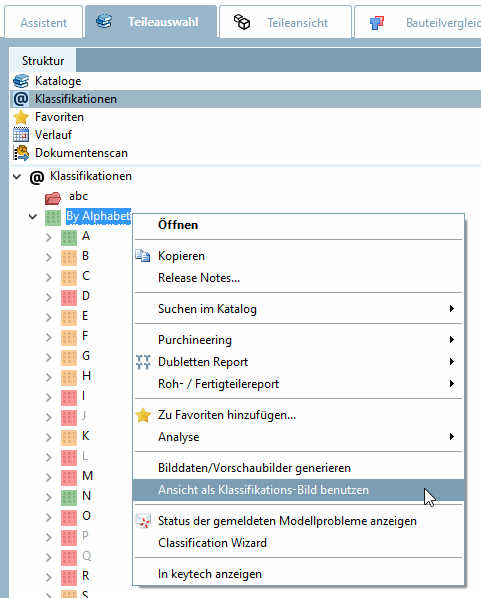
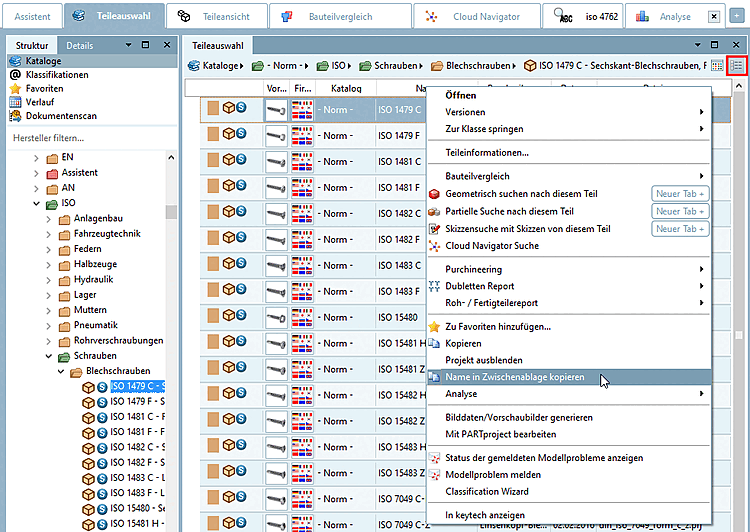
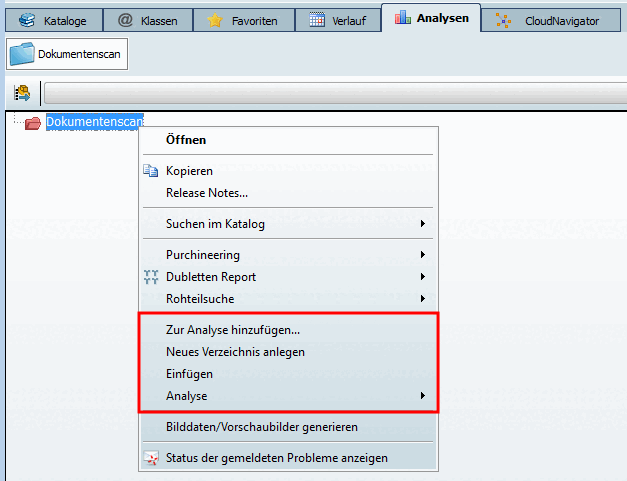
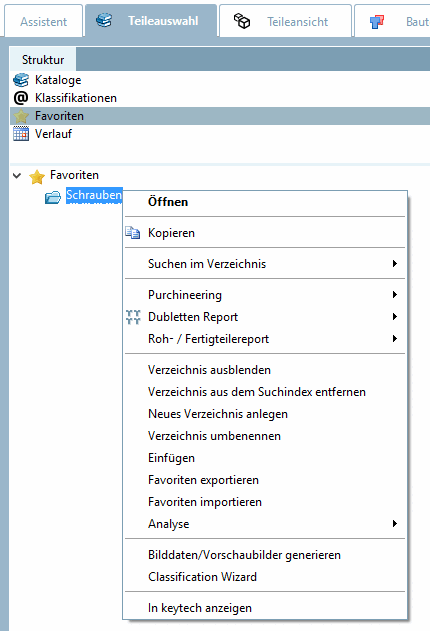
In this section you will find PARTdataManager Action names for context menu commands.
![[Note]](images/note.png) | Note |
|---|---|
All action names of context menu commands begin with the string "IndexTree ". The structural creation of all context menu commands takes place under You can change the visibility of commands (menu item, button, context menu command) in the configuration file | |
| Tip |
|---|---|
Scroll through the section and have a look on the figures. In connection with the figures you can find the corresponding action names and so the respective action names. Please also read the general information on using the Config Editor under User interface at a glance and Full text search. | |
General commands in different contexts:
Additional context menu commands Favorites
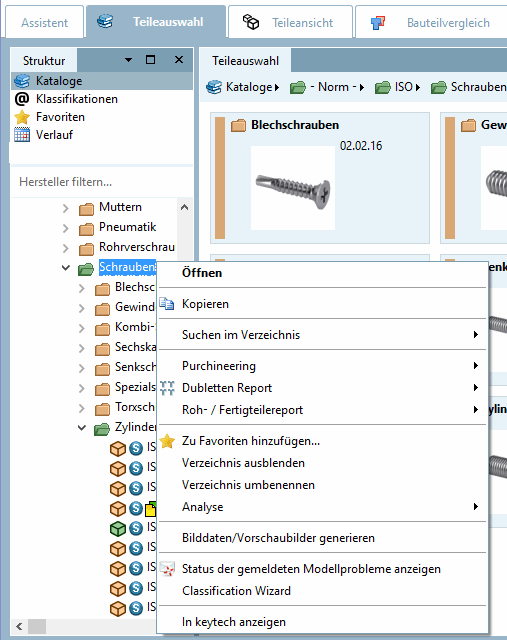
Search in the directory [Search in directory]:
Additional context menu commands at project level: /Component [Part comparison] comparison:
Subitems of @ Classifications:
| Icon | Display text or tooltip | Action name (key name) in menuvisibility_PARTdataManager.cfg
|
|
This action is only available in developer mode. See Section 1.7.3.3.3.1, “ Key "IsAdmin" - User mode ”. | ||
|
This action is only available in developer mode. See Section 1.7.3.3.3.1, “ Key "IsAdmin" - User mode ”. |
[46] You can expand the number of modes at any time. To do this, simply add a new key in the [COMMON] block and then set up the corresponding blocks with the actions.
!["File [File] " menu](resources/img/img_a3a3b8935c4b4229ab471635d9973516.png)


!["Export [Export] " menu](resources/img/img_b9f414551af4407aa0c8befca123216a.png)
!["Export [Export] " toolbar: "Transfer to CAD [Export to CAD] " with sub-items](resources/img/img_fe5d607b1beb481f910cecd436abd98d.png)
!["Export [Export] " toolbar: "Export to file [Export in file] " with sub-items](resources/img/img_28af1bbe2562401f842ede7a28c8ff7b.png)





![ViewsToolbar [Views]](resources/img/img_1be5f5ea1d824d5294609bcaf772d38b.png)
![Standard [Default] toolbar](resources/img/img_8382a8b90ad849c88c938a3b9fc92e97.png)




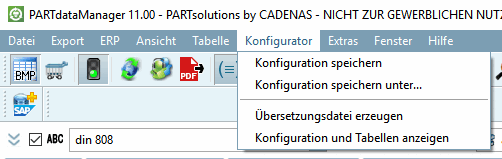
![Menu table [Table]](resources/img/img_d345c559aacc42358ac68275ec76cc6a.png)



![Submenus of "Create report [Create report...]..." and " Report management. [Report management...].."](resources/img/img_8cf7fd1795784fe484005fc175da4190.png)
![Toolbar details [Details]](resources/img/img_0442f749a49a4e41bf465a49d5173c17.png)







![Toolbar "Display modes [View modes] "](resources/img/img_8dd80d2e2e464f2ca1a734aff7195f0b.png)




![Context menu "Search in directory [Search in directory] "](resources/img/img_8fde17692a5c49dd8a8a7d6f21709be7.png)