7.11. Docking window "2D
derivation " - Create your own combination views (*.dw)
7.11.2. Edit combination
views in edit mode
|  |
| Prev | Next |
7.11. Docking window "2D
derivation " - Create your own combination views (*.dw)
7.11.2. Edit combination
views in edit mode
| |
| Prev | Next |
In the 2D derivation, you can edit and save the combination views [Combination views] in edit mode [Edit mode]. To do this, you must be in admin mode (recognizable by the PARTdataManager in the status bar at the bottom right).[107]
![[Note]](images/note.png) | Note |
|---|---|
If a sitesetup directory is active in addition to the setup directory, the changes made in edit mode [Edit mode] are saved there in a file with the same name. | |
The most effective way is to use a similar template (.dw file) and copy it to file level. The desired adjustments can then simply be made in edit mode [Edit mode].
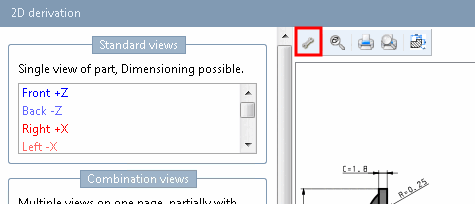
Click on the respective toolbar icon.
-> The toolbar is expanded with the following functions:
The same commands are found in context menu.
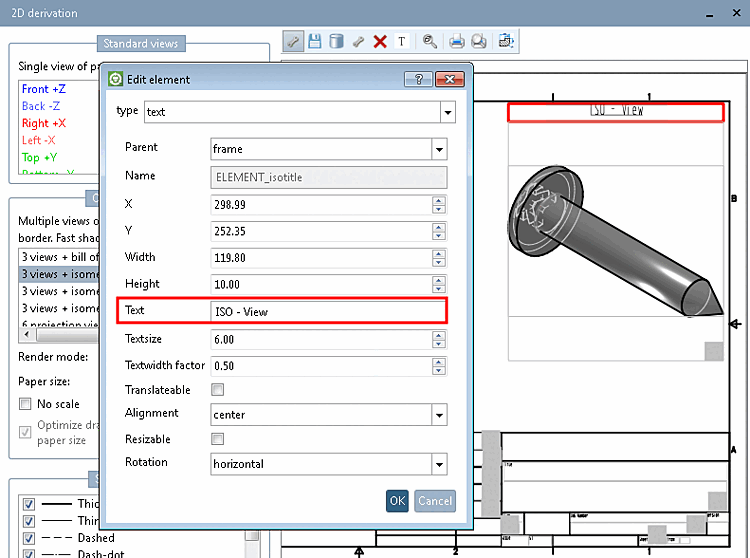
After clicking on New element
 a cursor appears with which you can draw an area
and the Edit element dialog box
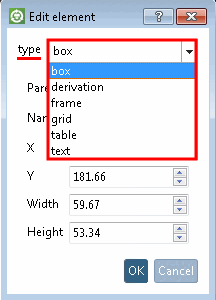
appears. Under " type " you will find a list of all
the types that can be selected here. If an existing element is opened, you
will see the type used for the element in question under "
type ".
a cursor appears with which you can draw an area
and the Edit element dialog box
appears. Under " type " you will find a list of all
the types that can be selected here. If an existing element is opened, you
will see the type used for the element in question under "
type ".
In the following all possible elements are listed. When clicking the link, more details and syntax used in the dw files can be seen.
box:
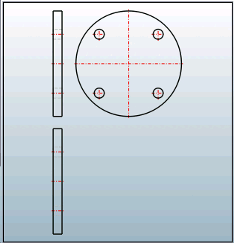
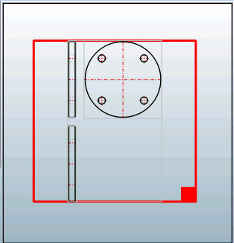
The "Box" element constructs wildcard elements in the sketch frame, in other words, it defines position and measurement of the therein contained elements.
Box can be parent element of "Grid" (see Section 7.11.5, “[ELEMENT_grid] to place several derivations ”) and "Derivation" (see Section 7.11.7, “[ELEMENT_derivation] for one single derivation ”).
The "Derivation" element represents a single 2D derivation.
Valid derivations are the standard derivations (top, bottom, front, etc., and isometric).
The "Derivation" element is embedded in a Box element (otherwise it wouldn't be positionable).
If several individual elements are to be combined, the Frame element is used. This is then the parent element for all elements placed on it.
grid:
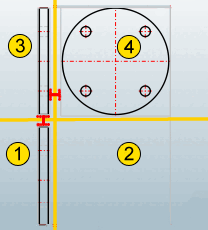
The "Grid" element defines a grid in which several standard derivations can be arranged.
If no box is used as a parent, the entire available space is used. The size of the grid cannot be changed in edit mode [Edit mode].
If a box is used (see Section 7.11.6, “[ELEMENT_box] as wildcard element ”), it can be selected and resized in edit mode [Edit mode].
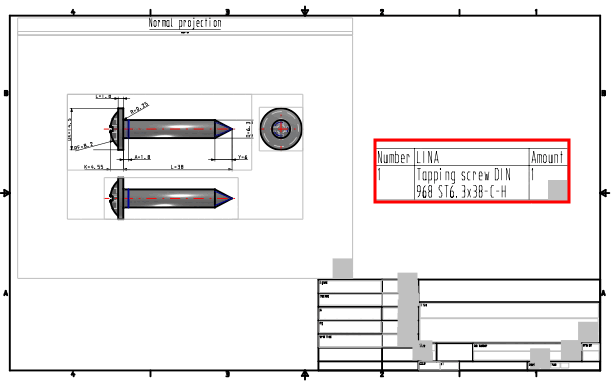
Places a table element into sketch view.
text:
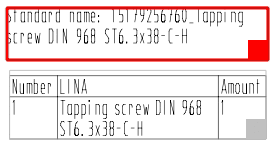
Places a text into the sketch view.
[107] Information on the setting can be found under Section 1.7.3.3.3.1, “ Key "IsAdmin" - User mode ” in ENTERPRISE 3Dfindit (Professional) - Administration.