1.1.
Article assignment (initial filling of the LinkDB)
1.1.4. Manual
assignment |  |
| Prev | Next |
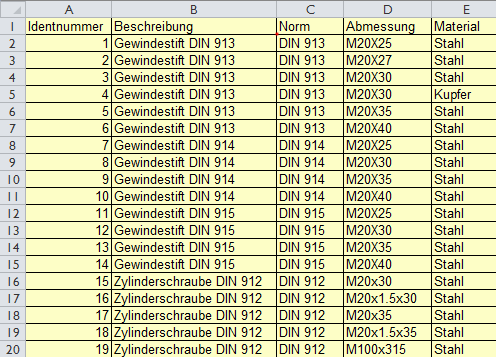
The following explanations are based on this data:
Identnummer;Beschreibung;Norm;Abmessung;Material
1;Gewindestift DIN 913 ;DIN 913;M20X25;Stahl
2;Gewindestift DIN 913 ;DIN 913;M20X27;Stahl
3;Gewindestift DIN 913 ;DIN 913;M20X30;Stahl
4;Gewindestift DIN 913 ;DIN 913;M20X30;Kupfer
5;Gewindestift DIN 913 ;DIN 913;M20X35;Stahl
6;Gewindestift DIN 913 ;DIN 913;M20X40;Stahl
7;Gewindestift DIN 914;DIN 914;M20X25;Stahl
8;Gewindestift DIN 914;DIN 914;M20X30;Stahl
9;Gewindestift DIN 914;DIN 914;M20X35;Stahl
10;Gewindestift DIN 914;DIN 914;M20X40;Stahl
11;Gewindestift DIN 915;DIN 915;M20X25;Stahl
12;Gewindestift DIN 915;DIN 915;M20X30;Stahl
13;Gewindestift DIN 915;DIN 915;M20X35;Stahl
14;Gewindestift DIN 915;DIN 915;M20X40;Stahl
15;Zylinderschraube DIN 912;DIN 912;M20x30;Stahl
16;Zylinderschraube DIN 912;DIN 912;M20x1.5x30;Stahl
17;Zylinderschraube DIN 912;DIN 912;M20x35;Stahl
18;Zylinderschraube DIN 912;DIN 912;M20x1.5x35;Stahl
19;Zylinderschraube DIN 912;DIN 912;M100x315;Stahl
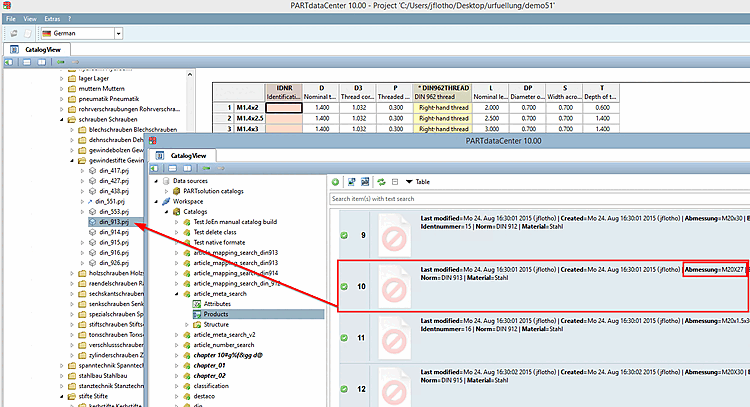
The easiest way to create a link between CSV catalog and PARTsolutions catalog is the manual approach via drag & drop.
Preferably work with two windows, one for the CSV catalog and one for the PARTsolutions catalog.
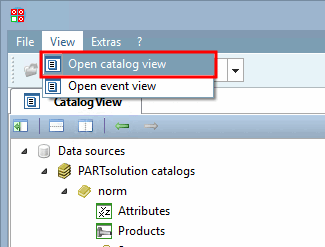
Click on the Open catalog view menu item in the View menu.
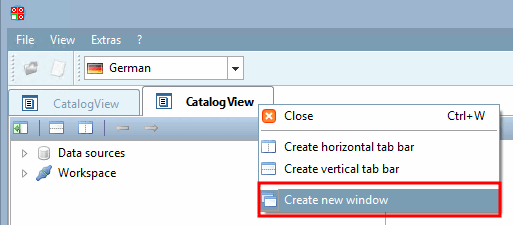
Click on the Create new window command in the context menu.
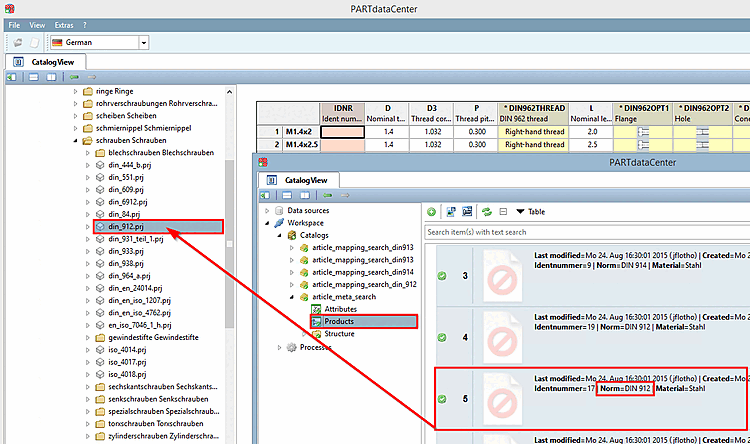
-> The tab page opens as a separate window. Position the two windows. Open the data records of the CSV file in one (Workspace [Workspace] -> CSV catalog name (self-assigned) -> Products ) and the corresponding project of the PARTsolutions catalog in the other (Data sources [Data sources] -> PARTsolutions Catalogs [PARTsolutions catalogs] -> Catalog -> Structure -> Directory -> Project).
Drag the desired CSV line on the fitting project.
Select the correct line and confirm with .
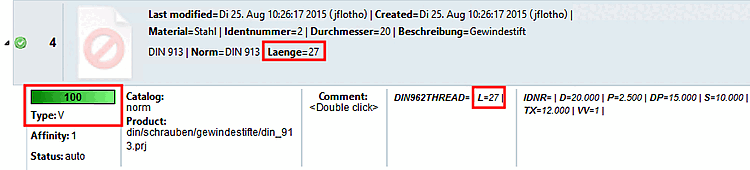
You can now find the link under Workspace -> CSV catalog name -> Products.
The small arrow symbol indicates that an assignment has been made for the CSV line in question. Expand the CSV line. The green coloring with 100% quality indicates a clear assignment.
The main entry shows the values of the CSV catalog, the secondary entry the values of the PARTsolutions catalog.
Compare the information in order to check whether the assignment is correct.
Either extend the column width in order for all values to be displayed or use the tooltip which displays when moving the mouse over a field.
Now, a variant shall be assigned.
The CSV line with the ident number 10 shows DIN 913 and the dimension M20x27.
Proceed exactly as before and drag the CSV line over the project DIN 913 via drag & drop.
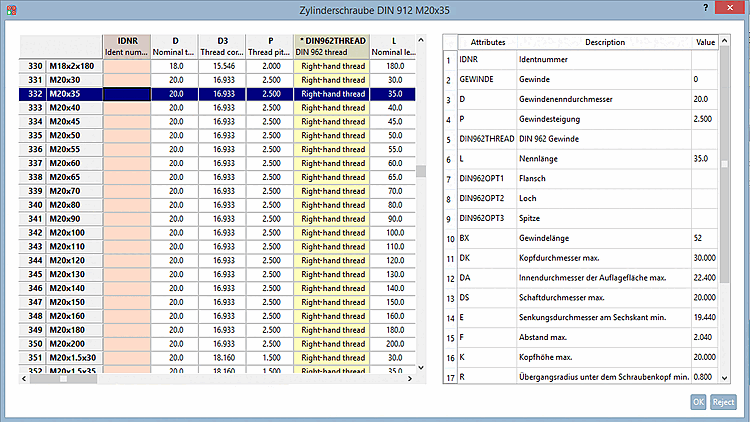
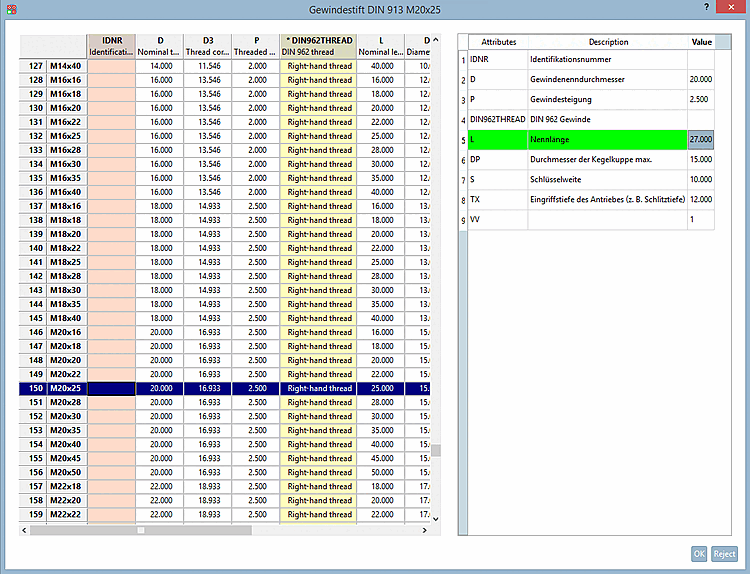
-> The characteristic attribute table of the project opens.
Select the nearest line (M20x25).
On the right side adjust the respective value for the variant (in the example in hand 25 to 27).
Now the variable values in the PARTsolutions catalog and in the CSV catalog are matching.
Automated assignment processes are now explained below. Start with dimension search [Dimension search]. This small example will provide you with all the basic information.