2.1.5.
User interface 2.1.5.1. User interface parts selection
|  |
| Prev | Next |
PARTdataManager starts with the Parts selection [Part selection] tab page selected.
Follow the links to obtain detailed information on the individual areas of the user interface.
 Menus
Menus
|
 Start Standard search or Cloud
Navigator or Cloud Map
Start Standard search or Cloud
Navigator or Cloud Map
|
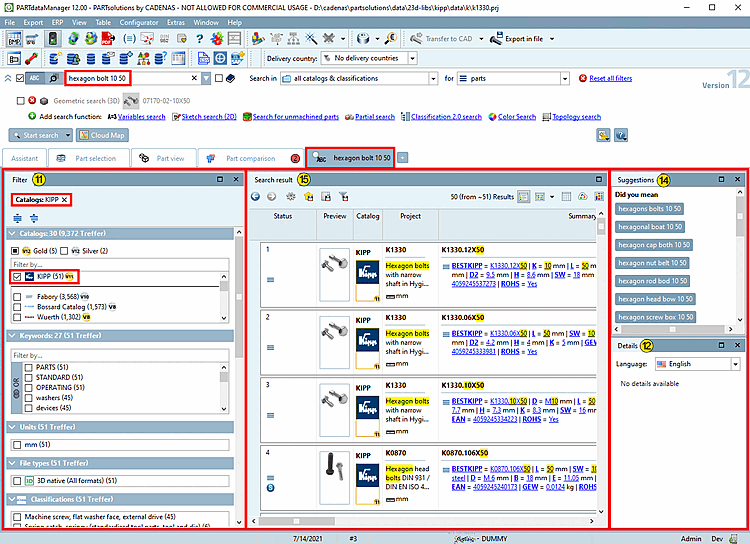
 Filter (facet search) [Filter]: The filter wizard is displayed on the right on the "Part selection" [Part selection] tab page and on the left on the "Search result " tab page.
 |
 Toolbars
|
 Tabs to call the respective tabbed
pages
Tabs to call the respective tabbed
pages
|
 Details
(Catalog and project
information)
Details
(Catalog and project
information)
|
 Toolbars or docking windows
on/off
Toolbars or docking windows
on/off
|
 Navigation path (bread
crumbs)
Navigation path (bread
crumbs)
|
 Status bar
|
 Search settings with Search in, Search for, Select search methods and parameters Search settings with Search in, Search for, Select search methods and parameters
|
 Structure
(Index tree)
Structure
(Index tree)
|
 Suggestions: Depending on the content, different functions are displayed here(Generate filter wizard [Generate filter assistant], Common variables, Did you mean, Related terms [Related results])
 |
 Load/save search
templates
Load/save search
templates
|
 Part selection
(Display area of selection in index
tree)
Part selection
(Display area of selection in index
tree)
|
 Search result
|
You can find details on parts selection [Part selection] at Section 2.1.6, “ Search and Part Selection ”.
After the search has been carried out, the search results [Search results] tab page is displayed.
![Parts selection [Part selection]: Start interface PARTdataManager](resources/img/img_a70ff77bbd1e44b086e61ba325d277f4.png)