5.9.2.8. Menu item: Render properties
5.9.2.8.3. Important settings
|  |
| Prev | Next |
| ||||
[a] This special setting is actually only required if many different colors are used on the basis of one and the same texture or if colors are to be controlled by variables. | ||||
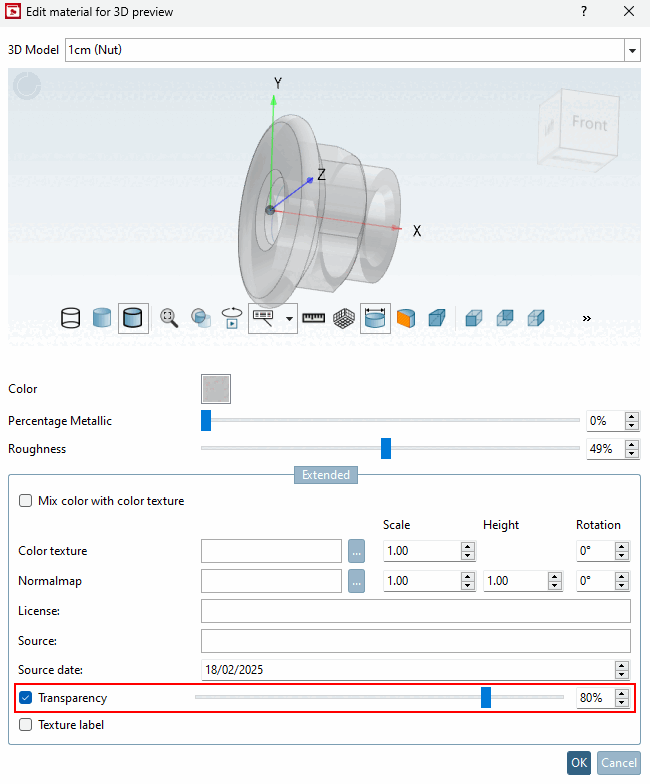
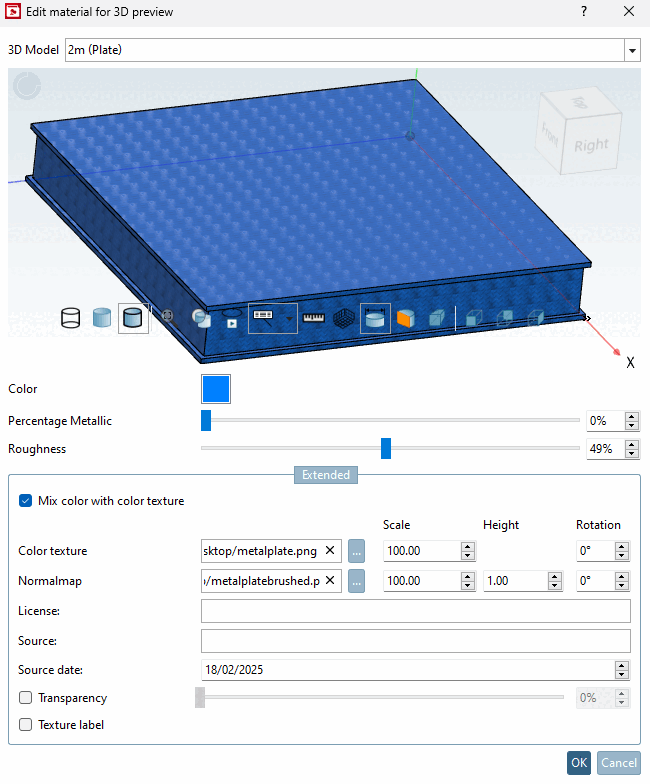
You can make the following settings in the Edit material for 3D preview dialog box:
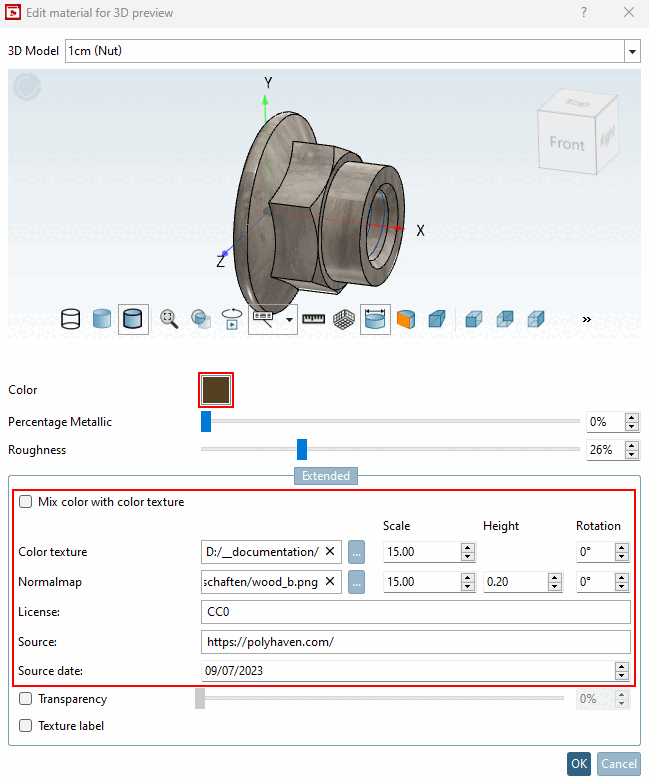
At the very top a dummy part is shown, which mirrors all settings. In particular, this is useful to adjust the scaling. You can choose dummy parts of different shapes and sizes in order to get a realistic impression.
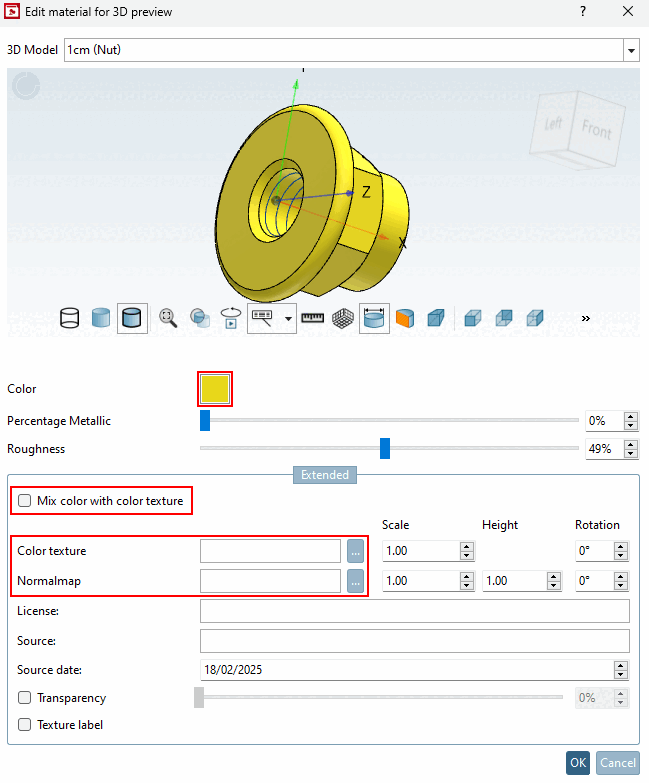
Color, metallic content [Percentage Metallic] and roughness [Roughness]: In the simplest case, you only make settings here and no settings under Advanced [Extended].
You can make the following settings in the Advanced [Extended] dialog area below:
The Mix color with color texture option is actually only required if many different colors are used on the basis of one and the same texture or if colors are to be controlled by variables.
By default, you work with the Mix color with color texture option deactivated.
Then preferably use textures which have exactly the desired color.
AND set a corresponding color under Color for compatibility reasons.
Attention: The desired color must still be set because a) the texture is only displayed in software from CADENAS(PARTdataManager, PARTproject, ...) and cannot be exported to the CAD systems and b) the color is already displayed if the texture is still loading when a component is opened.
The exact effects of this option can be seen in the matrices. See Section 5.9.2.8.7, “Rendering matrices”. The shortcut "mix" stands for this option.
In the following the different combination possibilities are described:
Mix color with color texture: Off
Color only, no entry under color texture [Color texture] and/or normal map [Normalmap]:
→ The color is used (for view and export).
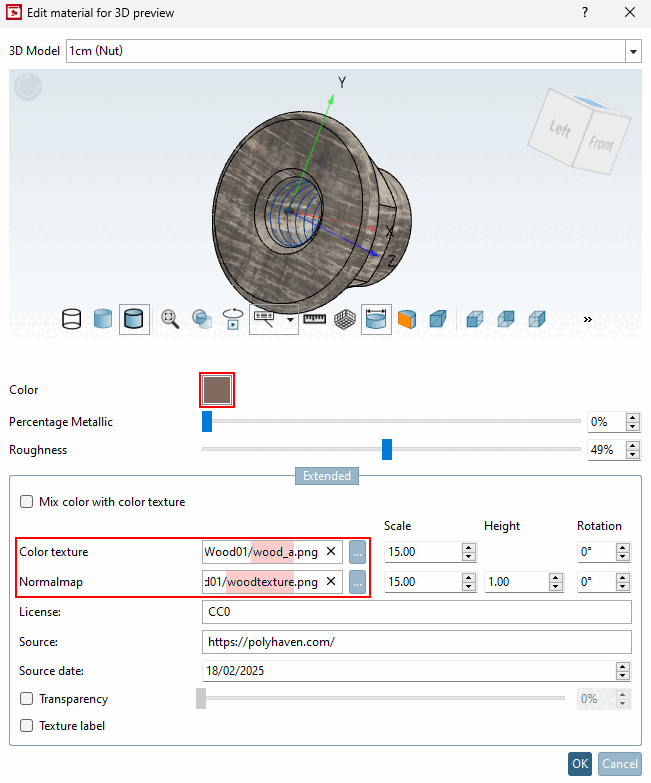
Entry under color texture [Color texture] and/or normal map [Normalmap]:
→ The texture is used for the view.
→ The color is used for the export.
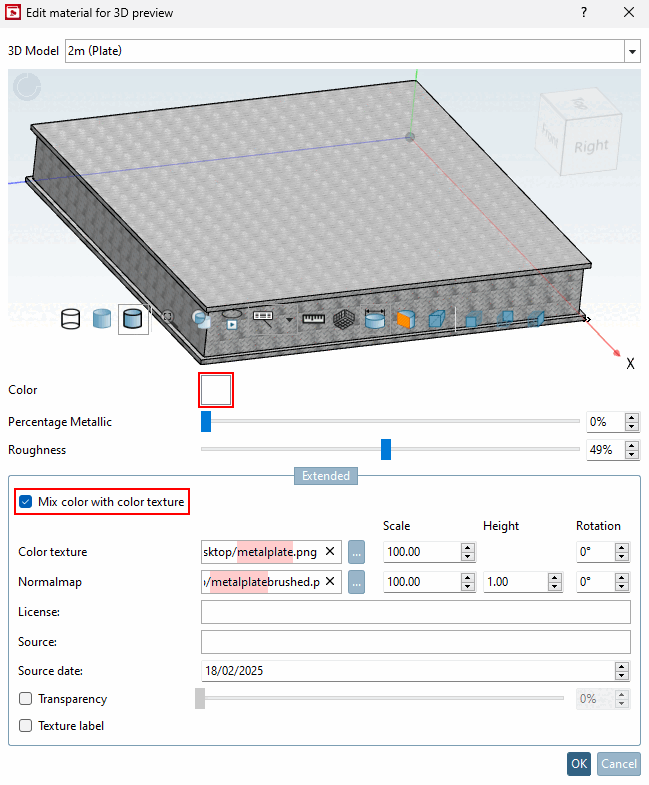
Mixing color with color texture [Mix color with color texture]: On
The color values of texture are not considered, only the brightness values and then these are mixed with the set color.
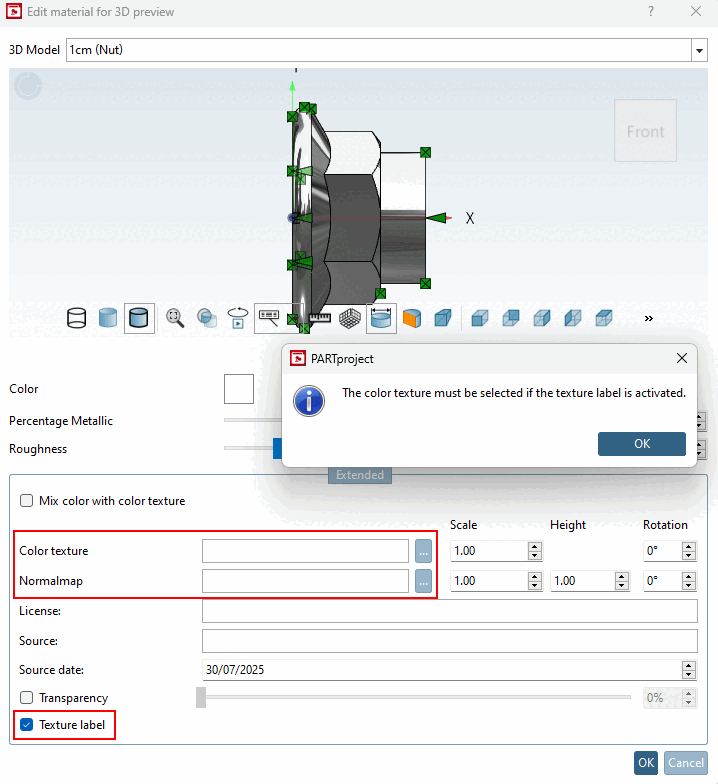
Color texture: Click on . to select the desired image file.
| ||||
| ||||
Adjust the scaling [Scale] according to the component size so that the texture optimally overlays the component (repetition of the pattern). The value is given in mm.
A scale of 300 means, that a - quadratic - color texture is exactly mapped one time to a - quadratic - area with length/width of 300. When changing the scale to 100, for example, the color texture is mapped 9 times ((300/100)^2).
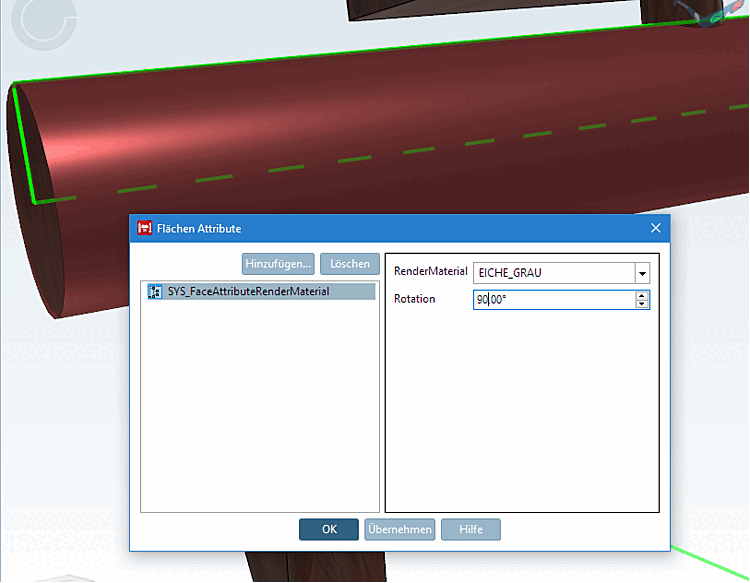
Use rotation [Rotation] to determine the direction of the texture.
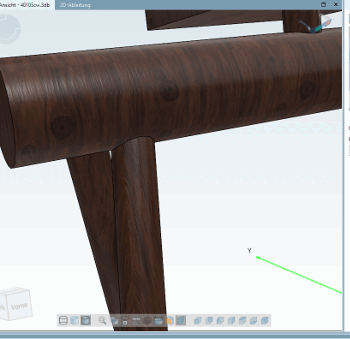
The model depicted below is a part and the texture is globally from top to bottom in direction of Z axis.
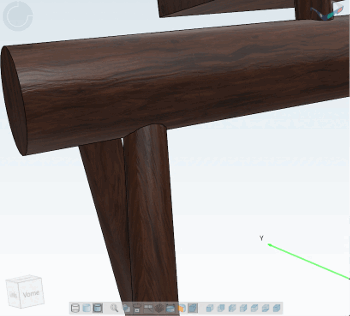
If you now select the PARTdesigner the horizontal cylinder and put the same texture on it again, but rotated 90°, then it looks better.
Normalmap (Bumpmap): Select the desired image file by clicking on to select the desired image file.
Scaling [Scale]: Adjust the scaling [Scale] according to the component size so that the texture optimally overlays the component (repetition of the pattern).
Color texture and normal map [Normalmap] can be adjusted independently of each other.
Height: Determine the height of the bumps. Without height, surfaces may reflect strongly.
Use rotation [Rotation] to determine the direction of the texture.
Color texture and normal map [Normalmap] can be adjusted independently of each other.
| ||||
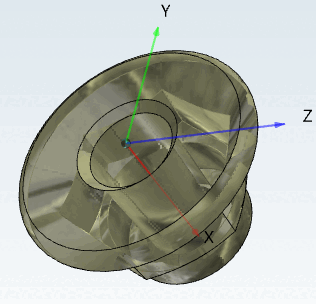
Transparency: Transparent materials such as glass, Plexiglas, etc. can also be used for transparency.
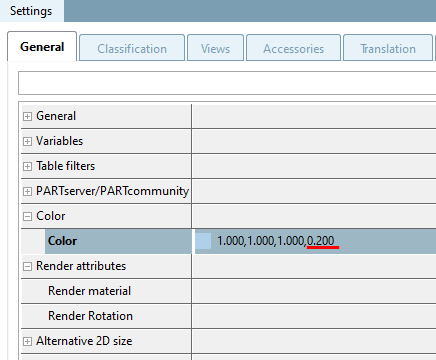
As soon as "Transparency [Transparency]" is set in the Edit material for 3D preview dialog, a setting under Color and texture → Color is overwritten.
![[Note]](images/note.png)
![An entry under "Color [Color]" → "Color [Color]" is not necessary and - if available - is ignored.](resources/img/img_5afd04cb0b46417ba9a6a8595a20b125.png)
![Setting 3D model [3D Model]](resources/img/img_b5ebea9ca0c34087a414466fb9ec727d.png)
![Color, metallic content [Percentage Metallic], roughness [Roughness]](resources/img/img_d95c59a70c574cb0a066ac3ca4c30600.png)
![[Tip]](images/tip.png)