1.3.6.  Structure " category

1.3.6.1. Create / move classes
1.3.6.2. Create class characteristics
1.3.6.3. Add / move (classify) products
1.3.6.3.1. Import from CAD
1.3.6.3.2. Move products / Classify
1.3.6.3.3. PSOL Projektverknüpfung hinzufügen
1.3.6.4. Semi-automatic sizing with the help of training sets
1.3.6.4.1. Functionality
1.3.6.4.2. Licensing
1.3.6.4.3. General conditions
1.3.6.4.4. Configuration of the semi-automatic classification process
1.3.6.4.5. Classification procedure
1.3.6.5. Define product sort order
1.3.6.6. Remove / Restore / Show history
1.3.6.6.1. Show history / product history for the subdirectory
1.3.6.6.2. Revert local changes
1.3.6.6.3. Revert committed changes
1.3.6.6.3.1. Remove class - Restore removed classes
1.3.6.6.3.2. Remove product - Restore removed products
1.3.6.6.3.3. Remove class assignment

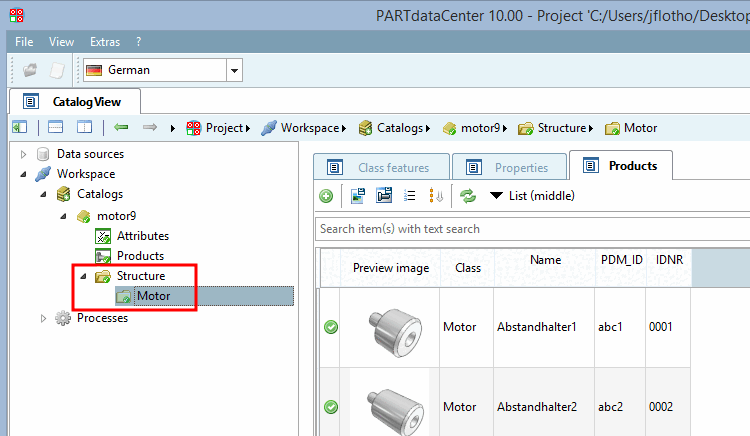
When you select the Structure category on the left-hand side, you will see the Class features, Properties and Products tab pages on the right-hand side.

If no classes have been created yet, only the Class features tab page with the "Root" level is displayed.

Example: Selection of the " Products " tab page

Example: Selection of the " Products " tab page

In this section you will learn how to set up or modify the catalog structure.

This includes creating and moving of classes and classifying products (moving products into classes). You can add new products by import from the CAD system or via link to a PARTsolutions catalog (e.g. Standard parts).

You can start from scratch or import an already existing catalog and modify it.