|
|
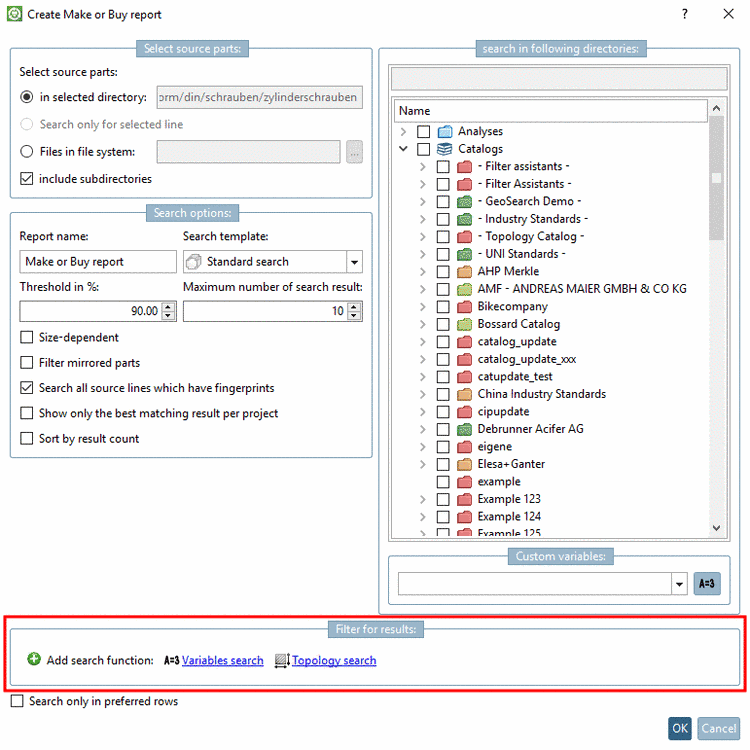
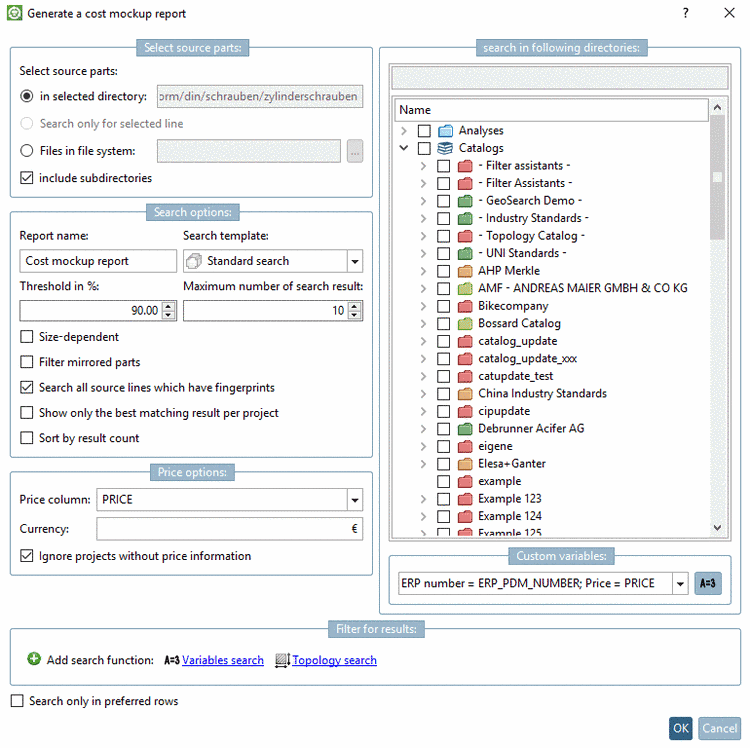
The settings dialog for Make or Buy, Find suppliers and Cost mockup is very similar in the basic set-up. The differences are marked in the following explanations.
The directory selected in the index tree is already inserted.
Search only for selected line:
That line selected in the table view is used. The call up has to happen via Extras menu and in the opened Part view.
Via browse button select the desired directory.
Optionally you can also include subdirectories. If needed activate this option.
Report name: In the input field, enter the desired name. The name will be displayed as the label of tab.
Threshold: Determine the minimal tolerated similarity.
Maximum number of search result: Hereby you can limit the displayed results. It does not affect the search itself.
Filter mirrored parts: If the option is activated mirrored parts are filtered.
Search all source lines which have fingerprints:
If this option is deactivated, the first project line with available fingerprint is taken.
Show only the best matching result per project:
Price column: In the list field, select the desired column, which contains the price information. The price information is displayed at all search results later (if available).
Ignore projects without price information: The activation can accelerate the search. On the other hand very similar parts are possibly not included in the comparison anymore.
Activate those directories via checkbox, which you want to include for the search.
By clicking on the
button Edit custom variables  the dialog box Custom variables is opened.
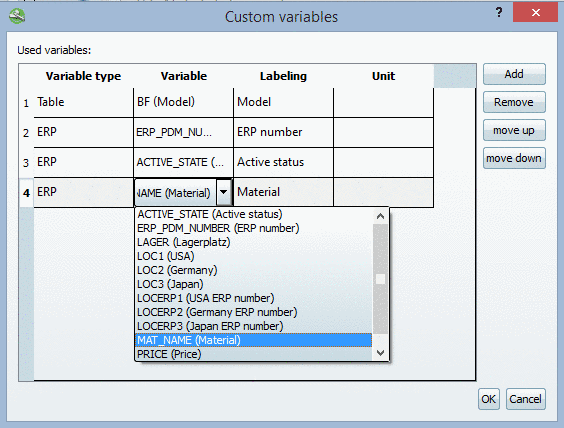
Here you have the possibility to define variables, which shall be displayed in the report in addition. These are displayed at each part.
Possible are both ERP variables and variables from the characteristic attribute table.
First click on in order to add a new line.
Via double-click into the line under Variable type the list field opens with the following options:
Via double-click into the line under "Variable" a list field with the following options opens:
Options at variable type "ERP":
The ERP variables of the table are read and shown as proposal in the form of a list selection. You can also enter any other value.
Options at variable type "Table":
The characteristic attribute variables of the search directory (search source) are listed. You can also enter any other value.
Enter a labeling by clicking on it. This will be displayed in the report later.
Optionally you can state a unit.
If the variable has no own unit, the entered unit is displayed.
If the variable has a unit, the value is converted - if necessary. The conversion is only possible at the type "Variable".
The diameter in the table is given in inches. You have stated mm as unit. -> The value is automatically converted from inches to mm.
![[Tip]](images/tip.png) | Tip |
|---|---|
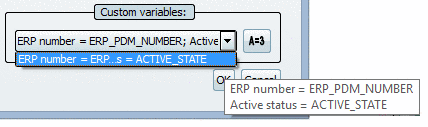
Already used settings are saved. In the list field, simply select the variable (combination of variables) to be displayed in the report. When moving the mouse pointer over an entry, all variables with their respective description are displayed in a tooltip. | |
Via Filter for results settings you can restrict results. Available filters are Variables search and Topology search. It is possible to use the functions repeatedly by clicking on Add search function.
The function is available for the following reports:
The functionality is according to the standard search functions:
You can find details on Variables search under Section 3.1.6.4.5, “ Variables search ”.
You can find details on Topology search under Section 3.1.6.4.12, “ Topology search ”.
It is also
possible to create a report based on preferred parts. Therefor activate the
checkbox. This is comparable to the activation of the button Preferred rows on/off  in the ERP toolbar. Then the report only uses
preferred parts.
in the ERP toolbar. Then the report only uses
preferred parts.
![[Note]](images/note.png)