5.1. Introduction 5.1.5. User-Role concept
|  |
| Prev | Next |
Integral part of the user-role concept is a rights administration for users and roles in order to control part selection.
Below you will find a small overview of the ERP functions of the 3Dfindit user interface that can be customized for individual roll sets/rolls:
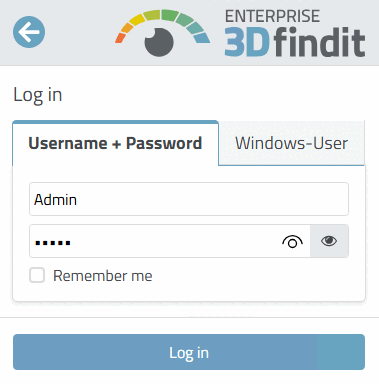
When 3Dfindit is started, the login dialog [Log in] appears.
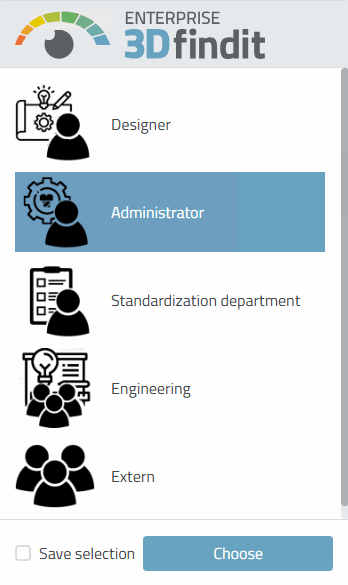
If several roles are configured, a role selection appears after confirmation with .
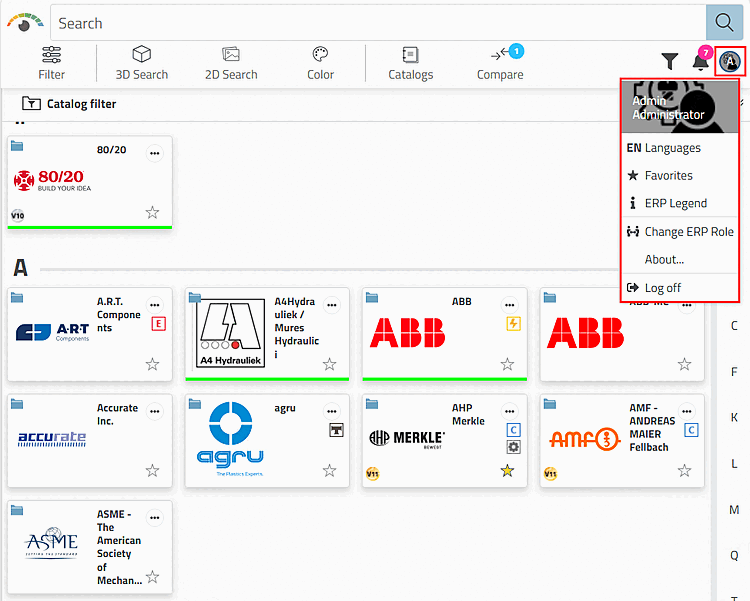
3Dfindit then opens at catalog level. Either browse through the directory structure manually or use a search method.
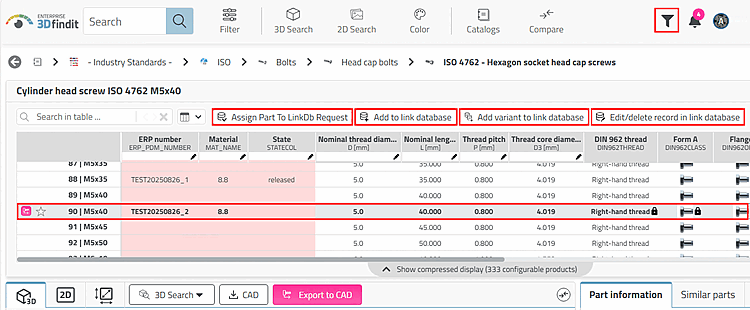
Various functions are available at table level depending on the role.
Add data record to the link database:
Data records can be added to the link database manually or with deep integration into ERP/PDM/PLM systems.
Apply for an ERP number by e-mail or via Dashboard/Part number manager:
If no export to CAD is possible, the part can be requested, e.g. from the standards office.
Preferred rows On/Off [Preferred rows on/off]:
Behind this is an adjustable preferred series definition. In the simplest case, only parts with an ERP/PDM number are displayed.
Coloring directories and projects in the catalog index. There are a variety of design options for this. The following figure shows an example.
There is a wide range of design options:
Basic or user/role-dependent export condition [Export condition] for rows using freely definable conditions.
This automatically results in a restriction on the variety of parts, as the designer may not install any parts without ERP_PDM_NUMBER, for example.
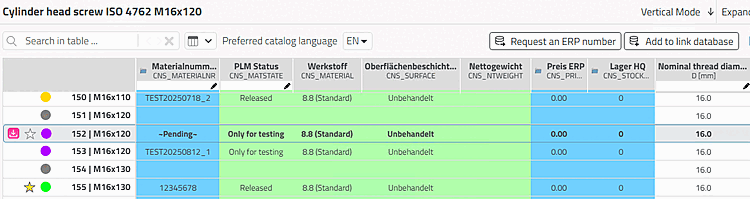
The following illustration shows an example of the status display that controls the export condition [Export condition].
For parts with an ERP number (and another hidden option, for example), the status display is green or yellow.
Parts cannot be exported for all other colors.
Example of status display: With green and yellow, the relevant parts can be transferred to the CAD system; not with all other colors!
Details on configuration options can be found under Section 5.7, “ Set up ERP environment ”.
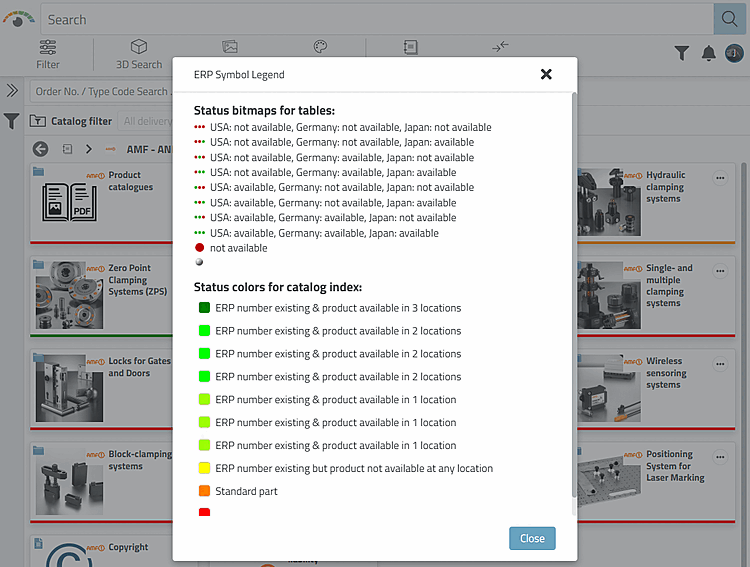
![ERP symbol Legend [ERP Symbol Legend] for the above example](resources/img/img_96ec7de402954da3ac872b96c14aa1e8.png)