5.23.8.2. Apply for ERP number via Part number manager

5.23.8.2.1. Prerequisites
5.23.8.2.2. Request with simple attachment in the Part Number Manager
5.23.8.2.2.1. Configuration
5.23.8.2.2.1.1. erpcustom.cfg > Block [VARS]
5.23.8.2.2.1.2. erpcustom.cfg > Block [WEB_ACTIONS]
5.23.8.2.2.1.3. erpcustom.cfg > Block [REQUESTDIALOG] / Block [USERDIALOG]
5.23.8.2.2.2. Procedure
5.23.8.2.2.2.1. Parts request by user
5.23.8.2.2.2.2. Administration calls up the "Part number manager" in the dashboard
5.23.8.2.2.2.3. Further procedure for the user
5.23.8.2.3. Request with attachment in the Part Number Manager plus LinkDB entry
5.23.8.2.3.1. Configuration
5.23.8.2.3.1.1. erpcustom.cfg > Block [VARS]
5.23.8.2.3.1.2. erpcustom.cfg > Block [WEB_ACTIONS]
5.23.8.2.3.1.3. erpcustom.cfg > Block [USERDIALOG]
5.23.8.2.3.1.4. plinkcommon.cfg > Block "MAPPING_CNS_MATSTATE"
5.23.8.2.3.1.5. Export condition
5.23.8.2.3.2. Procedure
5.23.8.2.3.2.1. Parts request by user
5.23.8.2.3.2.2. Administration calls up the "Part number manager" in the dashboard
5.23.8.2.3.2.3. Further procedure for the user
5.23.8.2.3.2.4. Notes for new creation by admin
5.23.8.2.3.2.5. Rejected" case
5.23.8.2.4. Trigger request via "CAD" button

/ Request an ERP number

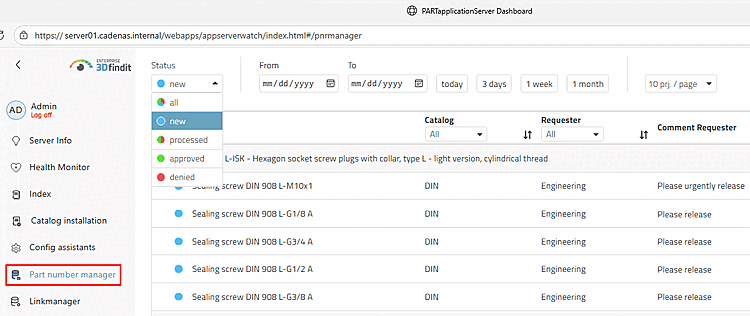
Use this method to send user requests (for an ERP number) to the AppServer. and display them on the Part number dashboard page. manager (instead of dealing with e-mails). work). The user is informed of the current status in 3Dfindit by means of activity [Activities] dialog informed.

Part number manager

Part number manager

Notification via "Activities [Activities]" dialog

Notification via "Activities [Activities]" dialog

In practice, there are two common use cases, which are described in detail below:

Please read both descriptions: There is some overlap, although the second one is a little more detailed in some respects.