1.4.3.1.1.
Catalog
update tab page
1.4.3.1.1.2.
Settings
|  |
| Prev | Next |
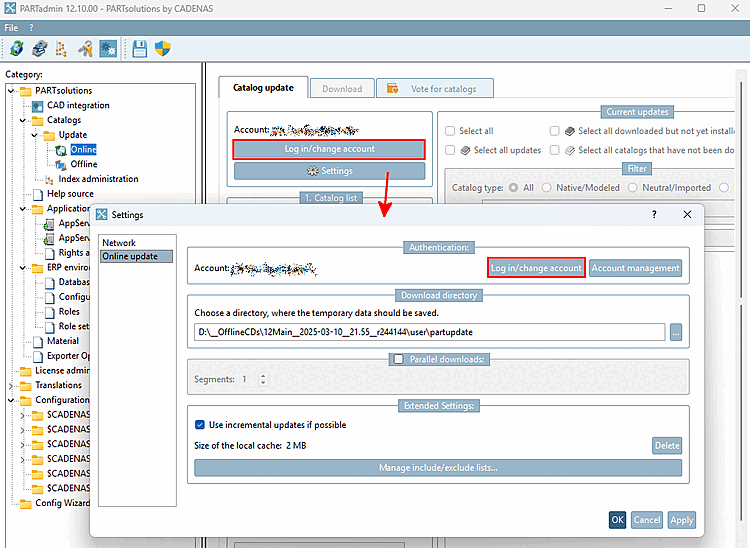
Click on the Settings button to open the dialog window of the same name with the Online Update [Online update] menu item.
In order to download catalogs, you must have a valid account with CADENAS.
You can log in via the button (just like on the main page, see above ).
| ||||
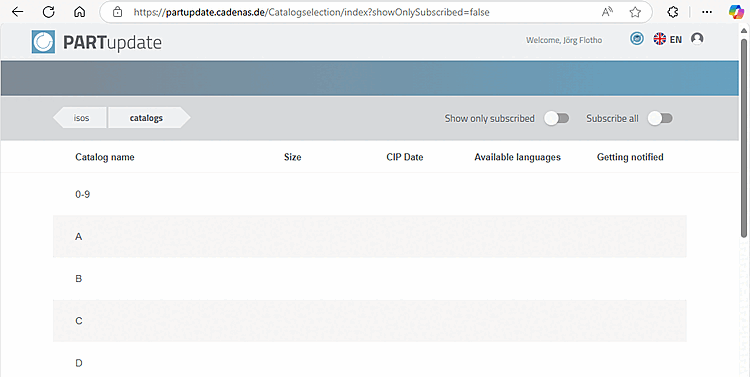
: Click on the button to open PARTupdate (https://partupdate.cadenas.de/login/index) [same login here].
Specify a download directory [Download directory]. This is where the catalogs are temporarily stored in cip format between download and installation.
| ||||
[a] The downloaded catalogs are located in the specific download directory [Download directory]. After installation, the CIPs are automatically deleted. | ||||
If this option is activated, you can use the number of segments [Segments] to determine the number of parallel downloads. The download speed increases with a higher value. Default is 1 (no parallel downloads).
Advanced settings [Extended Settings]:
Size of the local cache: Here you can see the size of the cache. The button can be used to delete the cache if it becomes too large.
The
Disk cache is $CADENAS_USER/partupdate_cache
Cached. It contains all images, release notes and
Parts lists of already downloaded catalogs. Cip Files
are not cached, as they are in any case too large
are.
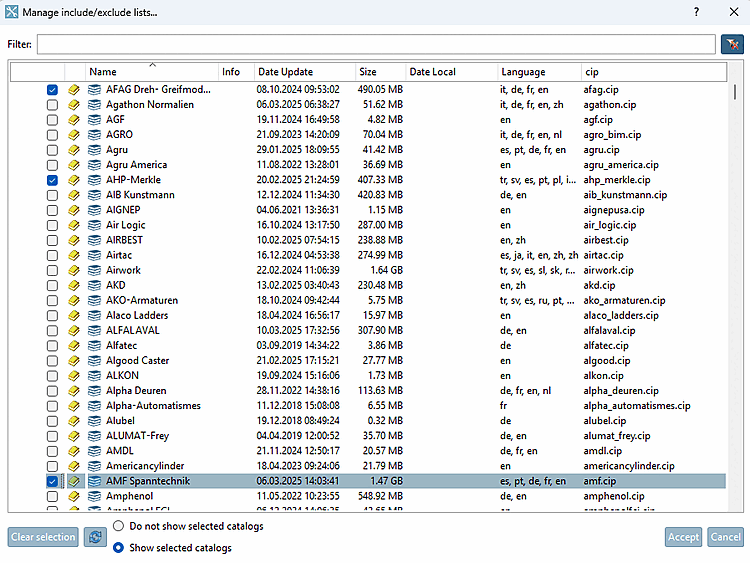
.: Click on the button to open the editor of the same name. Select an option from Do not show selected catalogs and Show selected catalogs and activate the desired catalogs.
-> From now on, only the selected catalogs are displayed.
The entries for display and
catalogues that cannot be displayed are displayed in the
Configuration file partupdate.cfg > block
[catalog] in the
Keys include_catalogs and
exclude_catalogs. See
also Section 1.7.3.4.1.1, “
Key "ShowInExcludeListButton" - PARTadmin
online
catalog update: Show only specified catalogs”.
![[Note]](images/note.png)