1.4.5.8.2.
AppServer Client: Configuration
1.4.5.8.2.1. Setting options for catalogs, search and database via AppServer | Catalogs and search via AppServer | Search via AppServer
|  |
| Prev | Next |
1.4.5.8.2.
AppServer Client: Configuration
1.4.5.8.2.1. Setting options for catalogs, search and database via AppServer | Catalogs and search via AppServer | Search via AppServer
| |
| Prev | Next |
The following points are only active if you select Catalogs, Search and database via AppServer [Catalog browsing, search and database with AppServer] or Catalogs and search via AppServer [Catalog browsing and search with AppServer] or Search via AppServer [Search with AppServer]:
![[Important]](images/important.png) | Important |
|---|---|
The settings made here apply to all clients. However, it is possible to overwrite one or more settings on each client individually using environment variables.
| |
Load setup via AppServer / Load SiteSetup via AppServer (default is off): The two options are only useful in limited scenarios (e.g. a client that has no CAD systems and no customer customization => PARTdataManager viewing mode e.g.).
In the default setting, the options are deactivated, which means that the local setup and site setup are used. The setup directory should be located locally due to its size, especially for connections with low bandwidth.
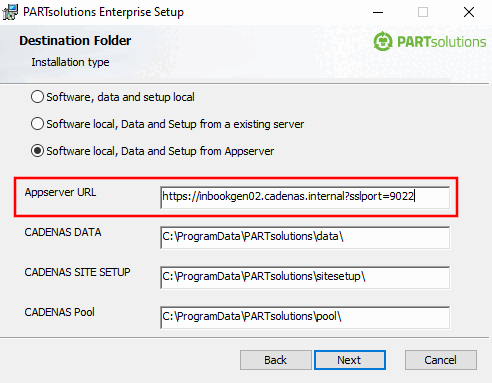
Specify server address and ports: (only active for one of the following options: Catalogs, search and database via AppServer [Catalog browsing, search and database with AppServer] | Catalogs and search via AppServer [Catalog browsing and search with AppServer] | Search via AppServer [Search with AppServer] )
Server address: Please enter the address of the server here.
Activate/deactivate the desired ports using the checkboxes. HTTP port and service port [Service port] are the standard ports without SSL encryption. Use HTTPS port [HTTPS-Port] and SSL service port [SSL-Service-Port] with SSL encryption (usually either or).
HTTPS port [HTTPS-Port]: 9022 (default): When activated, the SSL dialog area is activated. See Section 1.4.5.8.1.6, “SSL encryption ”.
SSL service port [SSL-Service-Port]: 9023 (default): When activated, the SSL dialog area is activated. See Section 1.4.5.8.1.6, “SSL encryption ”.
Activate this option if you want to work with SSL encryption. See Section 1.4.5.8.1.6, “SSL encryption ”.
Tunnel services via websockets [Tunnel services via web sockets]:
Optional with SSL encryption. See Section 1.4.5.8.1.6, “SSL encryption ”.
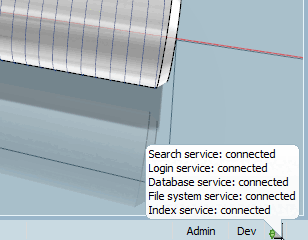
If the AppServer is active, a corresponding icon is displayed in the status bar at the bottom right of the PARTdataManager. The short information provides corresponding information on mouseover.
There are five categories that can be displayed on mouseover:
Which of the categories are displayed depends on the option selected in PARTadmin -> Category AppServer Client [AppServer client] -> Connection to AppServer [AppServer connection].