6.10.
Publish catalog
6.10.5.
Generate QA status.. | Publish live stand..
|  |
| Prev | Next |
Following notes are of vital importance when publishing.
If a project (directory) does not have a publishing marker  it is not displayed on output media. However, it will still be uploaded to the publishing server (PARTcommunity). If you want to prevent certain folders from being uploaded to the server and prefer that these folders are not included in the published catalog version, use the Select subdirectories to exclude [Select subfolders to exclude] option. See Section 5.9.2.4, “Menu item: Catalog settings (display at catalog level)
”.
it is not displayed on output media. However, it will still be uploaded to the publishing server (PARTcommunity). If you want to prevent certain folders from being uploaded to the server and prefer that these folders are not included in the published catalog version, use the Select subdirectories to exclude [Select subfolders to exclude] option. See Section 5.9.2.4, “Menu item: Catalog settings (display at catalog level)
”.
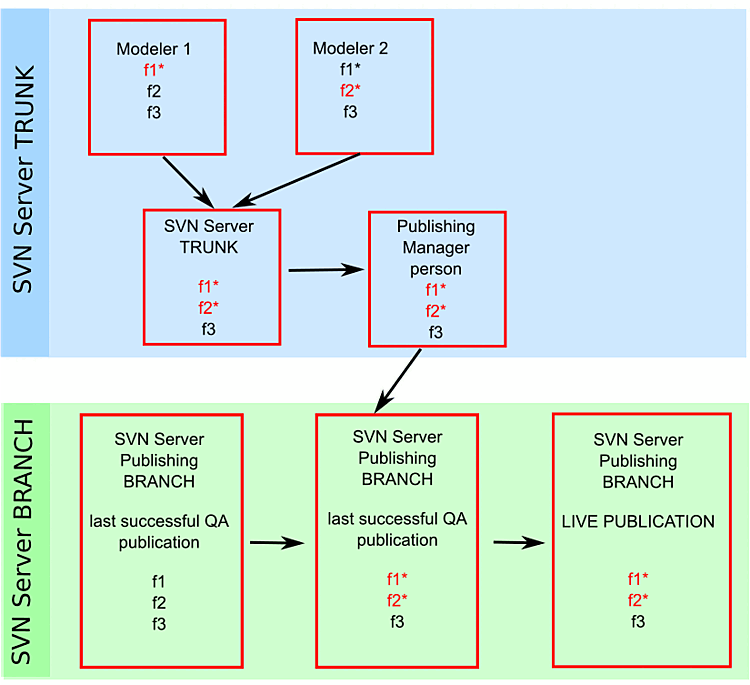
The basic administration of the catalog state and the management of publications are completely separated (compare Fig. „SVN Server TRUNK and SVN Server Publishing BRANCH“).
Precise instructions about single intermediate steps in the whole process of publication cannot be made due to complexity.
The most important fact is: Since QA Generate stand [Generate QA catalog...]... and Publish Live Stand [Publish Live state...]... publishes the Publishing Manager 's local data, he must have all relevant data locally on his computer.
Have all modelers uploaded the relevant data? [ Version management [Versioning system] -> Upload changed files in directories/projects to the server [Upload changed files in directories / projects to the server] ]
(In some cases, modelers avoid uploading their work-in-progress data to the SVN server (Trunk) to make sure that, when another user publishes the catalog, old states of projects are preserved.)
Has the Publishing Manager downloaded all relevant data from the trunk server? [ Version management-> [Versioning system] Download changed files in directories/projects from the server [Download changed files in directories / projects from server] ]
When executing the commands Upload changed files in directories/projects to the server [Upload changed files in directories / projects to the server] and Download changed files in directories/projects from the server [Download changed files in directories / projects from server], data is uploaded from a local computer to the central SVN root and vice versa.
When executing the commands Generate QA status. [Generate QA catalog...].. and Publish Live Stand [Publish Live state...]... commands, a) a copy of the complete catalog stand with TimeStamp is created in the "publishing" branch and b) the local stand of the Publishing Manager (the person responsible) is then copied with all changed files.
It is recommended to perform catalog publications by only 1 publishing manager (or maximum 2) to have best overview all the time. If the "Publishing Manager" is modeler at the same time, he should keep his own working status separated from the general $CADENAS_DATA used for publishing with a second $CADENAS_DATA.
Before executing the Publish Live Stand [Publish Live state...] command... command, it is essential that QA Generate Stand [Generate QA catalog...]... must have been executed.
The publishing mark er (context menu command Publishing [Publication] -> Set publishing marker [Set publication mark] ) can only be set from QA level 5.
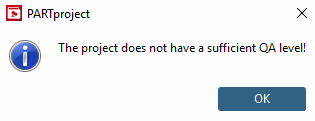
This means that only projects with QA level 5 or higher can be visible in a published catalog version. If an attempt is made to set the publication marker with a lower QA status, a corresponding error message appears
If the QA level falls below 5, the publication marker is automatically removed (-> )
Select the desired catalog in the directory structure. The Release Notes tab is now displayed in the Edit project dialog area.
Now enter the release notes [Release Notes].
You can find detailed information on this under Section 5.9.21, “Tabbed page: Release notes ”.
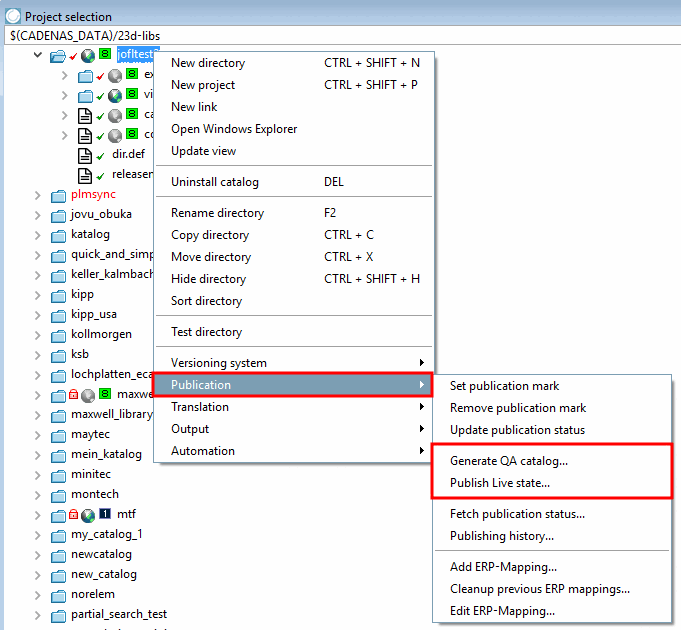
In the catalog directory, click the context menu command under Publishing [Publication] -> Generate QA Stand... [Generate QA catalog...], or Publish Live Stand.... [Publish Live state...]
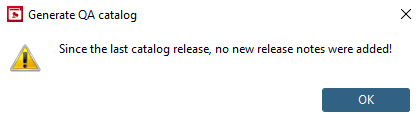
If you forget to set the release notes [Release Notes], an error message appears. (Compare Section 6.10.9, “ Release Notes ”.)
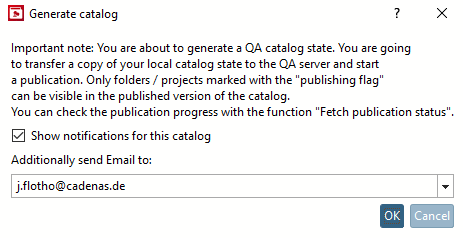
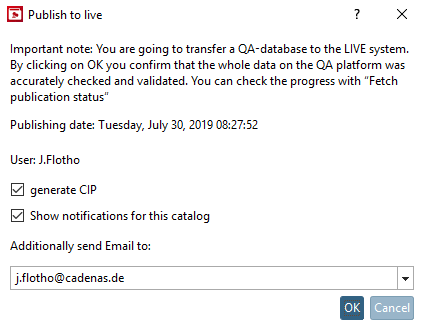
-> The Generate Catalog [Generate catalog] or Publish Live Stand [Publish Live state...]... dialog box now appears. with important information and setting options.
User: The user specified in the dialog is the person who carried out the last successful QA generation.
You may have thought that you had carried out the last QA publication yourself, but in the meantime someone else has carried out a new one. If you click now, you will create their QA publication LIVE.
Show notifications for this catalog
If you activate the Show notifications for this catalog option, a pop-up window will open each time the status of the generation or publication changes and a message will appear in the status bar.
Click on the link or icon to open the message dialog window [Messages] (see Section 6.10.7.1, “ Messages... ”).
Additionally notify the following e-mail addresses [Additionally send Email to]:
Enter one or a number of e-mail addresses separated by comma.
All stated e-mail addresses receive a notification e-mail at status changes of the generation/publishing; after finished generation/publishing an e-mail with attached log file.
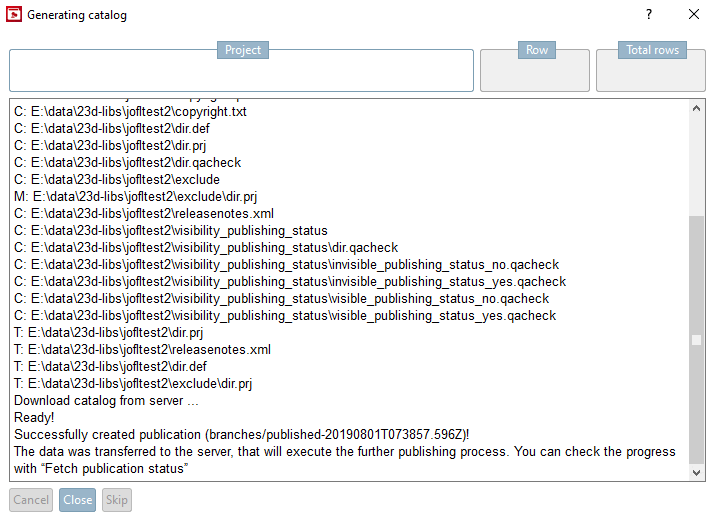
-> The dialog box Catalog is generated [Generating catalog] opens.
You see the protocol of transfer to the server.
Once the transfer is complete, " Done! " appears
The data was transferred to the server, that will execute the further publishing process. You can check the progress with “Fetch publication status”
Information on the context menu command Get publishing status [Fetch publication status...]... can be found at Section 6.10.7.2, “ Publication status ”.
Once the transfer is complete, click .
If you discover an error during generation, you do not have to wait until it has been completed. Simply click on .
![[Note]](images/note.png)