3.5.1.1.4. "By area"
[Note]Note

Placing an object on a surface.

The component is placed orthogonally to the point on the surface that was selected. All necessary placement conditions are created automatically.

The Method On surface [On surface] is suitable for screws, for example.

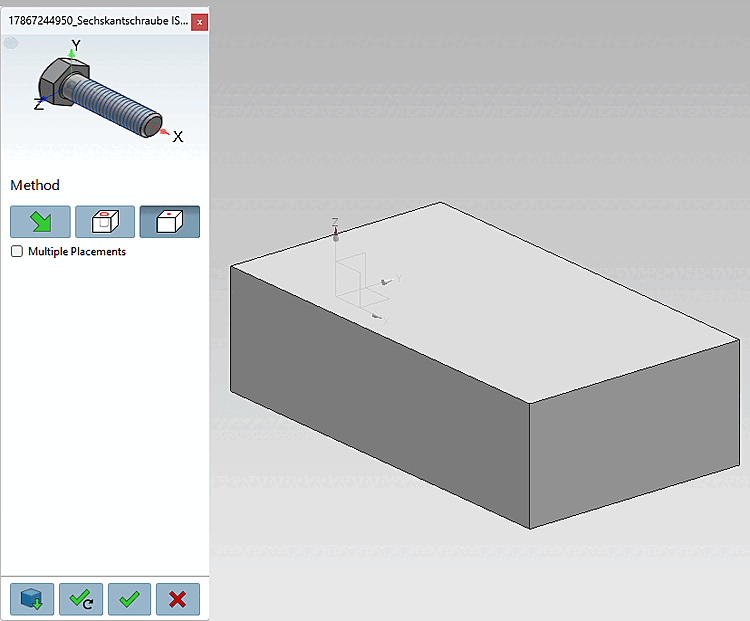
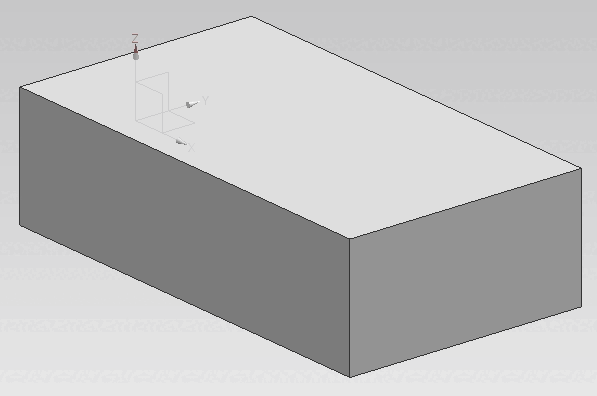
Initial Situation:

By clicking on you can change the placement action cancel.

By clicking on By clicking on you can change the placement action cancel. you can change the placement action cancel.

  1. Click the to Face [On surface] button.

    Example: Determine the insertion point on a surface

    Example: Determine the insertion point on a surface

  2. Select a point on a surface [Select point on surface].

    [Note]Note

    In some cases, CAD-specific dialog boxes may also appear, causing the placement dialog box to become inactive.

  3. Click Place once or Multiple Place [Place multiple] .

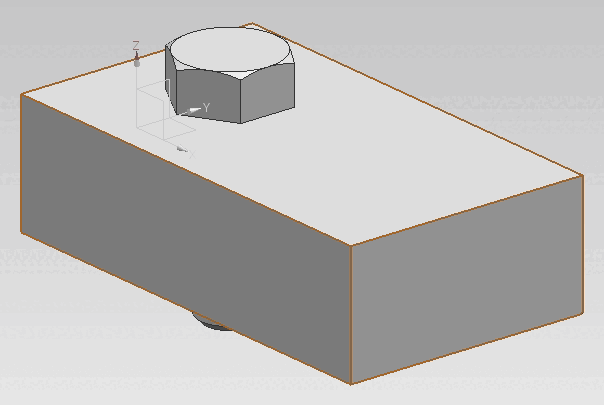
    -> The screw is inserted.

    Screw placed on surface

    Screw placed on surface

    [Note]Note

    It's possible that the insertion is already triggered by interacting with another dialog and is therefore not necessary here.

  4. Optionally, make additional placements or close the placement dialog

    Open: The part is opened in a separate CAD window.
    Place Multiple Times [Place multiple] (and Keep the Dialog Open)
    Place once (and close the dialog box)
    Close dialog (without placement)