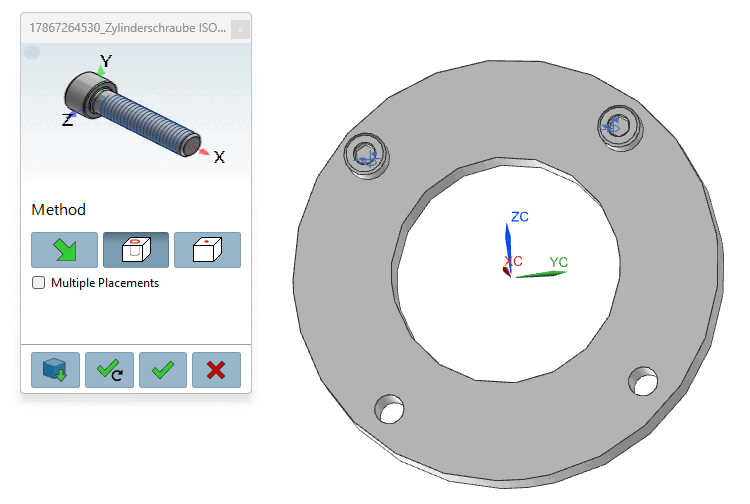
3.5.1.1. Placement Dialog Details
3.5.1.1.3. "In
the cylinder bore"
|  |
| Prev | Next |
As soon as
in PARTdataManager or Seamless
the Transfer to CAD [Export to CAD] button , the view switches to CAD and the
Placement dialog opens.
, the view switches to CAD and the
Placement dialog opens.
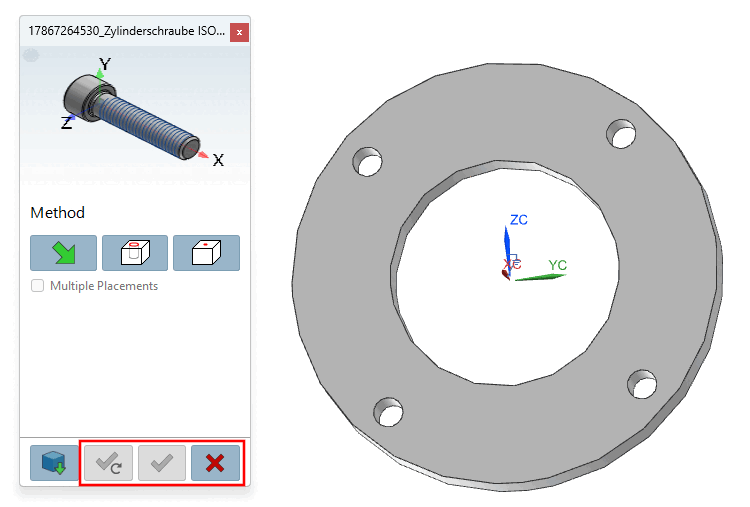
Use the buttons below to confirm the
Placements are still inactive. By clicking on  you can change the placement action
cancel.
you can change the placement action
cancel.
Click the
 to cylinder bore [In Cylinder] button.
-> The 3D view in the placement dialog now shows the possible attachment points. (If multiple attachment points are possible, the placement dialog displays the corresponding notes.)
Select an edge of the cylinder [Select a cylinder edge] (an element that uniquely determines the placement position).
Multiple Placement Optional: Simply select multiple cylinder elements (depending on the CAD software, with or without the Ctrl key).
Click Place once
 or Multiple
Place [Place multiple]
or Multiple
Place [Place multiple]
 .
.
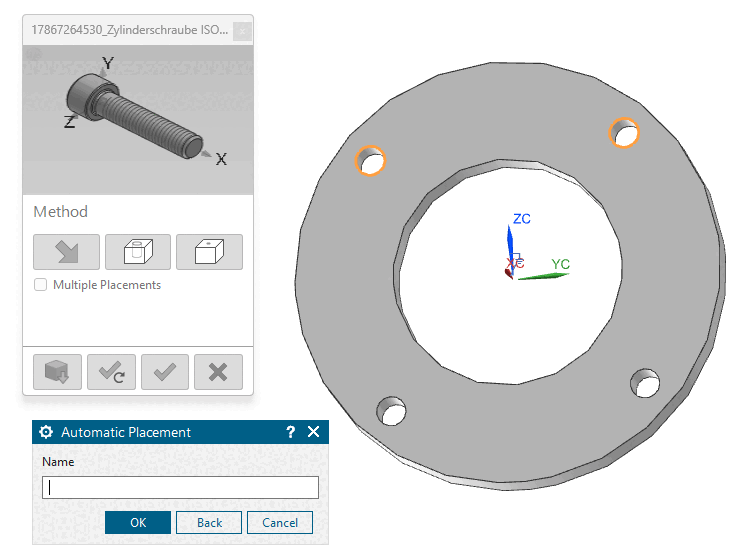
If a pattern is recognized, a prompt automatically appears asking whether the part should be inserted into the pattern.
Component Place [Place part]: Do you want to fill the pattern with instances? [Fill pattern with instances?]
Select the desired option and confirm by clicking " ."
-> The screw (or screws) is (are) placed in the hole.
Optionally, make additional placements or close the placement dialog

| Open: The part is opened in a separate CAD window. |
|
| Place Multiple Times [Place multiple] (and Keep the Dialog Open) |
|
| Place once (and close the dialog box) |
|
| Close dialog (without placement) |
![[Note]](images/note.png)
![Component Place [Place part]: Do you want to fill the pattern with instances? [Fill pattern with instances?]](resources/img/img_a73f97ad762c4df981dd55e8c579e48a.png)