1.1.6.
Part Number Search (using the "Article Assignment
Wizard" for manufacturer parts) 1.1.6.2. Import CSV
(Search by Item Number) |  |
| Prev | Next |
1.1.6.
Part Number Search (using the "Article Assignment
Wizard" for manufacturer parts) 1.1.6.2. Import CSV
(Search by Item Number) | |
| Prev | Next |
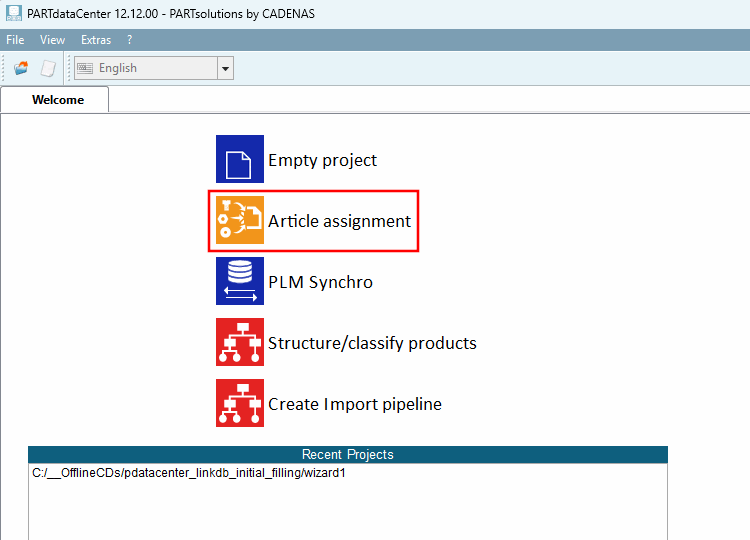
In the PARTdataCenter startup screen (the "Welcome" tab), click on " Article assignment" to create a new project.
(Alternatively, you can also do this via the File menu > Create new project [Create new project].)
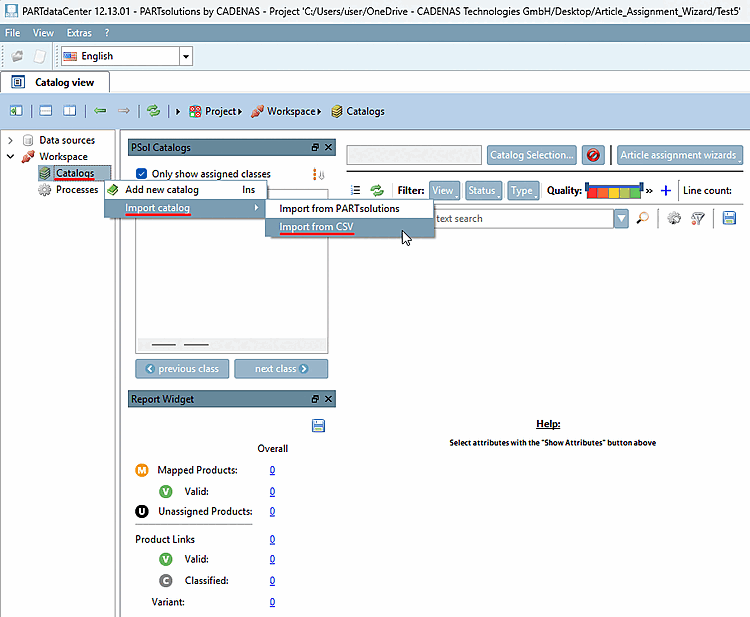
Select the context menu command "Import catalog [Import catalog] > Import from CSV" under Workspace > Catalogs:
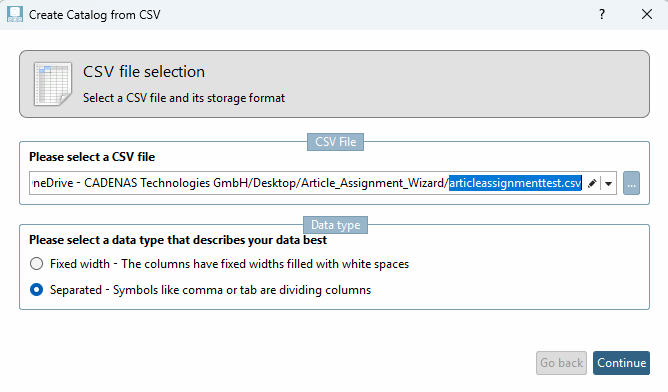
-> The " Create Catalog from CSV [Create Catalog from CSV] " dialog box opens.
Import
Download the sample file "articleassignmenttest.csv" and
go through the individual steps. Details on the import can be found
under Section 1.1.3, “Create catalog
from CSV file”.
Select a column as the identifier that actually contains a unique value . In this example, that is "ID".
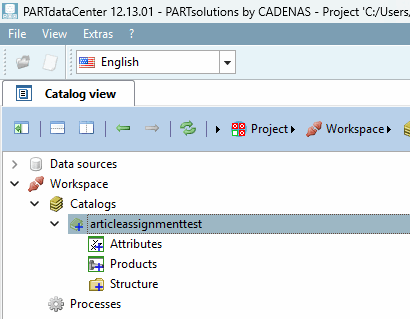
-> Under Catalogs [Catalogs], the entry "articleassignmenttest" is displayed.
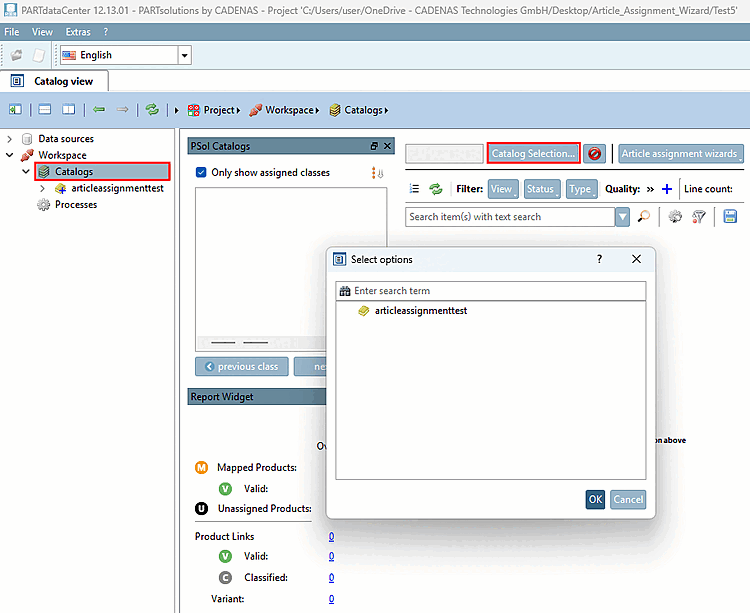
Select the " Catalogs" item in the tree to view the "ArticleAssignment view."
Click the button, then click "articleassignmenttest" in the dialog box.
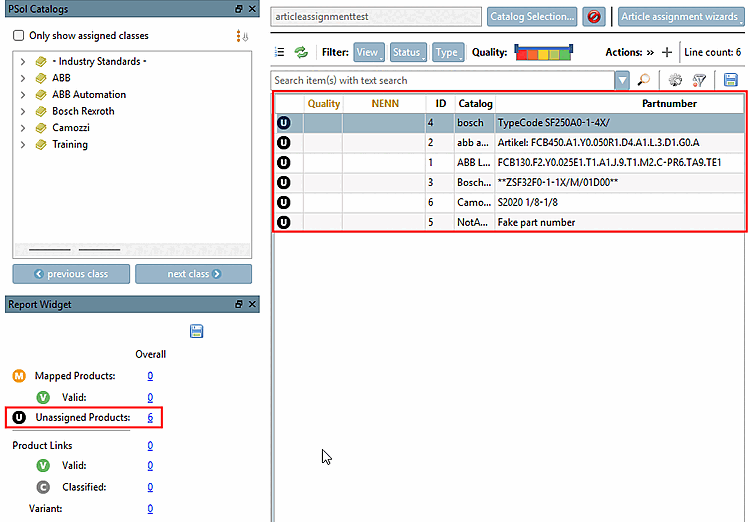
Click on the link under " Unassigned Products [Unassigned Products]."
-> You can now see the individual products.
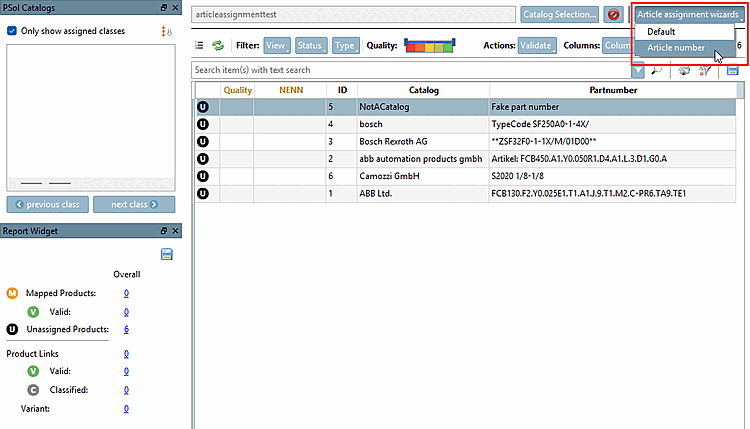
Click the " " button, and then select " Article Number."
-> The wizard ( Article Assignment Wizard [Article assignment wizard - article number] dialog box - article number [Article assignment wizard - article number] ) opens with the Source tabbed page displayed.