|
|
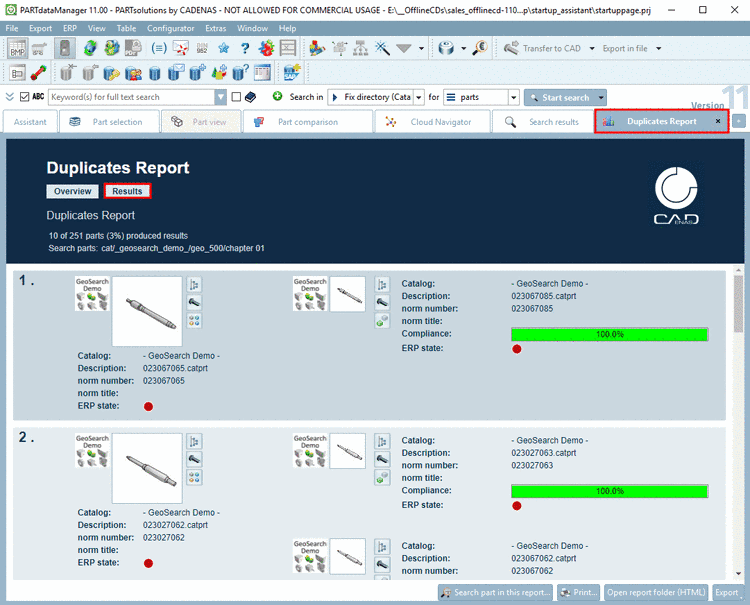
Parts with duplicate suggestions are numbered consecutively and listed on the left side.
The duplicate suggestions related to the respective search part are listed on the right side.
Via icons beneath each part you can perform the following actions:
| Button | Tooltip at mouse over button | Action |

| Go to directory in catalog index |
The project is marked in PARTdataManager, in the Part selection, in the index tree. |

| Open project | The project is opened in PARTdataManager, in the 3D preview. |

| compare part |
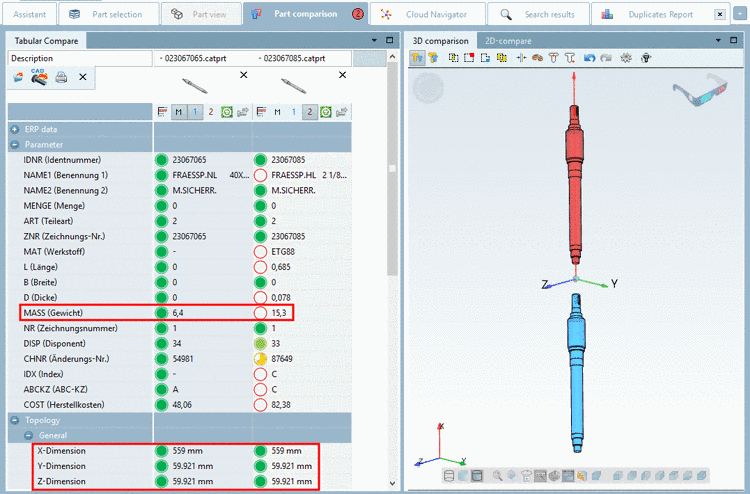
The search part and the result part are loaded in PARTdataManager, in Part comparison. A detailed description can be found under Section 3.1.6.10, “ Part comparison ”. Also see fig. below. |

| compare part |
The search part and all found parts are loaded in PARTdataManager, in the Part comparison (max. 10). A detailed description is found under Section 3.1.6.10, “ Part comparison ”. |
In the Part comparison you can overlook everything at a glance: Geometry, Topology, Table. The following figure exemplarily shows a similarity of 100%, but different material.
In the opened report the following functions are available:
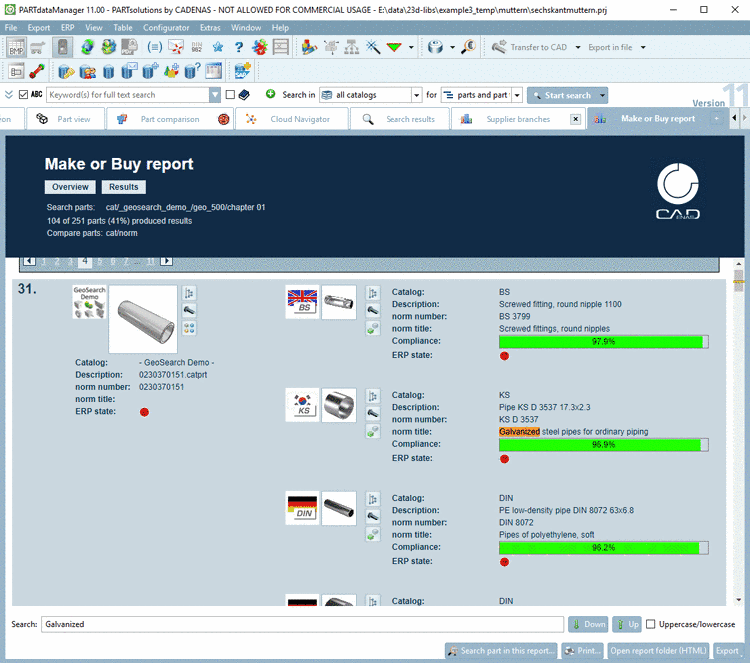
The function is available for Duplicate search, Make or Buy report, Supplier search and Cost mockup.
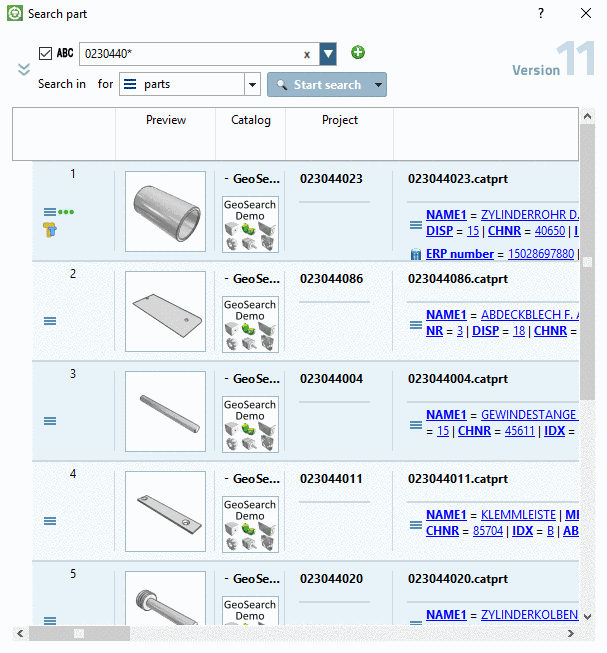
When clicking on the button, the dialog Search part is opened.
For example, search for keyword, article number, material or release status.
Preferably
search with the setting  parts.
By double-clicking on a search result you jump to the respective place in the report. Then scroll to the desired part.
The reports
folder is opened. All created reports are saved under $CADENAS_DATA\shared\reports\....
Due to the central storage, reports can be accessed across departments.
You can export the report in different formats.
Click on the little black arrow in the downright corner of the button.
-> A menu with the following options is opened:
Communication across departments:
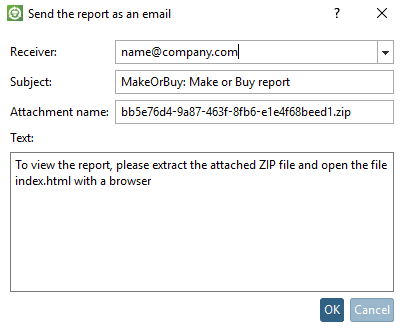
After clicking , the e-mail client is opened with attached report.
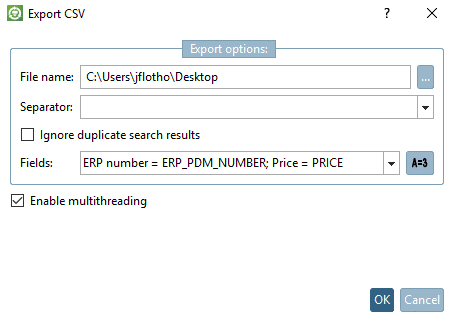
The Export CSV dialog box opens.
Following Export options are available:
Fields: Determine the Variables, whose values shall be included in the CSV file.
With a click on the button Edit custom variables
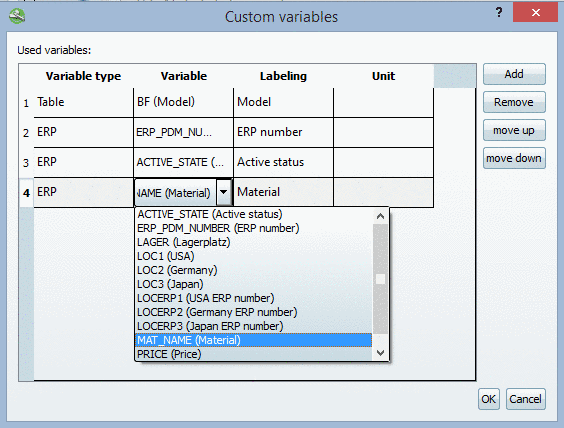
 the dialog box Custom variables is
opened.
the dialog box Custom variables is
opened.
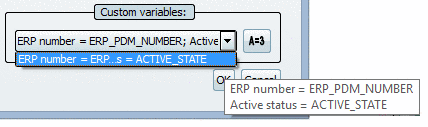
Here, you can specify variables which later will be displayed in the report additionally. They are shown at each part.
Possible are both ERP variables and variables from the characteristic attribute table.
At first click on in order to add a new line.
Via double-click into the line under Variable type the list field opens with the following options:
Via double-click into the line under "Variable" a list field with the following options opens:
Options at variable type "ERP":
When selecting "ERP" the ERP variables of the table are read and displayed in a list. You can also enter any other value.
Options at variable type "Table":
The characteristic attribute variables of the search directory (search source) are listed. You can also enter any other value.
Enter a labeling by clicking on it. This will be displayed in the report later.
Optionally you can state a unit.
If the variable has no own unit, the entered unit is displayed.
If the variable has a unit, the value is converted. (Currently conversion is only possible at the type "Variable".)
The diameter in the table is given in inches. You have stated mm as unit. -> The value is automatically converted from inches to mm.
Enable multithreading: Possibly makes sense in order to accelerate the process when using large files, if table variables shall be taken into the CSV. Especially in SSDs and network drives the activation should have a positive effect.
Call up created reports later again
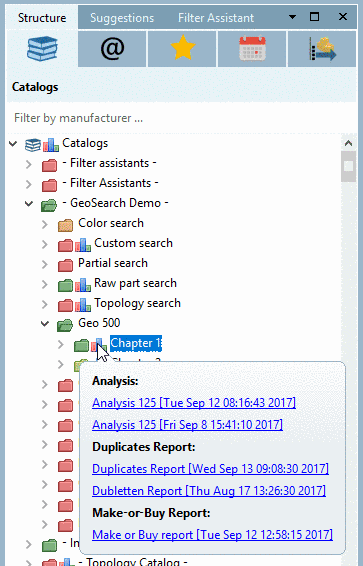
If there are
reports already available, the respective icon  is displayed.
When moving the cursor over an icon, a tooltip opens, which shows the list of all created reports.
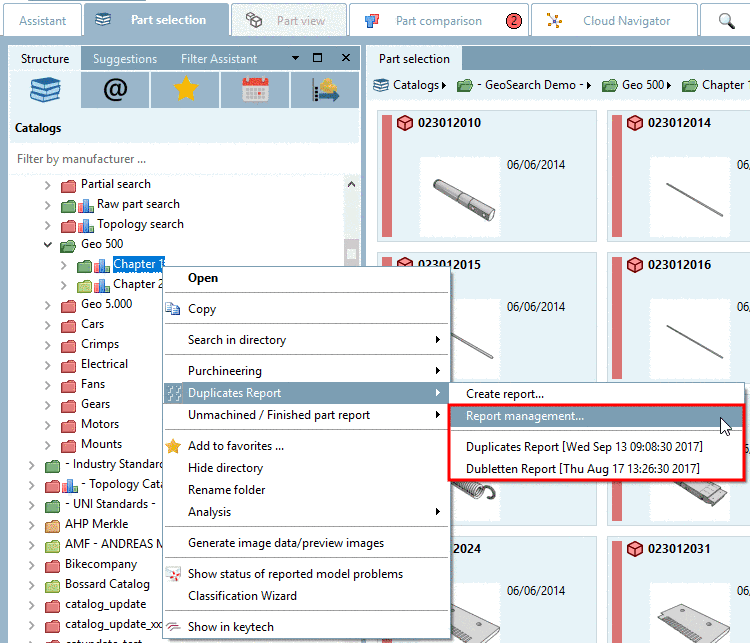
Clicking on the icon the dialog box Report management opens (if several reports are available) or the only existing report.
Clicking on a link the respective report opens.
Furthermore existing reports are also listed in the context menu.
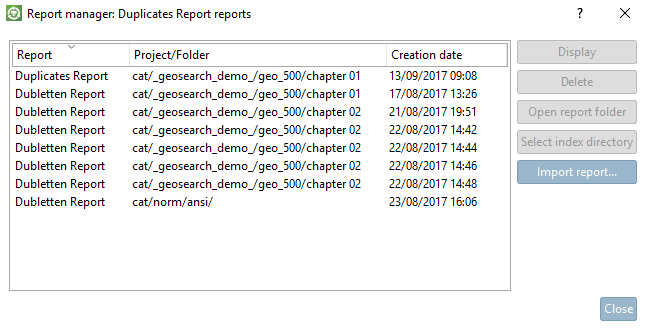
Created reports are saved and can be opened anytime later again:
-> The dialog box Report manager: Duplicates Report reports is opened.
Afterwards the following functions are available:
![[Note]](images/note.png)
![[Tip]](images/tip.png)