2.7.3. Operation 2.7.3.12. Export Clustering as a Catalog |  |
| Prev | Next |
This procedure allows you to create a new 3Dfindit Enterprise catalog from a saved clustering result. The export process adopts the cluster hierarchy of the result, so that the target catalog can be used as a structured catalog once the export job is complete.
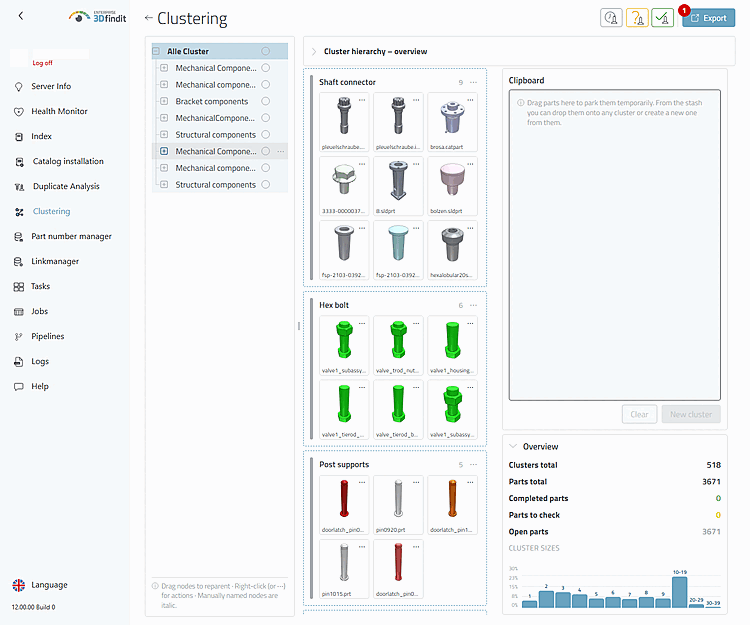
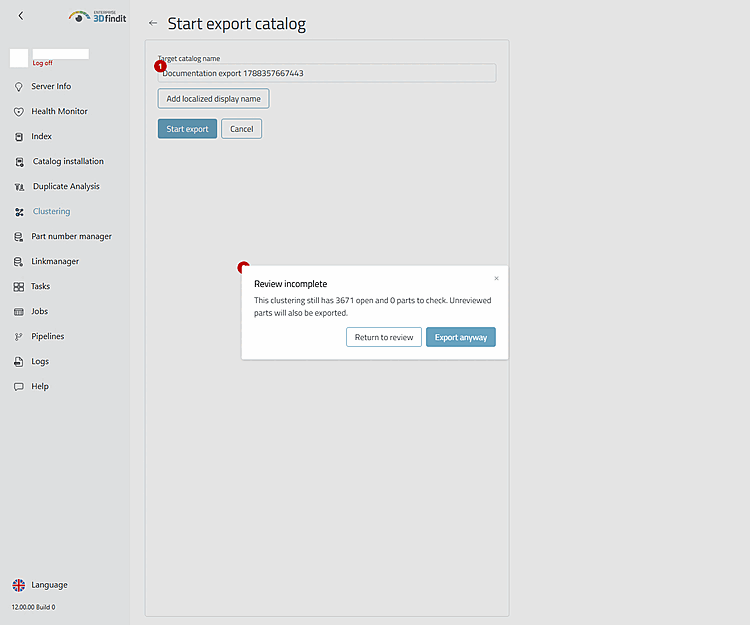
Open the desired saved clustering and select "Export" [1] in its header. The export page displays the name of the selected clustering and suggests a name for the destination directory. Click “Back” [2] or “Cancel” [3] to return to the clustering without starting an export .
The header section of the clustering provides the administration action that opens the page for catalog export .
Enter the name of the destination catalog to be created. As long as the name is blank, the export command is not available. Add a localized display name only if the new catalog requires a unique name for users in a supported language. The first row added selects an available language that has not yet been used; each additional row must specify a different language. Remove a row if the localized name is no longer needed. .
If the clustering still contains items with the status “Open” or “To check,” the export page will prompt you for confirmation. If you continue, the current result will be exported despite this check; if you cancel, you will return to the form and can continue with the check first.
The name of the target catalog determines the catalog that is created. The validation warning makes the decision clear before an incompletely validated result is exported.
After clicking “Start export,” the application returns to the clustering overview. The export appears there as a job and displays its progress on the server. The export may take a long time; administrators can exit the overview as soon as the job has been submitted and check the status later. Do not use the destination catalog until the job is complete. A failed or aborted export can be retried via its job card; retrying the export opens the export page with the previously submitted destination catalog details, provided the source clustering is still available.
Catalog Export – Form Controls, Validation Decision, and Job Status
The export creates a destination catalog based on the selected clustering result and displays its progress in the clustering job list. The job does not need to remain open while it is running. Once it is complete, the target catalog is available in ENTERPRISE 3Dfindit, for example, for browsing the exported structure as well as for geometry and text searches.
"Could not prepare export (missing parameters)" means that the export page was opened without the necessary context from clustering and the source catalog. Return to the saved clustering and open "Export" from there.
"Could not load export information" means that the saved result could not be read. Return to the overview , check whether the clustering is still available, and open it again.
An export error remains visible in the form, and the entered values are retained. This allows the administrator to correct the destination name or repeat the export as soon as the service is available again.
Verify a completed export in 3Dfindit Enterprise: Make sure the destination catalog is available, compare its cluster and folder structure with the export clustering result, perform a geometry search using a part from the destination catalog as reference geometry, and perform a text search for a visible part name or attribute of the destination catalog.