2.7.3. Operation 2.7.3.7. Move parts and transfer them
between clusters |  |
| Prev | Next |
You hold one or more parts while you decide where they belong, and then assign them to an existing cluster or create a new cluster for them. "Clipboard" protects the held-back parts from conflicting changes and preserves the current user’s work even after the result is reloaded.
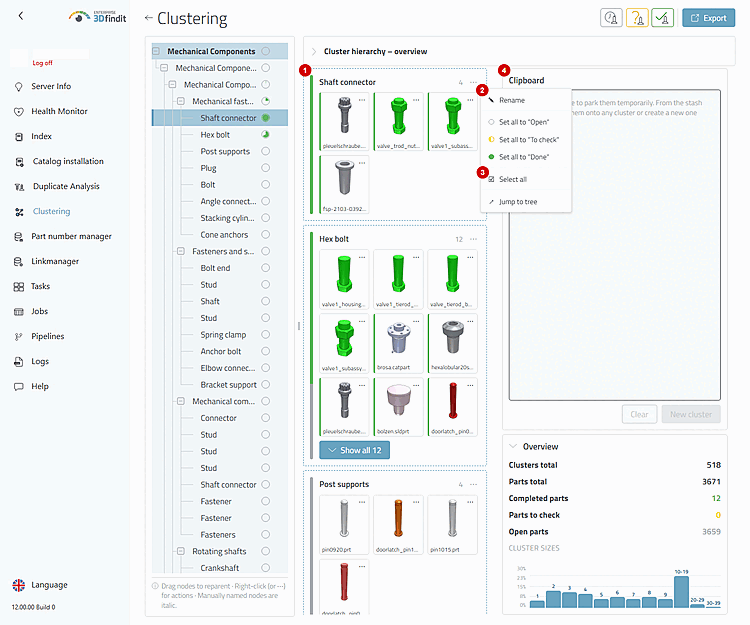
Select a part tile to make a correction that affects a single part, or use “Select all” [1] in the cluster map’s action menu to correct an entire cluster. To select multiple individual parts, hold down Ctrl and click each desired tile. Drag the selected parts to “Clipboard” [2]. A held-back part remains associated with its source cluster until it is placed in another destination; however, as long as it is in “Clipboard,” the current user holds a lock on the server.
The cluster's action menu allows you to select the entire cluster; "Clipboard" is the temporary storage area for the next assignment decision.
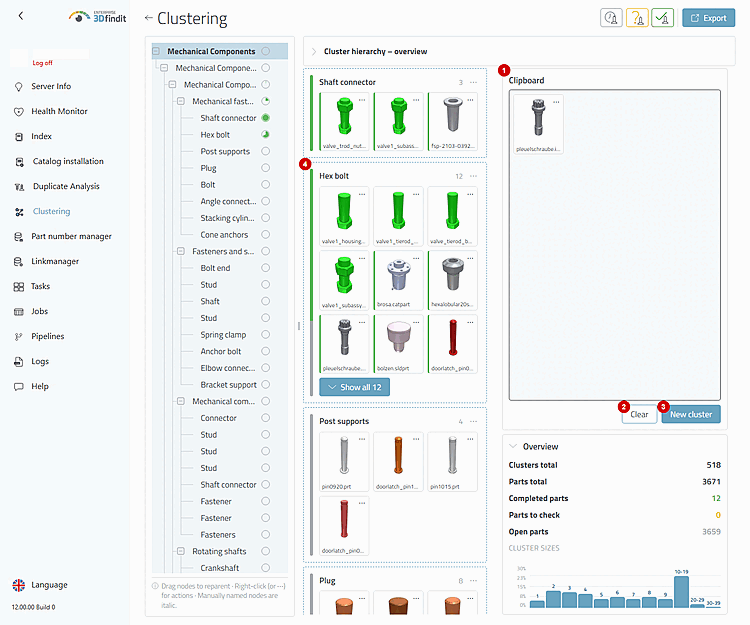
Check the retained tiles in “Clipboard.” “Clear” [1] releases the retained parts without changing their cluster affiliation. “New cluster” [2] creates a and moves the retained tiles there. A retained tile can also be opened via its action menu if you want to take a closer look at the tile before assigning it.
The filled "clipboard" distinguishes between a temporary hold and a completed move and presents the two possible options.
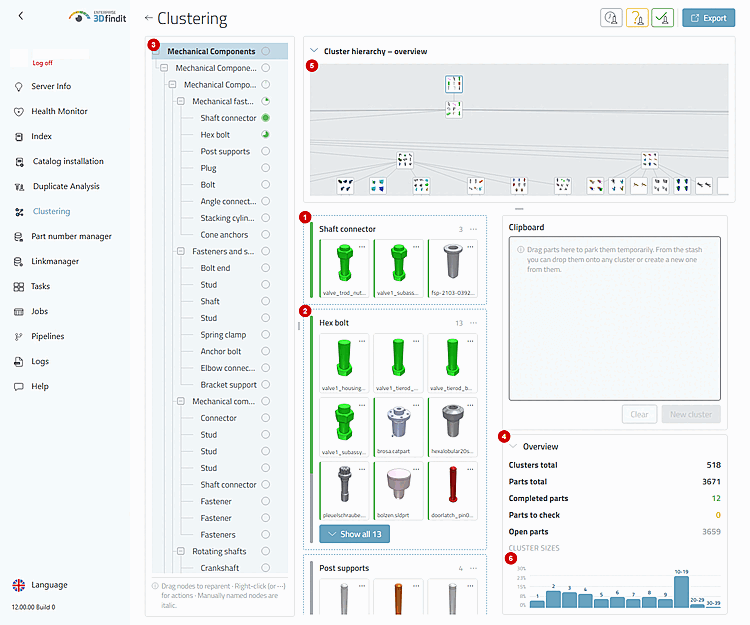
Place the held-back parts on another cluster map or a suitable destination in the tree to save the assignment. The updated source and destination maps show the changed affiliation. The tree, “Overview,” hierarchy graph, and histogram show the corresponding overall distribution of the newly loaded result.
"Clipboard" and Assignment—Selection, Retention, and Destinations
The selected items remain in their original cluster after clicking “Clear”; they either become members of the selected existing target or form the basis of a newly created child cluster. Saved assignment changes update the affected maps and all metrics in the results, i.e., the tree, “Overview,” hierarchy graph, and histogram.
"Clipboard" is available only to editors. If it is missing, either the "clustering-edit" permission is missing, the result has not been loaded, or editing is not possible.
Restricted clips are protected for the logged-in user. Other users cannot copy these clips to their own "clipboard."
A merge involving a source node with held-back parts is blocked until the "Clipboard" is emptied or the parts are assigned.
Work After an error occurs while locking, unlocking, or modifying, continue working with the newly loaded result instead of assuming that a local selection still matches the state on the server.