2.7.3. Operation 2.7.3.6. Check Parts and Set Status |  |
| Prev | Next |
You track the progress of the check for individual parts or for all parts of a filled cluster. After each change, the results view updates the map, “Overview,” hierarchy tree, and graph based on the saved clustering status.
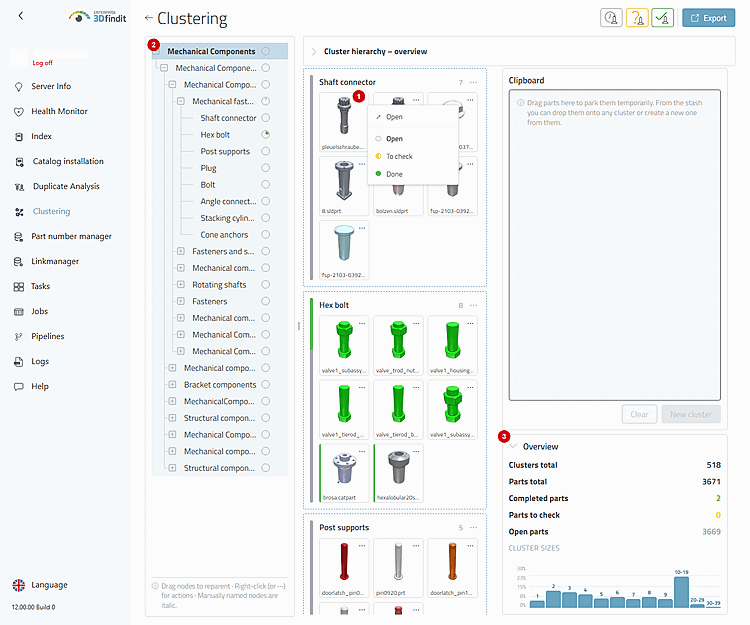
Use the action menu of a part tile [1] for an exception or an individual checked part. The three inspection statuses listed there apply only to this part; adjacent parts remain unchanged. The map’s distribution bar, the selected tree path, and “Overview” immediately show the context of the change.
In the results view, the part actions appear next to the selected cluster map; the hierarchy and "Overview" show the scope of the change.
If all parts of a cluster have the same check result, use the cluster's action menu instead of repeating the action for each part. The selected test status then applies to the entire filled cluster; the updated status distribution shows the shared status in the map, tree, and “Overview.”
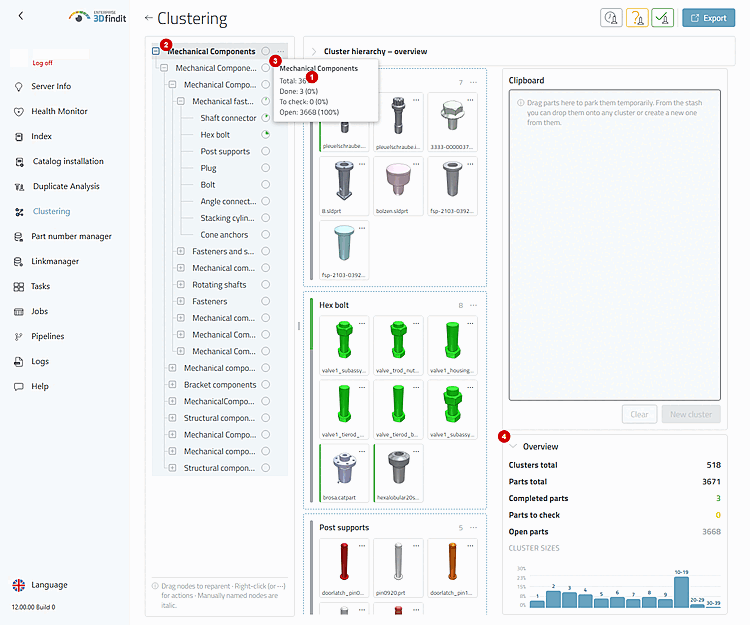
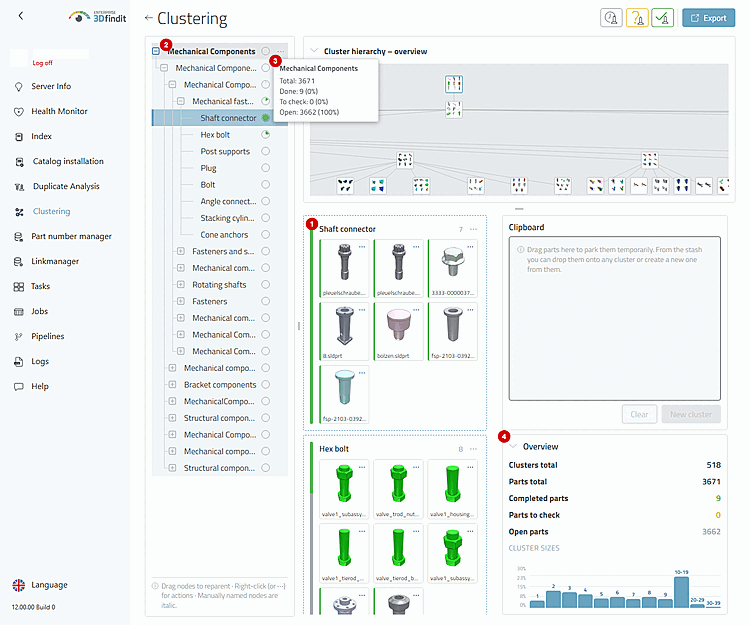
Status distribution, counters in the hierarchy, and totals under “Overview” show the updated, saved status following a review decision.
The hierarchy graph shows the same clustering hierarchy as the tree. Its node progress bar provides an overview of the saved status; after both types of changes, parent nodes display the aggregated validation status of their child nodes.
A status decision for the entire cluster changes every part of the selected map and updates the status information in the hierarchy and "Overview."
Part Inspection – Status Actions and Status Displays
The saved clustering records the selected inspection status for the affected part or for all parts in the selected filled cluster. The results view then uses the updated status for card distributions, totals, tree progress, and progress in the hierarchy graph.
If the status actions are missing, the logged-in account does not have "clustering-edit" permissions, the result is still loading, or the selected cluster does not contain any suitable parts.
If a status change is rejected, the results view displays an error. The application reloads the current status from the server, since a simultaneous or partially executed change may have altered it; check the updated map and the counters before deciding on another change.
Use the status of individual parts when a cluster has mixed results. The action for the entire cluster is intended only for a single, combined result for all parts of the filled cluster .