2.7.3. Operation 2.7.3.4. Search, open,
and delete saved clusterings |  |
| Prev | Next |
In the Clustering Overview, you can view a completed clustering result, read its summary, open it for a detailed analysis, or permanently delete an outdated result.
To access saved clustering results, the logged-in account must have the "clustering-view" permission.
For "Generate names" and "Delete," clustering-manage is required. Accounts with read-only access can still open a result.
The desired clustering must already be complete and listed in the "Clusterings" section.
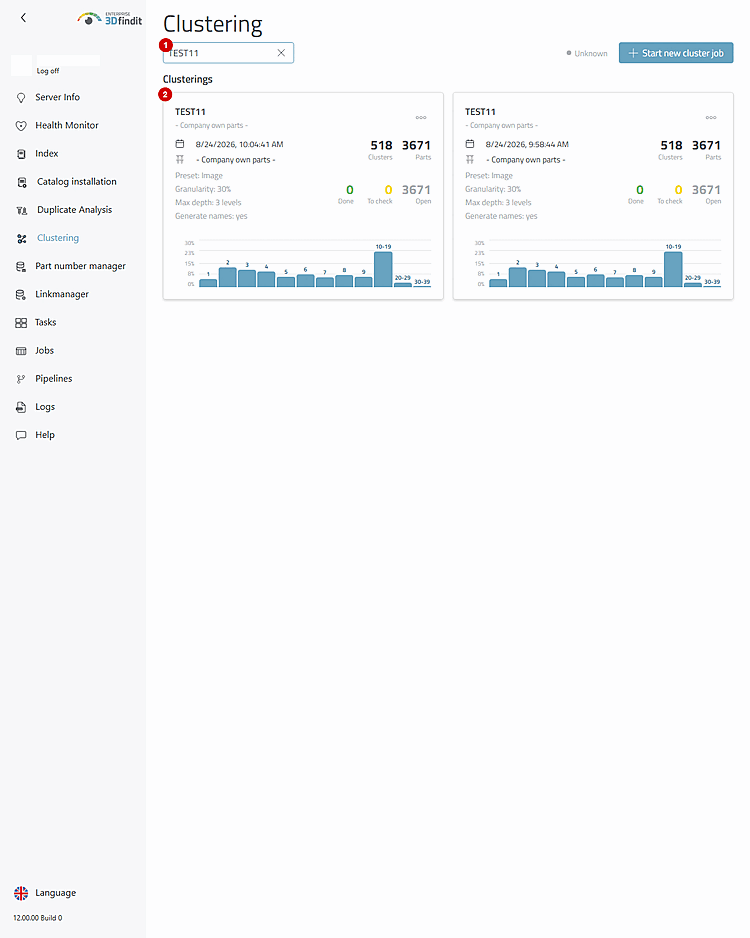
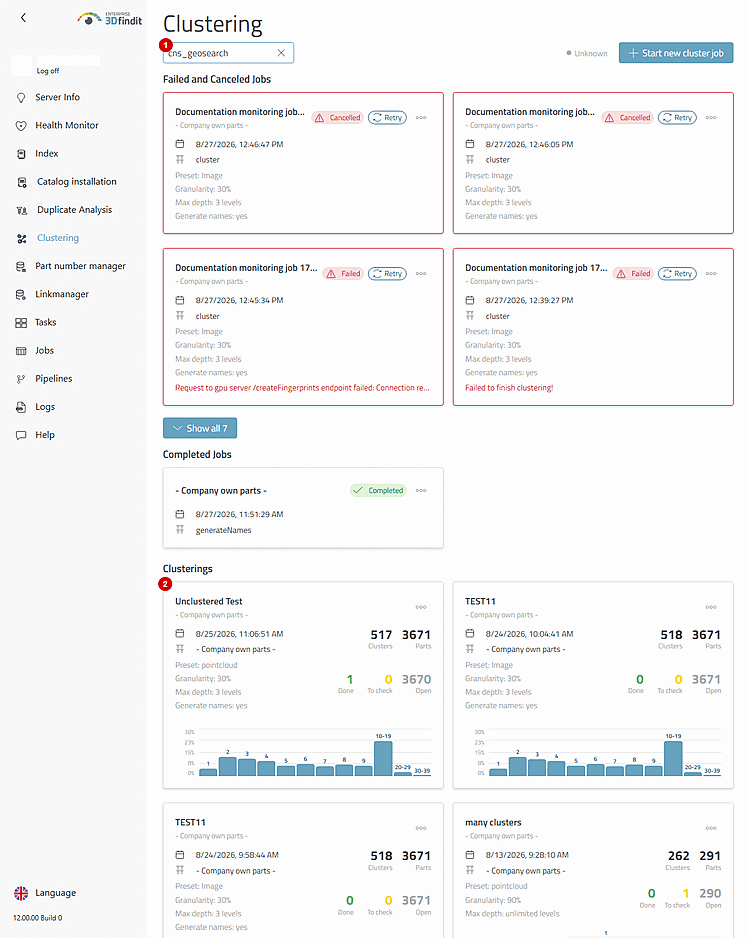
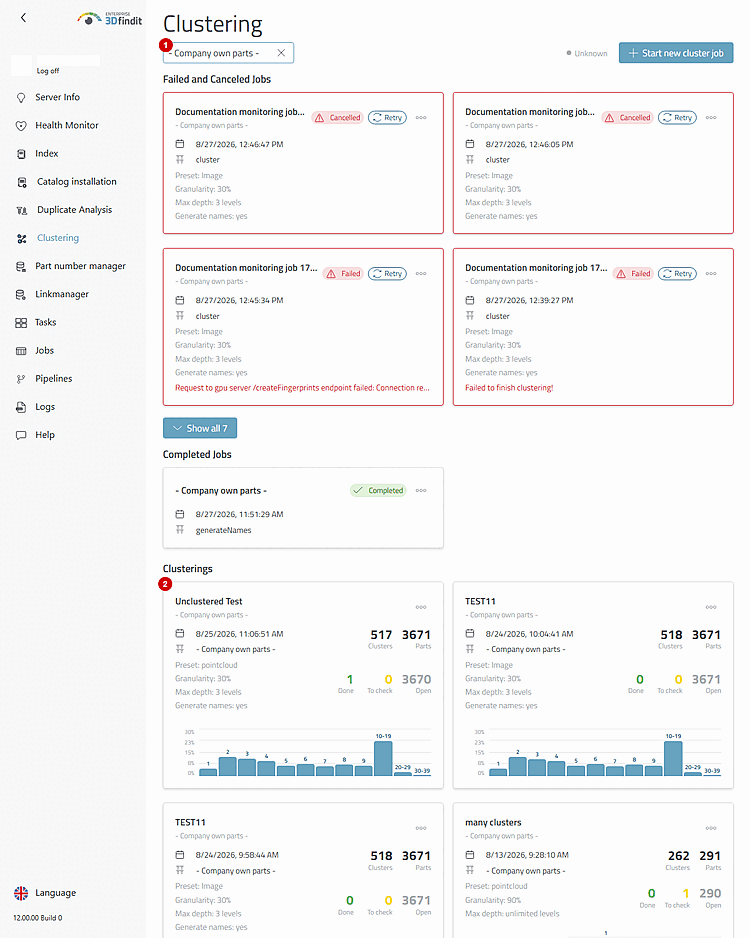
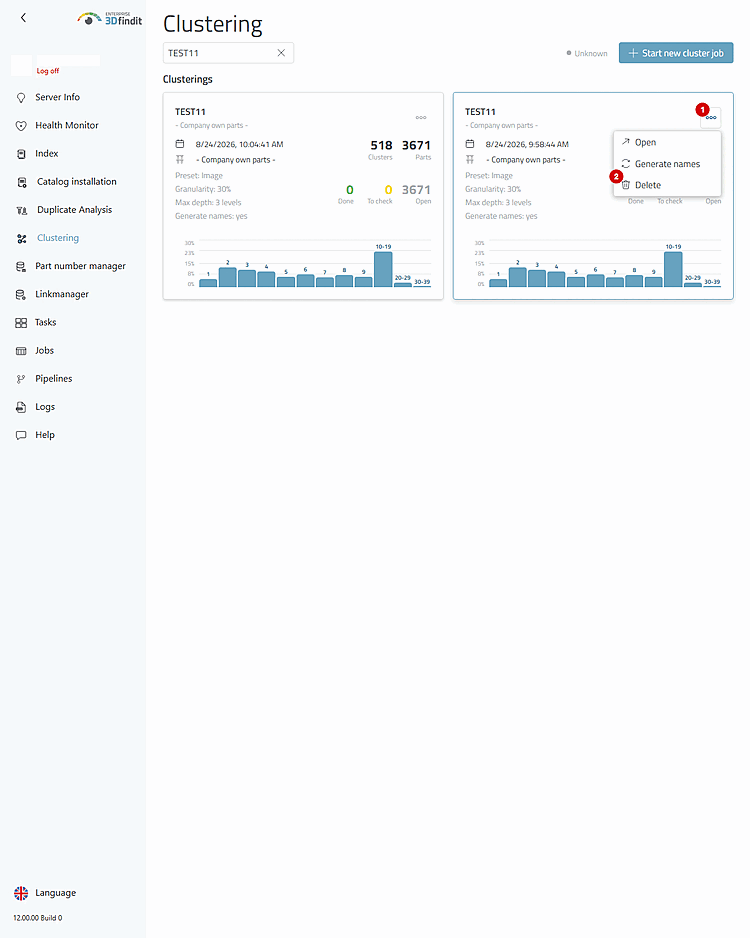
"Filter" narrows down the overview without distinguishing between uppercase and lowercase letters. A saved result can be found in three ways: by the clustering name, the saved catalog name, and the catalog's display name shown on the map. The corresponding clustering map [2] serves as an overview for operation and opens the saved result directly.
A filtered overview displays the selected saved result, including the source, configuration, and test bench.
Use the saved clustering name [1] if you know exactly which result you are looking for. This is the most precise filter for distinguishing between individual runs of the same catalog.
Using the saved catalog name [1], you can group together the saved results from a technical source catalog. This is useful when you want to review multiple runs of the same source together.
Use the human-readable display name of the catalog [1] if you are familiar with this term. It returns the same saved results as the saved catalog name, without requiring you to know the technical catalog identifier.
The filter by catalog display name returns the same results without the technical catalog identifier.
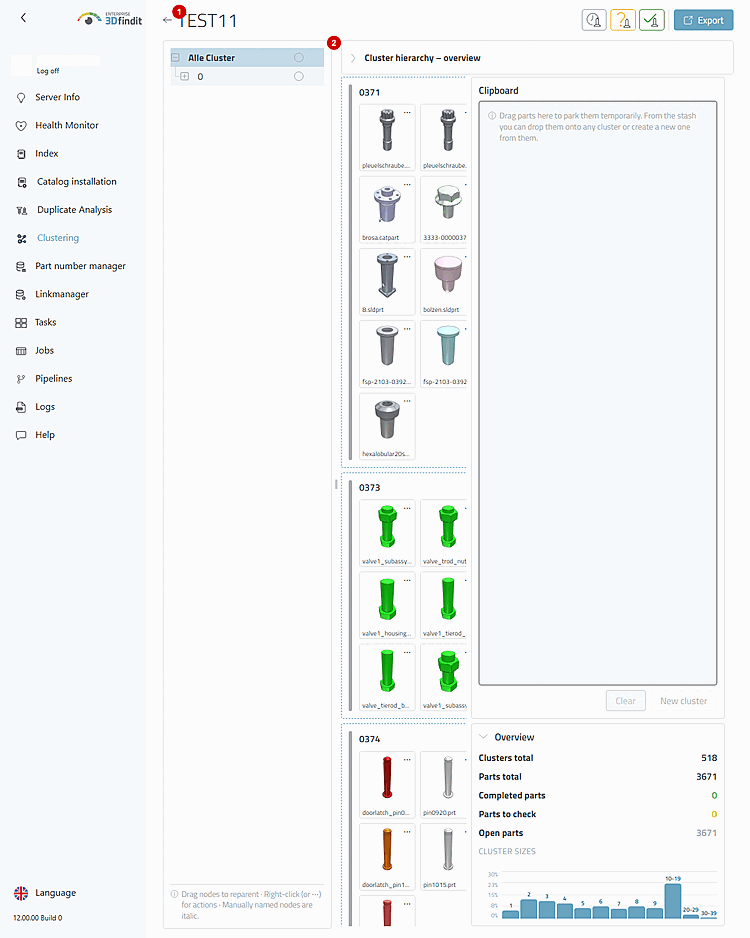
In the clustering details view, you can analyze the results. The title [1] indicates the currently loaded result. Return to the overview if you want to select a different result or manage its lifecycle .
The "More" [1] menu lists the actions available for the selected card. “Open” leaves the result unchanged and opens its detail view. “Delete” [2] initiates the deliberate, permanent removal of results that are outdated, duplicated, or no longer needed for other reasons.
The card menu separates normal access to the result from the lifecycle actions that are available only to administrators .
Saved Clusterings – Filter Options and Lifecycle Actions
The administrator can narrow down and identify a saved clustering, work with the detailed results, and remove outdated data only after express confirmation by a manager. The overview remains the authoritative list of saved results.
If the filtered list is empty, the search text may not match the clustering name, the catalog name, or the display name of the catalog. Clear or refine the filter before assuming the result is unavailable.
If "Delete" is missing from the "More" menu, the logged-in account does not have the "clustering-manage" permission; however, you can still open the result using "clustering-view."
Permanent deletion cannot be undone in the clustering interface. Select “Cancel” while the confirmation dialog is still open if you need to review the result.