2.7.3. Operation 2.7.3.2. Start the first clustering job |  |
| Prev | Next |
You start a new clustering pipeline for a selected catalog and return to the clustering overview to manage the running job.
The logged-in account requires the "clustering-view" and "clustering-manage" permissions. If "Start new cluster job" does not appear in the clustering overview, these permissions may be missing.
Check to see if the intended source catalog is available in the “Catalog” drop-down menu.
Resolve any warnings regarding backend readiness before submitting jobs. Make sure that all required backend services are available before starting the job.
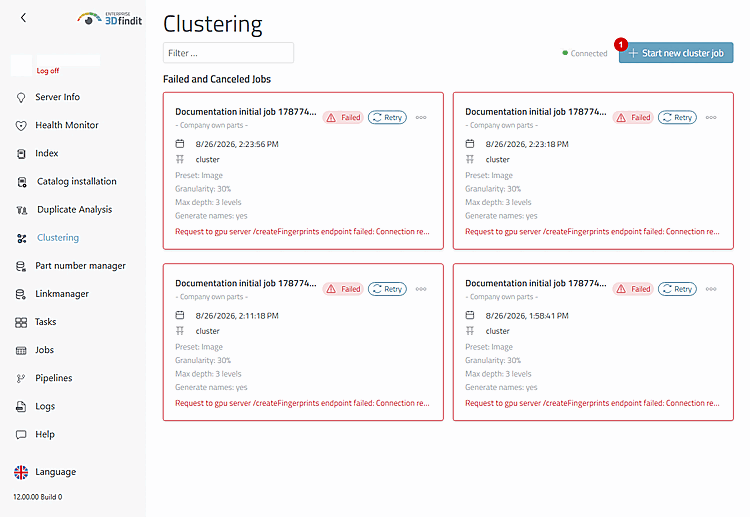
Open "Clustering" and select "Start new cluster job" [1]. This management action is available only to administrators with the clustering-manage permission.
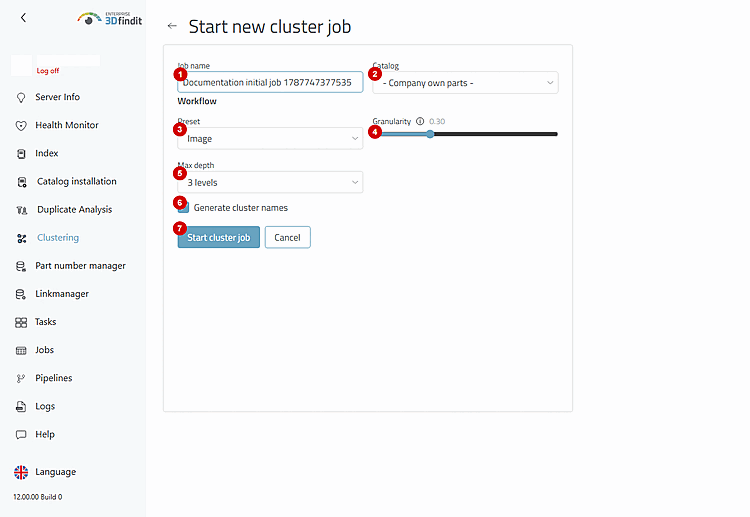
For a standard job, enter a unique name under “Job name” [1] and select the source catalog under “Catalog” [2] based on the name displayed there. The form selects its default preset under “Preset” [3] and sets the remaining options to default values.
Set "Granularity" [4], select "Max depth" [5], and decide whether to enable "Generate cluster names" [6]. Review the entire query, and then select “Start cluster job” [7].
The numbered controls together form the request to the clustering backend. Review them as a whole, because the resulting hierarchy depends on the interplay of all settings.
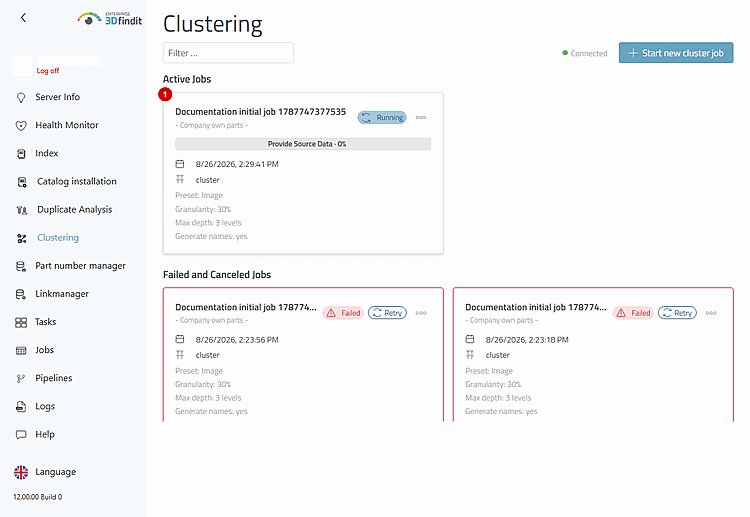
After the request has been accepted, the application returns to the overview screen. The new job appears first under “Active Jobs” [1]. Track its execution using the displayed values for catalog, preset, granularity, depth, naming, phase, and progress.
First Clustering Job – Form Controls and Operational Decisions
The backend accepts the configuration, and the overview displays an active clustering job. While the pipeline is running, the job card serves as the primary status indicator. Once complete, the result is available as saved clustering for use in subsequent workflows. .
If "Start cluster job" is not available, enter the missing required information. The request cannot be submitted without a selected catalog, with an empty job name, or without an available preset.
If the preset list is not available, the form will indicate that clustering requires a preset. Restore the availability of the presets before trying again.
If the backend rejects a request, the form retains the current settings and displays the error message returned. Correct the reported issue and resubmit.
Use "Cancel" or "Back" to discard a configuration that has not been submitted; neither action creates a job.