5.9.2.3. Menu item: Variables
5.9.2.3.3.
Variable groups - columns (variables) visible / hidden
|  |
| Prev | Next |
5.9.2.3. Menu item: Variables
5.9.2.3.3.
Variable groups - columns (variables) visible / hidden
| |
| Prev | Next |
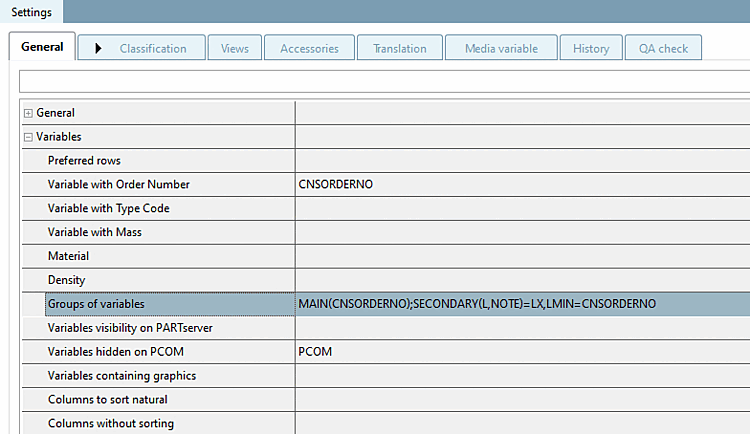
The corresponding setting option for variable groups can be found in PARTproject via Tabbed page Settings → Category General → Menu item Variables → Variable groups [Groups of variables] →
The variable groups [Groups of variables] option is used to control two functions in the user interface:
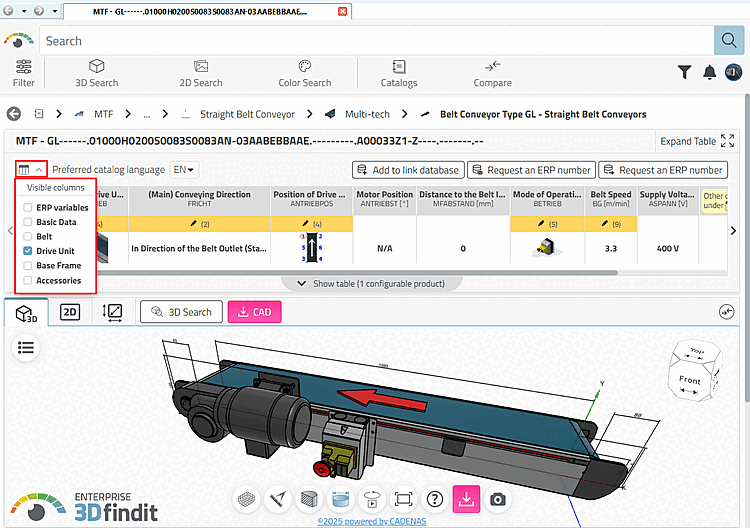
Visibility status of variables (columns) in 3Dfindit / PARTdataManager / PARTcommunity.
Variables that do not belong to a group are not displayed in 3Dfindit / PARTdataManager / PARTcommunity. Main variables and secondary variables [Secondary variables] can be shown and hidden in 3Dfindit / PARTdataManager / PARTcommunity.
Grouping of variables: The illustration above shows how you can show and hide individual groups.
If groups have already been defined (automatically via the NB/LINA affiliation or manually), the MAIN and SECONDARY groups are displayed with the respective assigned variables.
![[Note]](images/note.png) | Note |
|---|---|
If no groups have yet been defined for a project[32] (recognizable by the empty field Variable groups [Groups of variables] ),
then the variables areautomatically grouped when the Variable groups [Groups of variables] dialog is opened for the first time. The automatic grouping is performed according to the following scheme:
After closing the dialog box the group assignment is displayed in the field. | |
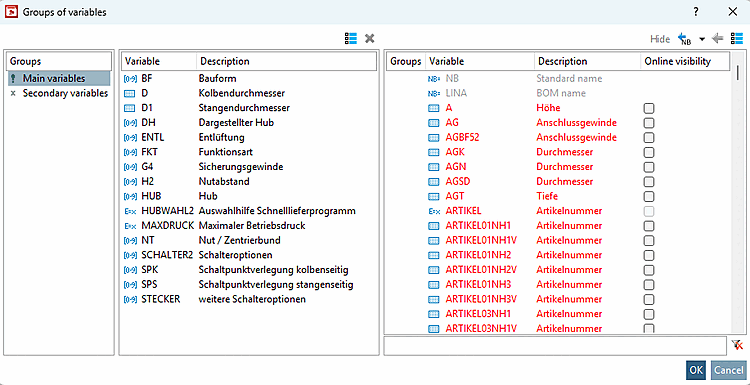
Clicking on the Browse button the Variable groups [Groups of variables] dialog box opens. When the list is initially loaded, the variables are sorted as in the table. You can sort them alphabetically by clicking on the desired header.
Left column | Subdivision into groups
In the left-hand column under Groups, you can switch between main variables [Main variables] and secondary variables [Secondary variables] (if necessary also between other manually created variables [Secondary variables] ), which are then displayed in the middle column.
Right column | List of all variables
All variables are listed in the right-hand column. In the input field at the bottom right, you can make any entry to filter the variables. You can enter any part of a term and thus also find terms that contain the search word. For example, "diameter" will also find results with "outer diameter" and "inner diameter".
The variables NB and LINA cannot be assigned to a group and are always shown in gray in the right-hand column.
Variables shown in red are not in any group and are invisible in the table or in 3Dfindit / PARTdataManager / PARTcommunity.
The visibility can only be adjusted for fixed values
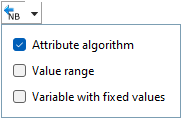
become. [Visibility can only be adjusted for fixed values.] Therefore, the checkboxes for value range variables [Value range variables] ( ) and variables with characteristic algorithm [Attribute algorithm] (
 ) are cleared.
If a variable is not part of
of any group, it is invisible. To change the assignment to a
group, select a group in the left column and
Click  . The
Variable is displayed in the right column, is now shown in red
and thus faded out.
. The
Variable is displayed in the right column, is now shown in red
and thus faded out.
At
to make a hidden column visible again, select
on the left, select the group that should hold the variable and drag the
then drag and drop the desired variable from the right-hand column into
the middle column or use the arrow key
 .
.
Handling of newly added variables
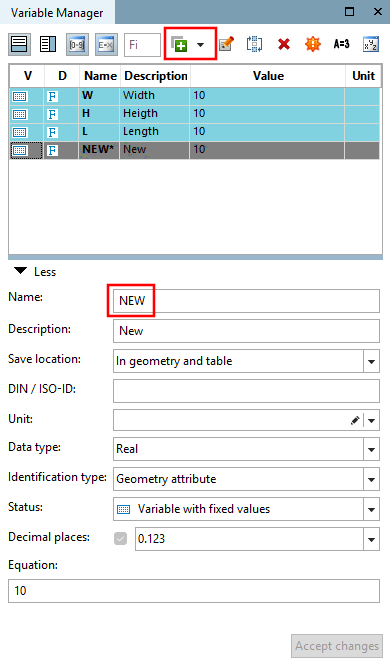
Initial situation: A new variable has been added in the Variable Manager.
Newly added variables in PARTdesigner are marked in PARTproject in the dialog window Variable groups [Groups of variables] in gray or red.
Adjust the group membership as required (see above ).
| ||||
To create groups, see Section 5.9.2.3.2, “ Creating variable groups (at catalog level) ”.
Mark a group in the left column.
Per Drag &
Drop pull the desired variables from the right column (list of all
variables) into the middle column or use the arrow button .
If you close the dialog with , the groupings are displayed under Variable groups [Groups of variables].
MAIN(ARTNR);SECONDARY(BI1,BI2,BI3,BA)
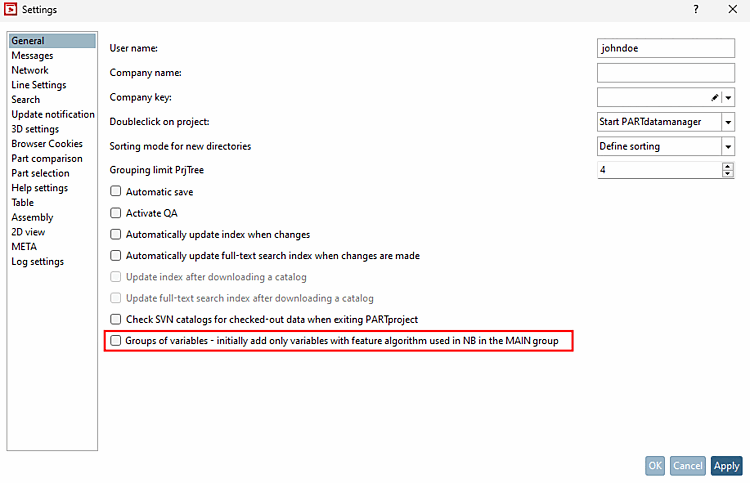
Variable groups - Keep only variables with feature algorithm that form NB in the MAIN [Groups of variables - initially add only variables with feature algorithm used in NB in the MAIN group]:
Basically, when the Variable groups [Groups of variables] dialog is opened for the first time, variables are automatically extracted from the NB and assigned to groups if no groups have been set yet.




![PARTproject → "Variable groups [Groups of variables]" dialog window](resources/img/img_949d4442b97743238ddba637f41fe001.png)