7.6.2.12.5. What should be
considered 7.6.2.12.5.4.
Preview display and edge visualization for chamfer/rounding
|  |
| Prev | Next |
7.6.2.12.5. What should be
considered 7.6.2.12.5.4.
Preview display and edge visualization for chamfer/rounding
| |
| Prev | Next |
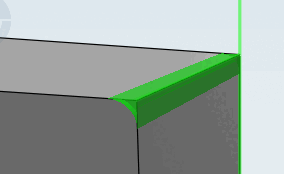
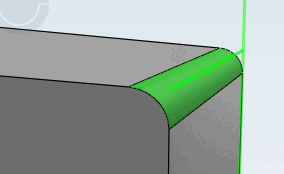
If edge visualization [Edge visualization] is activated (default), all edges to which the blend feature is applied are highlighted in green (see following figure).
You can activate and deactivate edge visualization [Edge visualization] as follows:
- Press F10 or alternatively open the settings menu via Tools [Extras] menu -> Settings [Settings...]... -> PARTdesigner -> Chamfer/Rounding [Chamfer/Fillet].
- Activate or deactivate the checkbox under Edge visualization.
The different modes for the preview display [Preview presentation] of chamfer/rounding [Chamfer/Fillet] are explained below:
Open settings dialog via F10 or alternatively via Tools [Extras] menu -> Settings [Settings...]... -> PARTdesigner -> Chamfer/Rounding [Chamfer/Fillet] -> Preview display [Preview presentation]
Deactivated (default): No preview
Preview with option "Deactivated [Deactivated] " and edge visualization [Edge visualization] activated
Entire part [Full part]: The behavior is similar to chamfer surface [Chamfer], except that the entire part is displayed in the preview color. As long as chamfers or curves have not yet been confirmed, both the original edge and the preview are displayed. If a blend has already been confirmed and reopened, only the chamfer or rounding area is displayed.
Preview with "Entire part [Full part] " option: The illustration shows the preview of an edge that has already been confirmed and an edge that has just been edited (edit mode opened again)
Chamfer area [Chamfer]: The chamfer or rounding area is not only displayed in the preview for currently edited edges, but for all edges provided with the blend feature. This is the difference to the Change option. For chamfers or curves that have just been edited, both the original edge (still without material removal) and the preview of the chamfer or curve are displayed.
Preview with "Chamfer surface [Chamfer] " option: The illustration shows 2 confirmed edges and 2 edges that have just been edited.
Difference to the original: The preview shows the material removal (in contrast to the other preview options, which show the chamfer or rounding area).
The chamfer or rounding area is only displayed in the preview for the edge that is currently being changed. For elements that have already been changed, only the edges are visualized (if the Edge visualization option is activated, which is the default setting).
You will only see a difference between the chamfer area [Chamfer] and change [Change] options if you edit an existing blend feature again.
Preview with "Change [Change] " option -- One edge is currently being edited, several others are already part of the blend and are displayed with edge visualization [Edge visualization].
You can activate or deactivate the edge visualization [Edge visualization] and the preview display [Preview presentation] in the chamfer/rounding [Chamfer/Fillet] docking window by clicking on the eye icon  to activate or deactivate them together (see following figure).
![Editing mode with the "Chamfer/rounding [Chamfer/Fillet] " docking window open](resources/img/img_24129dccf15a44188d4bbfcc71722c3a.png)
![activate/deactivate "Edge visualization [Edge visualization] "](resources/img/img_a2ec02ad62a4435a9de6b4c38ea098c1.png)
![Open settings dialog via F10 or alternatively via Tools [Extras] menu -> Settings [Settings...]... -> PARTdesigner -> Chamfer/Rounding [Chamfer/Fillet] -> Preview display [Preview presentation]](resources/img/img_ee5d8d85c997438b8d7ac261505e445c.png)
![[Note]](images/note.png)
![Preview with "Entire part [Full part] " option: The illustration shows the preview of an edge that has already been confirmed and an edge that has just been edited (edit mode opened again)](resources/img/img_5cbae5bf29c846f09a58a62dbce16a18.png)
![Preview with "Chamfer surface [Chamfer] " option: The illustration shows 2 confirmed edges and 2 edges that have just been edited.](resources/img/img_3a4298e91434468ab6d25b71890b3585.png)
![Preview with "Change [Change] " option -- One edge is currently being edited, several others are already part of the blend and are displayed with edge visualization [Edge visualization].](resources/img/img_65d03a16ecdf4460928984d098313b11.png)
!["Chamfer/rounding [Chamfer/Fillet] " docking window](resources/img/img_92ccb68be425491fbda8bc032422f205.png)