7.6.5. Solid context menu 7.6.5.2.
Move/rotate... (component)
|  |
| Prev | Next |
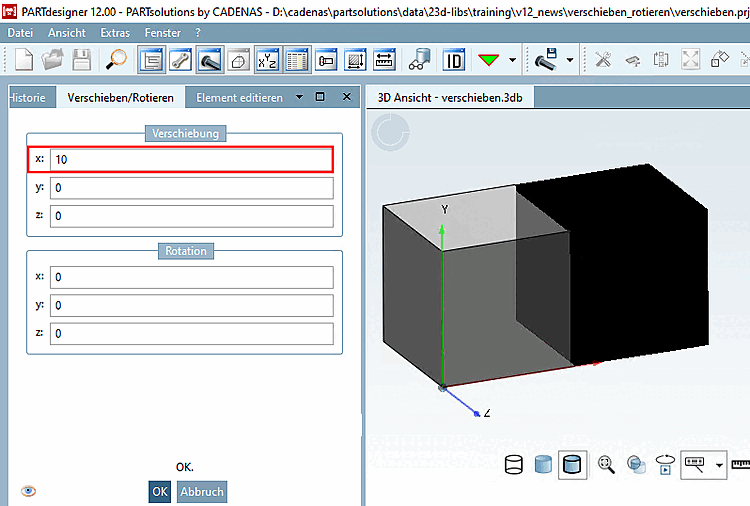
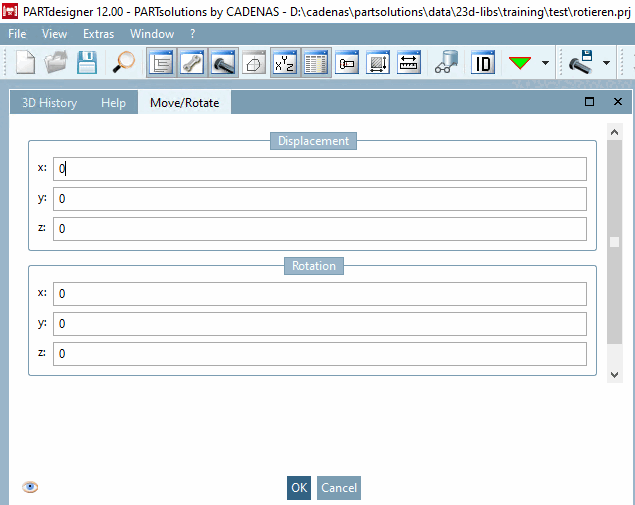
Click on Move/Rotate [Move/Rotate...]... the dialog area of the same name opens.
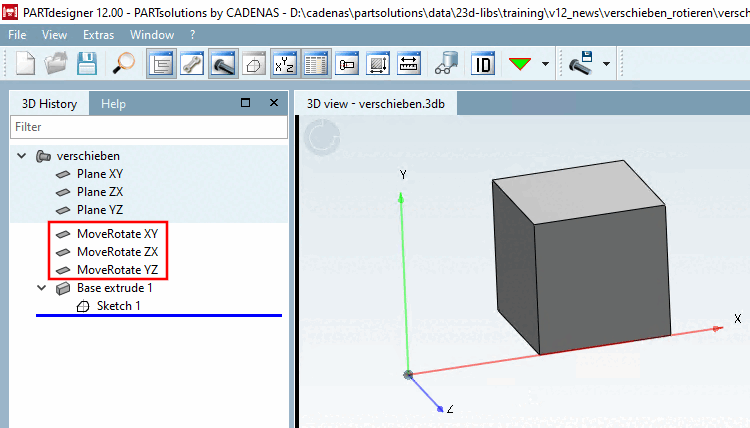
You can position the component accordingly in space by making entries under Shift [Displacement] and Rotation. The alignment of the coordinate system remains unaffected.
![[Note]](images/note.png) | Note |
|---|---|
When executing Move/Rotate [Move/Rotate...]... dependencies are created, so that there may be no simple "back". Please note the dependencies when deleting automatically generated plans.
| |
The use of Rotate may be related to a manipulation of the coordinate system ( PARTproject -> Edit project -> General tab -> General -> Coordinate axes ). See the following example.
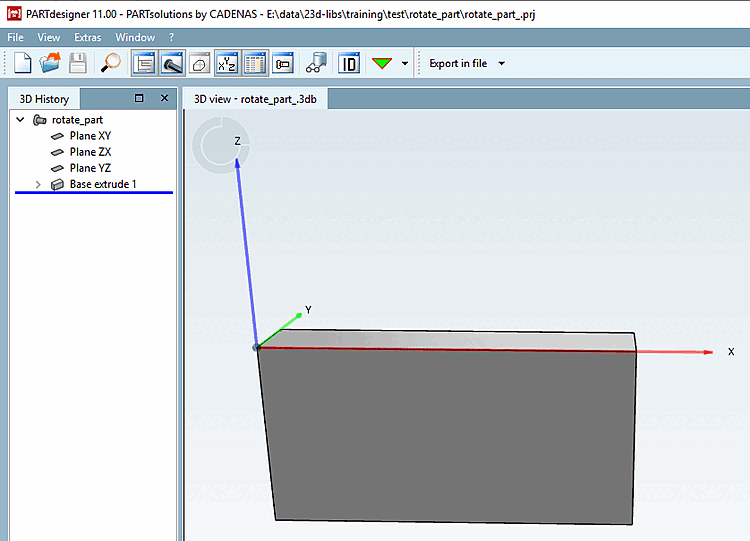
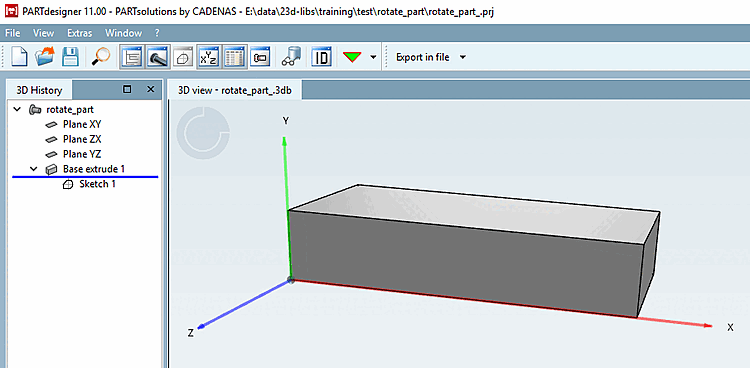
Initial situation: Part modeled in eCATALOG 3Dfindit, "faulty" with Y-axis upwards.
Requirement: The component should retain its horizontal position in space, but the coordinate system should be reoriented with the Z-axis pointing upwards.
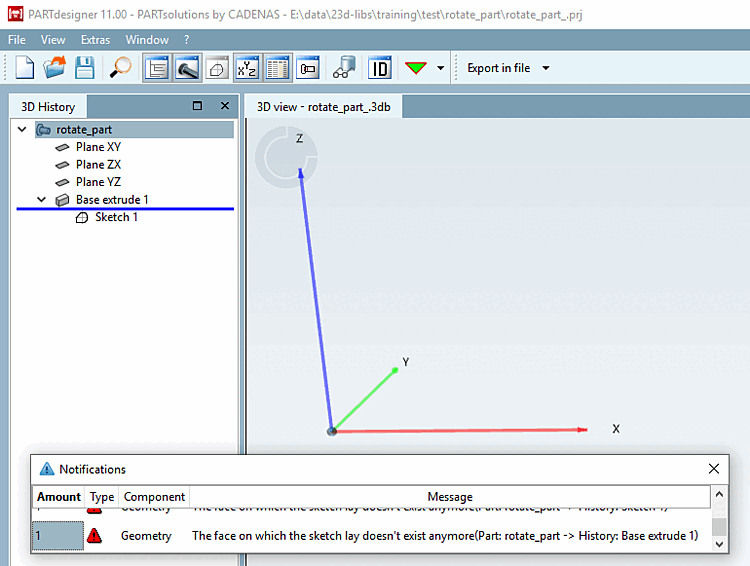
The coordinate system is realigned in PARTproject via the Coordinate axes function so that the Z-axis points upwards and the Y-axis points backwards.
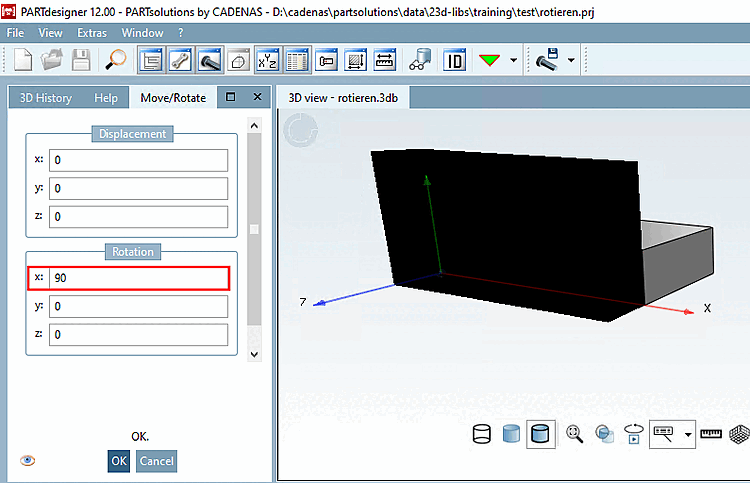
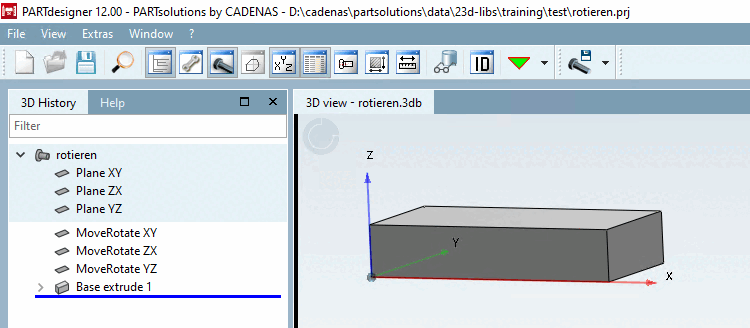
In PARTdesigner the component can be returned to its original position in space by rotating it [Rotate].
After applying rotation [Rotation] x: 90, the component appears in its original position again. Compare Fig. „Initial situation“.
| ||||
| Note |
|---|---|
When executing Move/Rotate [Move/Rotate...]... dependencies are created, so that there may be no simple "back". Please note the dependencies when deleting automatically generated plans. | |
Depending on which setting you perform, the part is moved "in space":
![PARTprojectfunction "Coordinate axes [Coordinate axes] "](resources/img/img_e29b71a3b0d943cfbae29d8735ac25b9.png)