6.10.2.  Check ERP mapping (Add ERP mapping... and Edit ERP mapping...)

6.10.2.1. Workflow
6.10.2.1.1. Check ERP mapping (Add ERP mapping... and Edit ERP mapping...) [Catalog modeling]
6.10.2.1.2. Use order numbers to create mappings
6.10.2.1.3. Add ERP mapping... and Edit ERP mapping..
6.10.2.1.4. Cleanup previous ERP mappings...
6.10.2.1.5. Installation of catalog update (at the customer)
6.10.2.2. User interface and simple use case
6.10.2.3. User interface: Reference of icons and functions in detail
6.10.2.3.1. Plus button
6.10.2.3.2. Map resolved value ranges
6.10.2.3.3. Generate algorithm matching the selected line and copy it to clipboard
6.10.2.3.4. x-Button
6.10.2.3.5. Blue arrow button
6.10.2.3.6. Open project
6.10.2.3.7. Approve assignment
6.10.2.3.8. Verify all mappings
6.10.2.3.9. Different options
6.10.2.3.10. Save via OK button
6.10.2.4. The most important use cases
6.10.2.4.1. Renamed folder
6.10.2.4.2. Changed NB
6.10.2.4.3. Changed order number
6.10.2.4.4. Changed variable of order number
6.10.2.4.5. Deleted project
6.10.2.4.6. Hidden project
6.10.2.4.7. Moved project
6.10.2.4.8. Changed project name
6.10.2.4.9. Splitting of project with value range variable in two projects with fixed variable
6.10.2.4.10. Merged projects with fixed values
6.10.2.4.11. Resolved value range
6.10.2.4.12. Changed table row
6.10.2.4.13. Deleted/hidden table row
6.10.2.4.14. Rearranged table rows
6.10.2.4.15. Value range: Changed values
6.10.2.4.16. Value range: Changed range
6.10.2.4.17. Value range: Changed range with undefined stepping
6.10.2.4.18. Concatenated variables
6.10.2.4.19. Fixed variable changed to value range variable
6.10.2.4.20. Changed precision of decimal places
6.10.2.4.21. Renamed value range variables
6.10.2.4.22. Renamed fixed variables
6.10.2.5. ERP mapping: Questions -> Answers

Why does ERP mapping need to be carried out at all?

A small example shall illustrate the necessity: When performing changes in a catalog's follow-up version it could be, for example that a project was split into two. If on customer side, just the new catalog version would be installed, related ERP numbers could not be assigned anymore, because the corresponding project is missing. However, if a mapping is created, this information is available during the installation and the ERP numbers can be correctly assigned to the new projects again.

Up to V10 now a customer administrator had to perform a mapping for LinkDB datasets at each catalog update, if projects or variables had been changed, which led to lots of effort on the customer side and less upgrades to latest catalogs. [69]

To reduce the workload on the customer side, mapping information can be created in the SVN catalog status from V10 and included in the CIP file when publishing. This information is then processed automatically during installation. This means that the task of mapping is now taken over by the catalog modeling and no longer has to be carried out on the customer side with each update.

[Note]Note

For each new catalog release, the ERP mappings must be entered in PARTproject from the modeling.

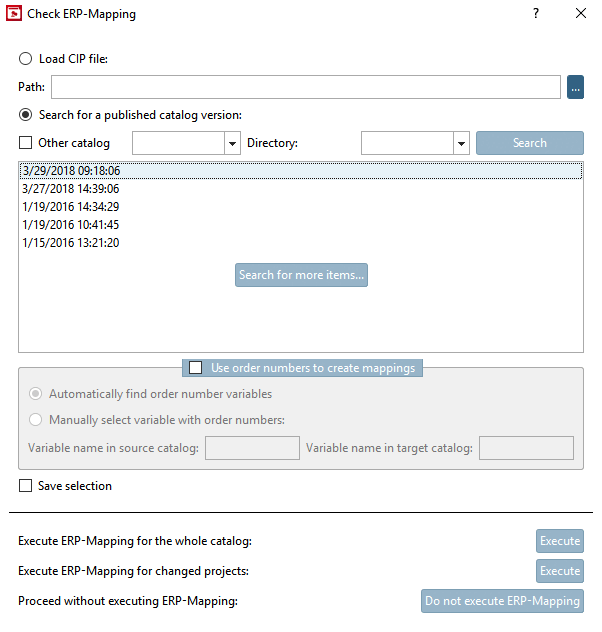
Publishing without this mapping information is not possible. As soon as the command Upload changed files in directories/projects to the server [Upload changed files in directories / projects to the server] is executed under Context menu command Version management [Versioning system], the dialog box Check ERP mapping [Check ERP-Mapping] opens automatically. Click on Search to load the published catalog versions, select the most recent one and click on Execute under Execute ERP mapping for the entire catalog [Execute ERP-Mapping for the whole catalog] or Execute ERP mapping for changed projects [Execute ERP-Mapping for changed projects]. (Alternatively, you can also use the context menu commands Add [Add ERP-Mapping...] ERP mapping... and Edit ERP mapping [Edit ERP-Mapping...]... can also be used)

Details on this can be found in the following sections.

Precondition on customer side

On customer side, a version has to be installed for which mappings have been created.

Now the new method takes effect and manual editing is only necessary in exceptional cases, if an adjustment cannot be processed automatically.

Example:

The latest version of a catalog from the beginning of the year is still without mappings. A customer with V10 has exactly this catalog version.

A new version will now be published in the middle of the year. In this version, the modeling has already entered mappings for the last published version from the beginning of the year.

When the customer installs the latest status now, these mappings are automatically processed.


[69] The Update Manager [Update manager] is used for this purpose. Call via PARTlinkManager -> Extras menu -> Update Manager [Update manager]. Details can be found under Section 5.17.3, “ Catalog update with ERP link - Fix assignment problems with Update Manager ” in ENTERPRISE 3Dfindit (Professional) - Administration.