1.8.2. Beispiele 1.8.2.1. Beispiel 1: Import Pfad mittels
“pdmProxyPdmDocumentI“ setzen |  |
| Zurück | Weiter |
Ein
kleines Beispiel für das Setzen des Import-Pfades eines Items (mit
Verwendung von pdmProxyPdmDocumentI).
Erstellen Sie einen VBS filter
node direkt nach dem Konvertierungsservice (also bevor der Konverter gelaufen ist). Setzen Sie
VBS file (plugin_template.vbs) und
VB Class (_AfterConversion).
Gehen Sie zur Funktion „AfterConversion“.
Fügen Sie folgende Code-Zeilen ein:
dim docProp = item.GetPropertiesObject()
dim pathProp = Application.GetObject("pdmProxies.ObjectFactory").createPdmProxiesObject
 ("pdmProxyPropertyObjectC", "Testpath/test")
pathProp.setType("STRING")
docProp.setProperty("path",pathProp)
("pdmProxyPropertyObjectC", "Testpath/test")
pathProp.setType("STRING")
docProp.setProperty("path",pathProp)
Get the root properties object (Return value pdmProxyAttributeContainerC)
dim docProp = item.GetPropertiesObject()
Create new pdmProxyPropertyObjectC & setValue and Type
dim pathProp = Application.GetObject("pdmProxies.ObjectFactory").
 createPdmProxiesObject("pdmProxyPropertyObjectC", "Testpath/test")
pathProp.setType("STRING")
Add pdmProxyPropertyObjectC to pdmProxyAttributeContainerC
docProp.setProperty("path",pathProp)
Die converter.vbs (ausgeführt während AttributeMapper)
konvertiert den Attribut-Pfad in eine Klassifikation des
Produkts.
| In Klassifikation: |
   "Name": "path",
   "Group": "document",
   "Value": {
                  "Text": "Testpath/test"
   },
                  "Id": "path"
   },
|
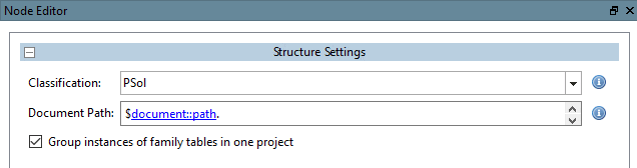
Bearbeiten Sie den Structure Node in PARTdataCenter
Dokumentpfad [Document Path]:
$document::path.
(Group: document; Name: path --> siehe Classification PARTdataCenter)
Abhängig von der im Code verwendeten Funktion, muss die geeignete Gruppe im Structure Node gewählt werden.
dim
docProp = item.GetPropertiesObject() --> 
Mapping von Funktionen auf Gruppen:
| GetPropertiesObject() | --> document |
| GetFileProperties() | --> file |
| GetCadAttributes() | --> cad |
| GetCadDimensions() | --> dimension |
| GetPdmAttributes() | --> pdm |
| GetCustomAttributes() | --> custom |

![Knoteneditor [Node Editor]](resources/img/img_08f7e4a0c96a4dd28261b6a2e24e5a25.png)