2.2.
PARTbom
2.2.5.
Hierarchical view
|  |
| Prev | Next |
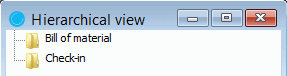
The hierarchical view [Hierarchical view] in PARTbom is characterized by two main folders:
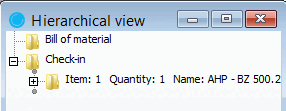
Parts that you create yourself (via Parts list [Bill of material] menu -> Add part ) or, for example, from PARTdataManager will then appear in the Checkin [Check-in] folder.
Checkin [Check-in] is a type of clipboard in which parts are initially stored in the form of subfolders.
![[Note]](images/note.png) | Note |
|---|---|
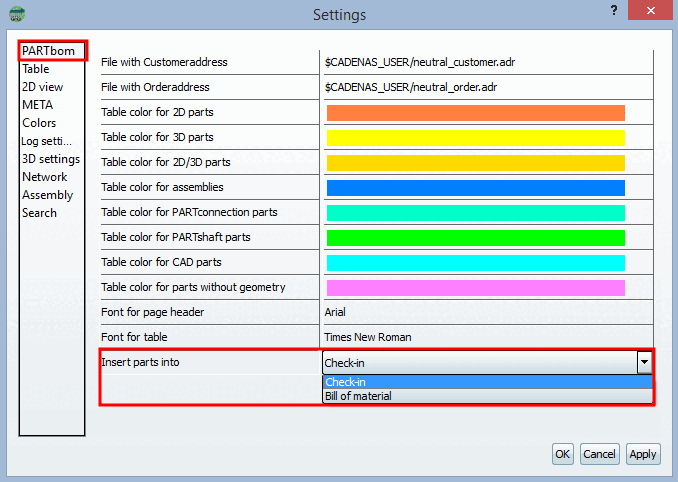
You can set whether parts and assemblies should be stored directly in the BOM [Bill of material] folder or first in the Checkin folder.
| |
If a part is in the Checkin [Check-in] folder, it is not displayed in the Print preview, Display (part preview) and Table view menu areas.
Parts/assemblies are only displayed in the table view [Table view] once they have been moved individually to the Parts list [Bill of material] folder under Hierarchical view using drag & drop.