2.1.16.6. Context menus
2.1.16.6.1. Context menu commands Part selection
|  |
| Prev | Next |
If you click on a folder or object icon with the secondary mouse button, the corresponding context menu opens.
The context menus correspond on the left in the directory tree and on the right in the main window under  Icons [Symbols] and
  Details.
The context menus at directory level, on the root element catalog [Catalog] and at project level differ accordingly.
Some commands are only available at certain tab pages or categories.
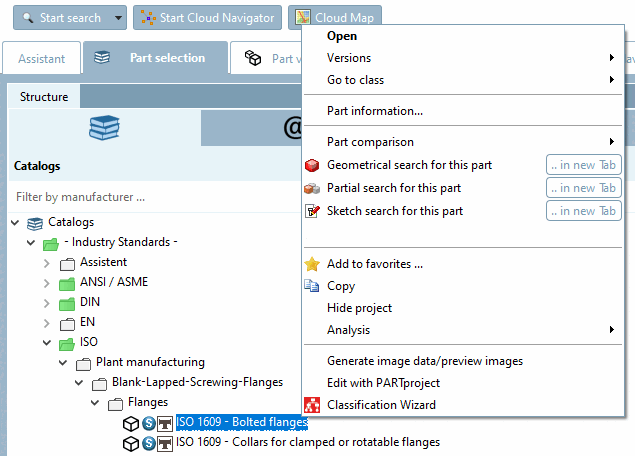
The following illustration shows an example of the context menu commands for the project level in the directory tree.
Open: See Section 2.1.16.6.1.2.1, “ Open ”.
Search in the catalog / Search in the directory [Search in directory]: See Section 2.1.16.6.1.2.6, “ Search in the catalog / Search in the directory ”.
Versions: See Section 2.1.16.6.1.2.2, “ Versions ”.
Part information... (only at project level)
The same information can be found in the parts information [Part information] docking window.
Component comparison [Part comparison] (only at project level)
Search geometrically for this part [Geometrical search for this part] (only at project level)
Partial search for this [Partial search for this part] part (only at project level)
See Section 2.1.16.6.1.2.10, “ Partial search for this part ”.
Sketch search with sketches of this part [Sketch search for this part] (only at project level)
Create document project: See Section 2.1.16.6.1.2.18, “ Create document project ”.
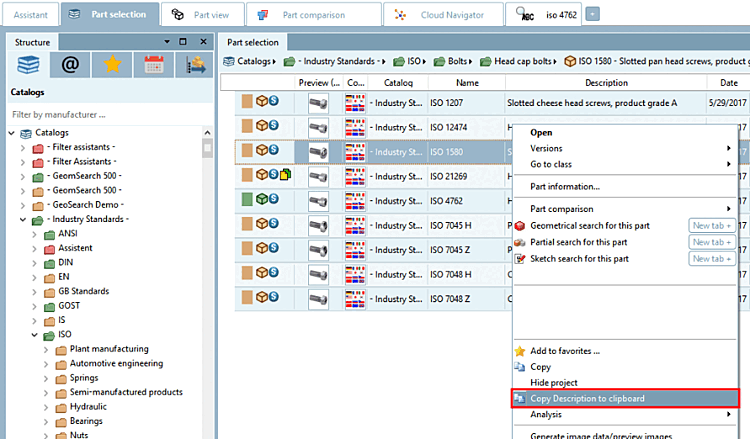
The context menu commands on the tab page of the search results are identical except for minor differences.
In the table view
 (tab pages Catalogs, Classes, Favorites, History, Search results ) you will find additional information:
On directory level you can find following commands in addition:
On the Favorites tab page you will find:
In self-created catalogs you will still find:
You can find a description of all possible context menu commands at Section 2.1.16.6.1.2, “Context menu commands in detail”.