2.7.3.8. Edit Cluster Tree 2.7.3.8.1. Creating and Renaming Tree Nodes |  |
| Prev | Next |
You can create an empty slot in the hierarchy for later assignment or give an existing node (other than the root) a name of your choice. These actions change the tree structure or the displayed label, but do not move any parts.
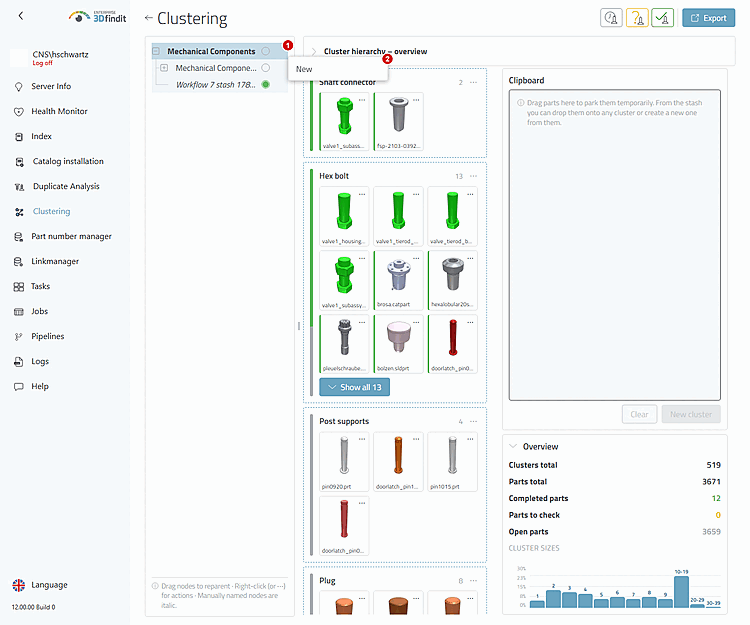
Open the node's context menu and click "New" [1] to create a child node at the selected location. In the dialog box, enter a meaningful cluster name. A new node is initially empty and is therefore suitable for later assignment without changing the current part affiliation.
The node's context menu provides the structure actions for the selected node. For the root node, "New" is the only structure action.
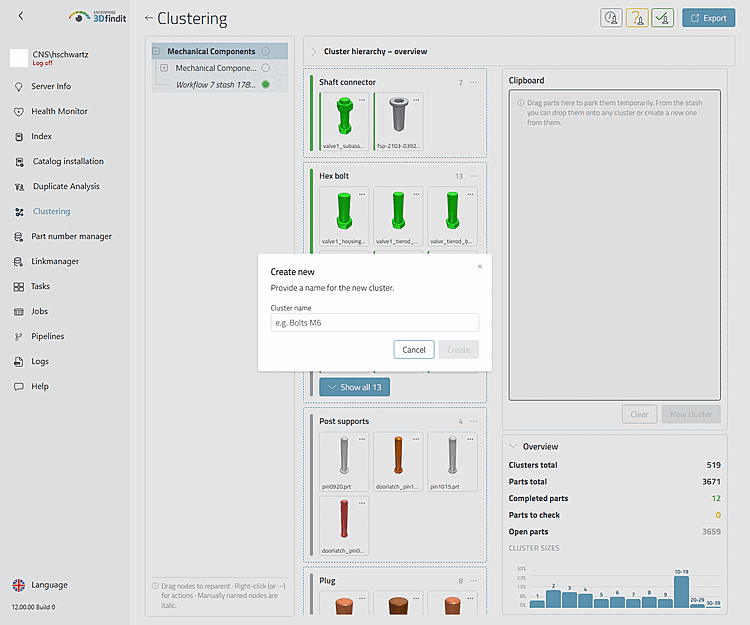
Enter a name in the dialog box [1]. If the parent node has already been specified, the dialog box will retain this entry. If a selection list for the parent node is displayed, select only a node that can contain child nodes [2]. A filled sheet is not suitable as a parent node.
The dialog box prompts you to enter a name and select an appropriate parent node before a new empty item is added to the hierarchy.
Use "Rename" to change the displayed name of a node (except for the root). After successfully renaming, the saved result is updated. A custom, non-empty name appears in the cluster tree, on the associated cluster map (if displayed), and in the hierarchy graph in italics; automatically generated names remain as is.
Creating and Renaming Nodes – Actions and Dialog Boxes
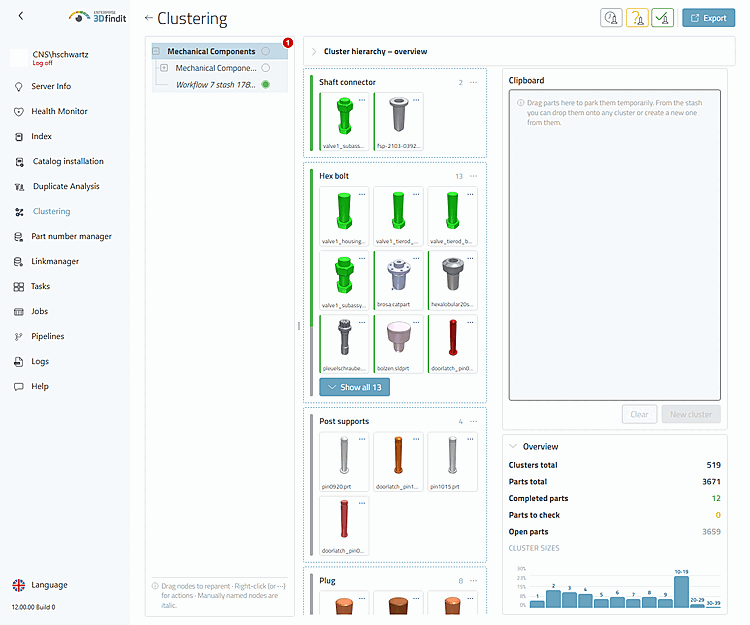
After reloading, the hierarchy contains the new empty child node or the existing renamed node. These changes do not assign, remove, or change the inspection status of any parts.