1.7.1.4.3. Editing blocks,
keys and key values
In the middle
dialog area you can access blocks, keys and values.
Via context menu
command, you can add blocks and keys and duplicate keys. These commands are
found in all main directories ($CADEANAS_USER,
$CADENAS_SETUP,$CADENAS_DATA/datasetup). Under $CADENAS_DEFAULTUSER you can
find further extra commands [see Section 1.7.1.4.4, “Additional
functions in $CADEANS_DEFAULTUSER
”]).
![[Note]](images/note.png) | Note |
|---|
Depending on
the context the displayed commands will change. For specially added blocks, e.g. "Duplicate blocks " and "Delete blocks ". For standard blocks only "Duplicate blocks ".
|
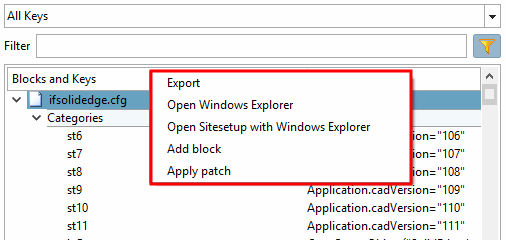
Context menu commands on configuration file
With a right-click
on a configuration file, open the context menu.
Export
SeeSection 1.7.1.2, “
Export to text file”
Open Windows Explorer
Open Sitesetup with Windows Explorer
Add block
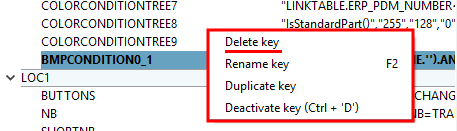
If a block has been added, the Delete block key is also displayed.
Apply patch
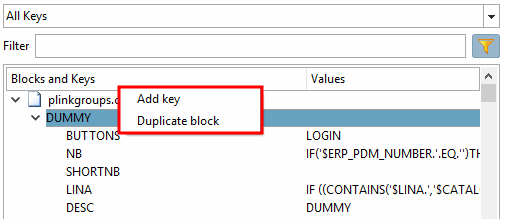
Context menu commands on block
With a
right-click on a block, open the context menu.
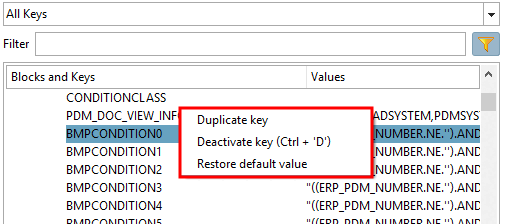
Context menu commands on key
With a right-click
on a key, open the context menu.
Duplicate key
The command
duplicates the respective key with a new name, which is build in the
following way:
Old name +
underscore + counter
The new key
is added as last key below the listing.
Perform a
double-click on the key name and adjust the name accordingly.
Delete key
Activate key / key
See Section 1.7.1.4.2, “
Activate key / deactivate key
”.
Context menu command on key value
With right-click
on a key value, open the context menu.
The same commands
as on the key itself are displayed.