4.22.3.4. SSL encryption

4.22.3.4.1. Create certificates on the customer side
4.22.3.4.1.1. Request certificate with active auto-enrollment
4.22.3.4.1.2. Manual certificate application (with template)
4.22.3.4.1.3. Manual certificate application (without template)
4.22.3.4.2. Create a self-signed certificate
4.22.3.4.2.1. Create a self-signed certificate in PARTadmin on the PARTapplicationServer
4.22.3.4.2.2. Create a self-signed certificate via Windows Power Shell
4.22.3.4.2.2.1. Introduction
4.22.3.4.2.2.2. Windows Power Shell command
4.22.3.4.2.2.3. Adding permissions on the certificate
4.22.3.4.2.2.4. Exporting the certificate
4.22.3.4.2.3. Import certificate in Windows Certificate Manager
4.22.3.4.3. AppServer Configuration
4.22.3.4.4. Check on client side

When using HTTPS (SSL ), the server must authenticate itself to the client.

This happens via certificates. Certificates are either issued self-signed (only for test purposes) or by a trusted certificate authority.

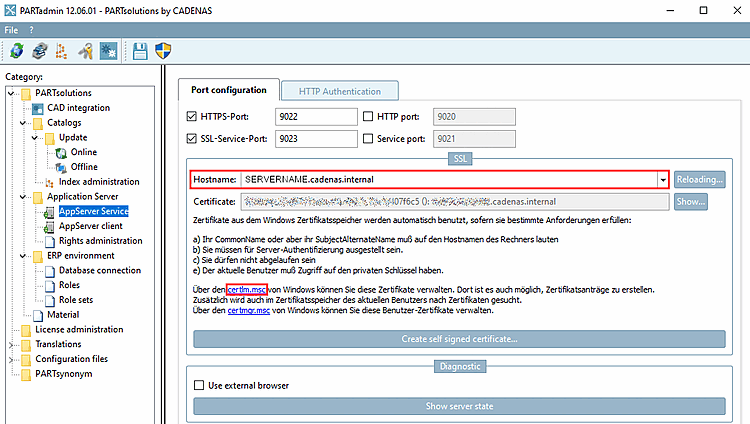
The certification runs via the Windows Certificate Store, which you open on the Port Configuration [Port configuration] Tabbed page by clicking on the certlm.msc link.

You can select certificates that have already been issued in the list field under Hostname [Host name].

PARTadmin > category "AppServer Service" > tabbed page "Port configuration"

PARTadmin > category "AppServer Service" > tabbed page "Port configuration"

In the following sections, you can find descriptions on the different methods of certificate creation: