4.3.4. SAP
ECTR
4.3.4.2. Installation
(Basis and Addons)
|  |
| Prev | Next |
Prerequisite is a correctly set up CAD-System.
Information on CAD integration can be found at Chapter 3, 3Dfindit - CAD Integration - Administration .
The CDE directory can - if not already present - be copied from %cadenas%/iface/plm/ifsapectr to the customer's applications directory, which must be done by the customer. This is necessary so that the CADENAS (CDE) application is available. This also includes the rfc-tunnel-whitelist.txt file (see next point).
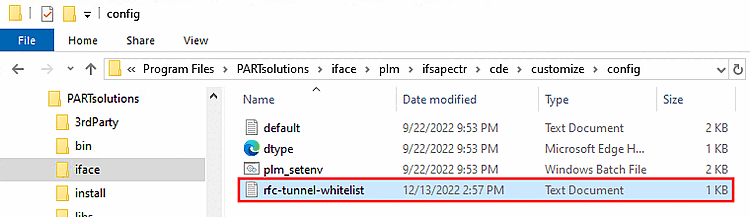
Under C:\Program
Files\PARTsolutions\iface\plm\ifsapectr\cde\customize\config
you will find the file rfc-tunnel-whitelist.txt. The file allows the execution of certain calls that are otherwise not permitted. The customer must be informed of this.
/DSCSAG/FOL_OPENDETAILS41
/DSCSAG/DOC_VERSION_GET_ALL3
/DSCSAG/OBJ_GET_MULTIDETAIL2
/DSCSAG/DOC_CHECKOUT_URL2
/DSCSAG/MAT_GETLINKEDDOCUMENT3
/DSCSAG/DOC_CHANGE_MULTI3
/DSCSAG/MAT_CHANGE_MULTI
/DSCSAG/ADV_MAT_SETALL
/DSCSAG/DOC_LONGTEXT_SAVE
/DSCSAG/MAT_CREATE_RFC
CDESK_SRV_CREATE_VARIANT
CDESK_SRV_CREATE_VAR_MAT_LINK
RFC_CALL_TRANSACTION_USING
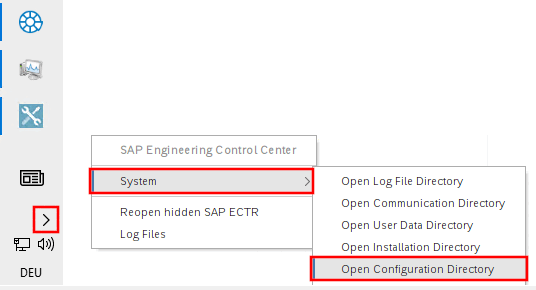
the active communication directory.
![[Note]](images/note.png) | Note |
|---|---|
As this setting is saved locally, it must be repeated for each Windows user and for new installations. | |
If a whitelist already exists in the ECTR folder, it must be supplemented via copy & paste with the calls from the 3Dfindit installation.
C:\Users\name\AppData\Local\SAP\ECTR\conf\ectr52\Q20_208_ZZ15\customize\config
Direct integration for 3Dfindit
Under ...\iface\plm\ifsapectr\thinclient you can find the following directories:
Copy them into the ECTR directory.
Set environment variable CADENAS_APPSERVER. Thereby the 3Dfindit login dialog will appear right at the starting of SAP ECTR.
Various setting parameters can be found in the configuration file pdmseamless.cfg. See the respective help texts.
For ENTERPRISE 3Dfindit < V12.8, please ensure that you have the latest version of the following files:
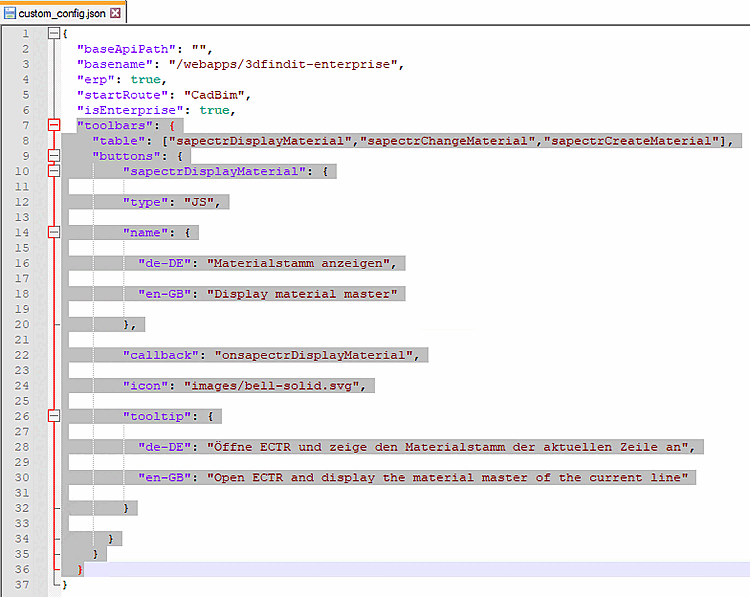
CADENAS/libs/pappserver/webapps/3dfindit-enterprise/custom_config.json
Add
in the file custom_config.json a call
for display to everyone
desired SAP ECTR button.
"toolbars": {
  "table": ["sapectrDisplayMaterial","sapectrChangeMaterial","sapectrCreateMaterial"],
  "buttons": {
        "sapectrDisplayMaterial": {

        "type": "JS",

        "name": {

          "de-DE": "Materialstamm anzeigen",

          "en-GB": "Display material master"

        },

        "callback": "onsapectrDisplayMaterial",

        "icon": "images/bell-solid.svg",

        "tooltip": {

          "de-DE": "Öffne ECTR und zeige den Materialstamm der aktuellen Zeile an",

          "en-GB": "Open ECTR and display the material master of the current line"

        }

      }
    }
  }
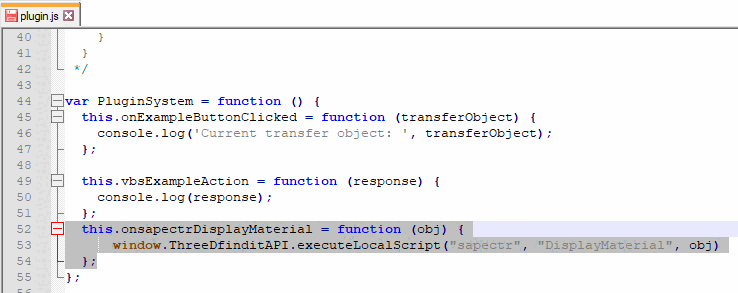
CADENAS/libs/pappserver/webapps/3dfindit-enterprise/plugins/plugin.js
Add
in the file plugin.js for each
SAP ECTR button.
  this.onsapectrDisplayMaterial = function (obj) {
    window.ThreeDfinditAPI.executeLocalScript("sapectr", "DisplayMaterial", obj)
  };
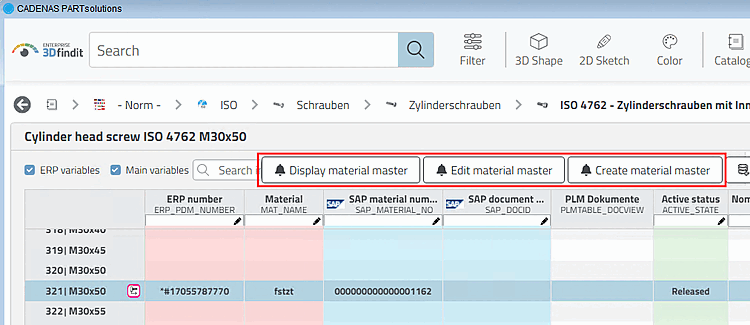
Then restart the PARTapplicationServer. Then the SAP GUI buttons should be displayed in the 3DF window.
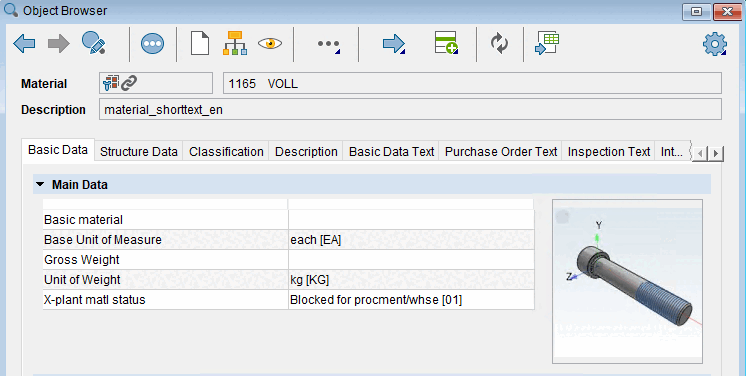
(Tooltip: "Open SAP and display the material master of the current line")
-> The material is opened in the Object Browser.
(Tooltip: "Open SAP with the current material master to edit")
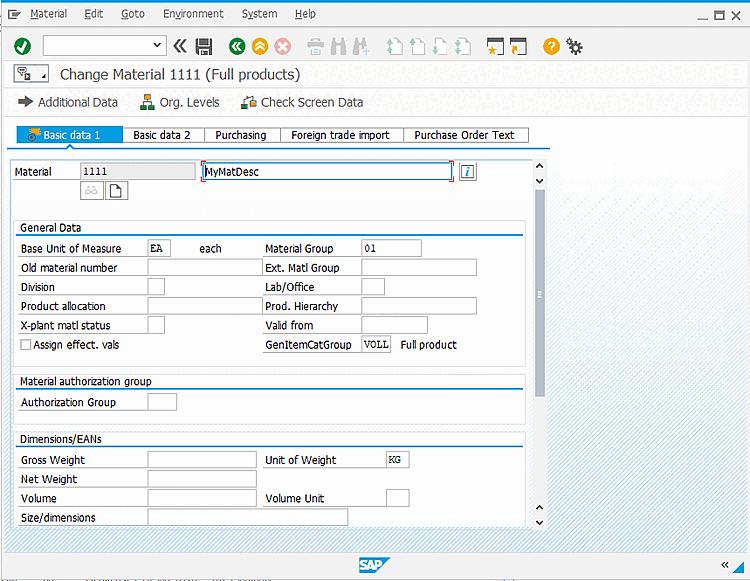
-> The SAP GUI is opened with the Change Material screen.
(Tooltip: "Open SAP and create a material master for the current line")
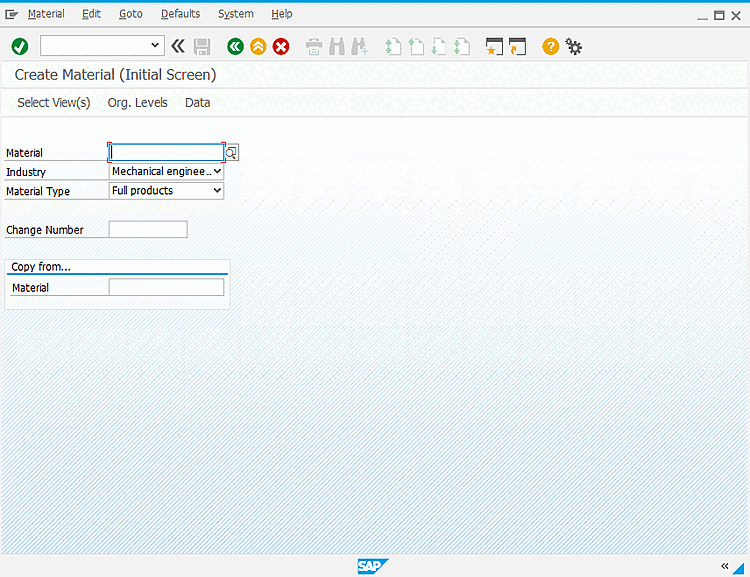
-> The SAP GUI is opened with the Create Material screen.
In future releases the mentioned files should be part of the standard.
Enter in custom_config.json in the following line which buttons should be displayed:
"table": ["sapectrDisplayMaterial","sapectrChangeMaterial","sapectrCreateMaterial"],
![[Tip]](images/tip.png)