5.12.14.
Map class systems...
5.12.14.1. Overview |  |
| Prev | Next |
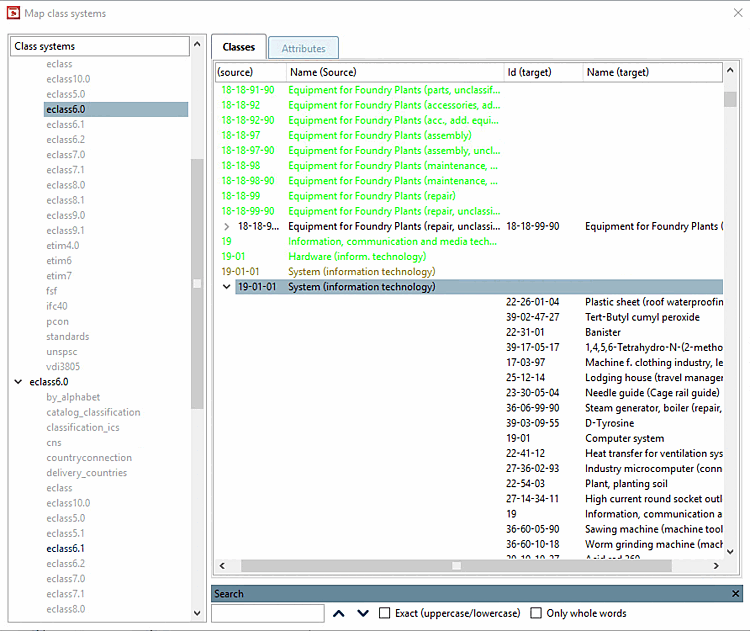
PARTproject -> Extras -> Additional modules -> Class systems: Mapping [Class systems: map...]... opens the dialog box Map class systems (see following figure).
You can use mapping to transfer the class information within a classification system to another classification system. For example, you can map your self-created classification system to an existing one or you can classify a catalog that is already classified according to ECLASS 5.1 relatively easily according to ECLASS 6.0.
On the left side all available class systems are displayed. In the second level all class systems,, which have already been mapped, are displayed in black color (all others without mapping in gray).
On the right side you can see the actual assignment of elements (separated for classes and attributes).
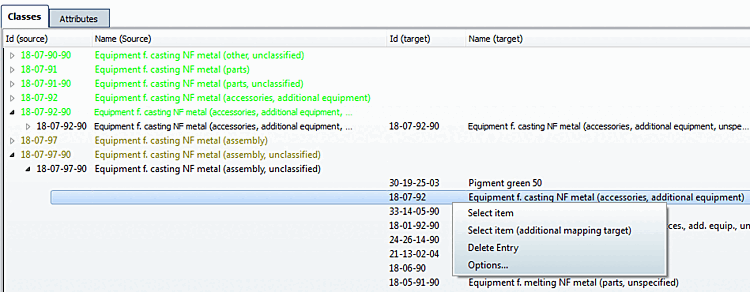
The colors have the following meaning:

| Entries without suggestions |

| Entries with available suggestions |

| Entries with defined mapping |

| Entries with defined multiple mappings |
Manual editing happens via context menu commands.
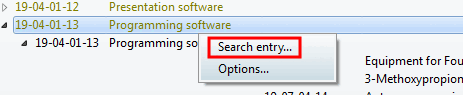
Furthermore you have the opportunity to start a search for single entries once again in an already existing mapping, in order to limit or expand the suggestions with the help of a changed search strategy.
A wizard guides you through the available strategies. There is currently the Levenshtein algorithm, which performs a similarity search on a string basis. This allows the names, descriptions, IDs, etc. of the items to be compared. Special mapping files can also be evaluated for ECLASS mappings.
The mapping files are available at $CADENAS_DATA\datasetup\classsystem\myclass1\<klassifikationsname>_mapfile.xml
bzw. <klassifikationsname>_varmapfile.xml.
Add projects to classification
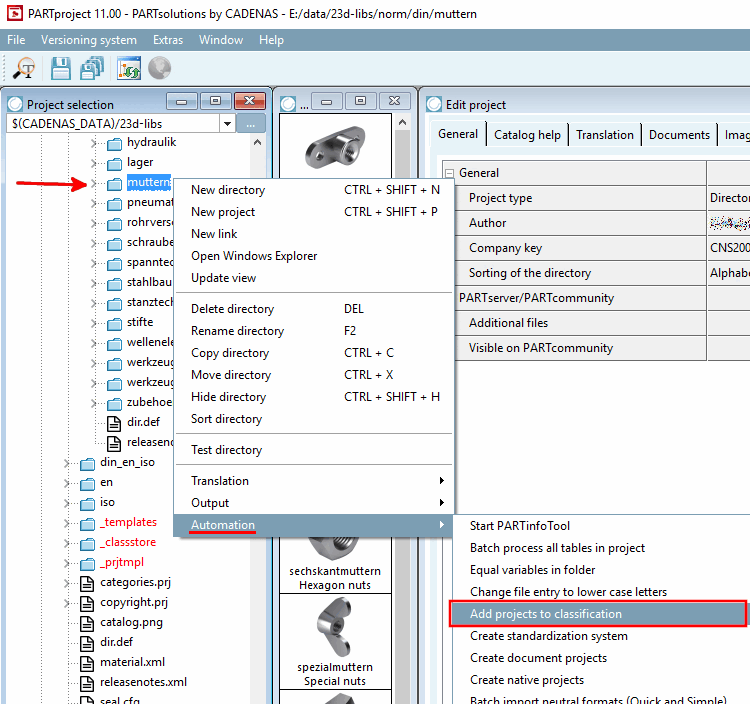
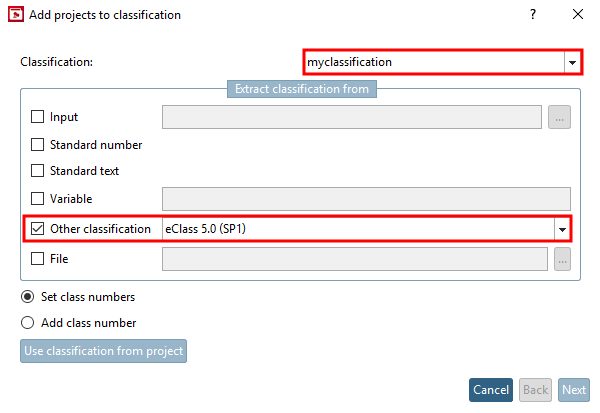
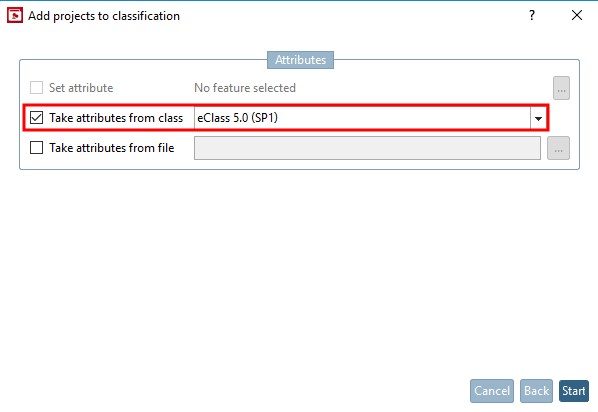
To apply the mapping, the mapping must be assigned in PARTproject the mapping must be assigned to the desired classification at the desired directory level via the context menu command Automation -> Add projects to classification. Only in this step are the projects linked to the new, mapped classification system.
The Add projects to classification [Add projects to classification] dialog box opens.
![[Note]](images/note.png) | Note |
|---|---|
In the list field under Other classification, entries are only displayed if mappings are available for the desired classification. | |