7.6.2.9.1. Sweeps over sketches on two or more levels or surfaces 7.6.2.9.1.1. Example 1: Creating a sweep between two parallel planes
|  |
| Prev | Next |
7.6.2.9.1. Sweeps over sketches on two or more levels or surfaces 7.6.2.9.1.1. Example 1: Creating a sweep between two parallel planes
| |
| Prev | Next |
Sweep is the transition between sketches (also several) on layers or surfaces.
For sweeps, both the Create basic gradient [Create sweep base] and Create section gradient [Create sweep cut] functions are available.
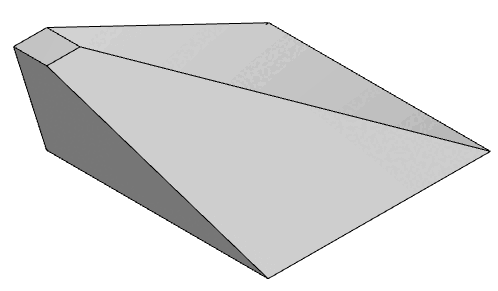
The following types of sweeps are possible:
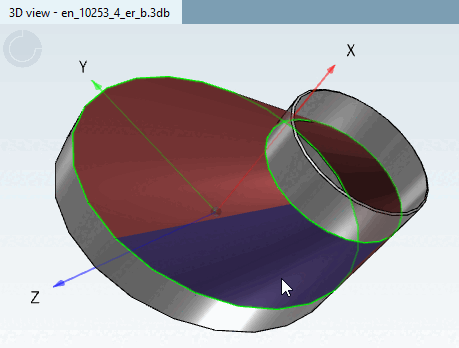
In the part EN 10253 for example, the sweep function is used.
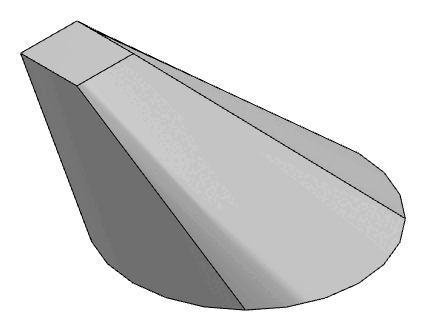
Below you can see an example (circle on circle) that illustrates the application.
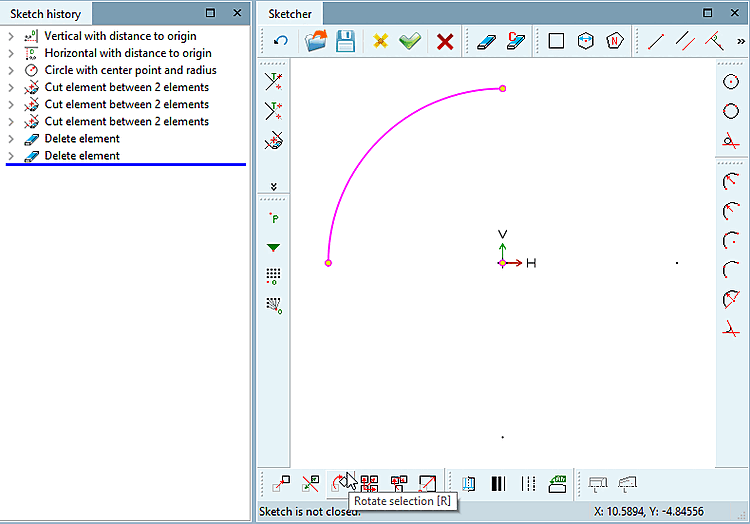
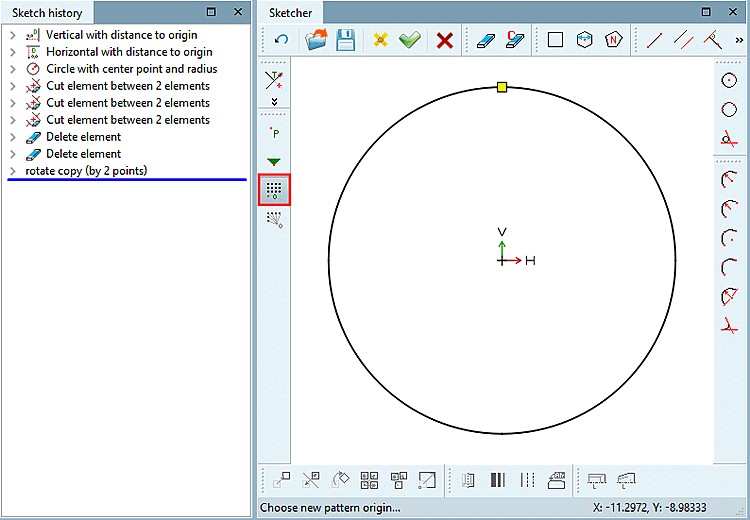
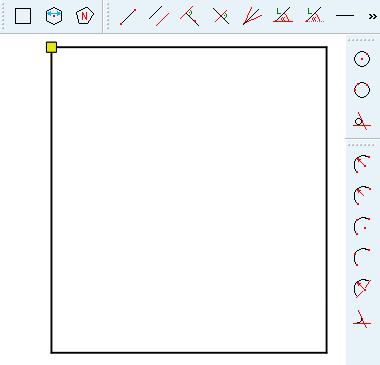
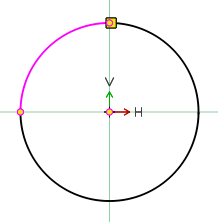
Create a circle in a base sketch.
Insert a sample [Pattern origin] origin.
Create a (parallel) reference plane at the desired distance and a new sketch on this.
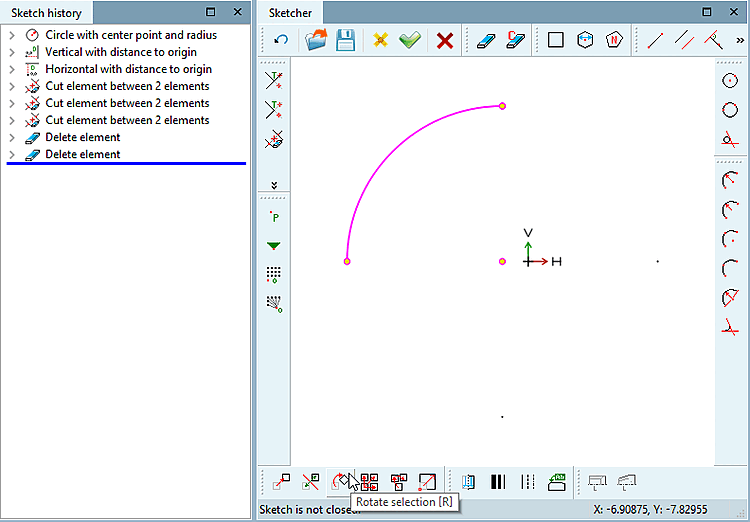
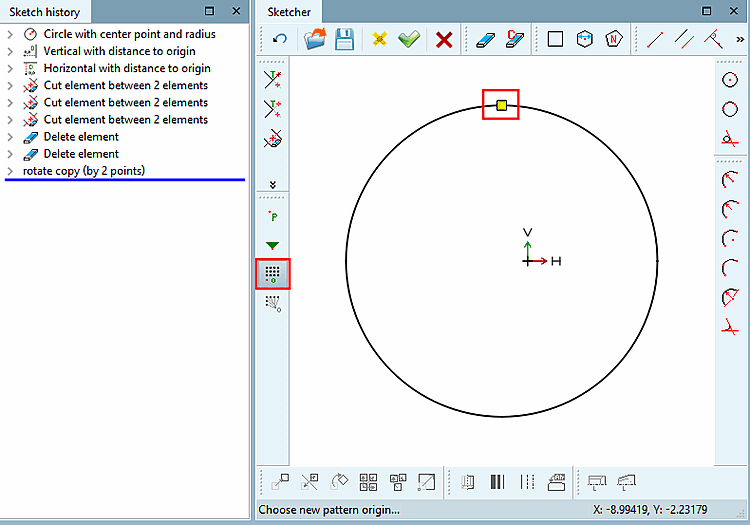
On sketch 2, in the same way, create a circle again. (Here in the example it is smaller and shifted in relation to the first circle.)
If the point is in the top left-hand corner of a rectangle (and you do not want torsion), the pattern origin in the connected sketch must be in the top left-hand corner again.
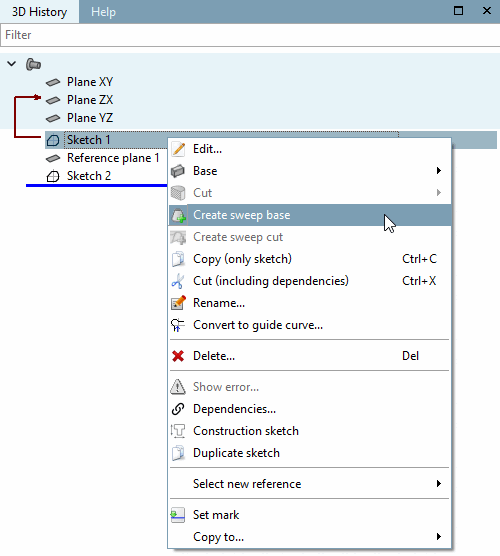
Select both sketches under History and click on Create basic history [Create sweep base].
In the 3D history [3D History], select both sketches in the correct order (either with the Ctrl or Shift key) and click on Create basic history [Create sweep base] or Create section history [Create sweep cut].
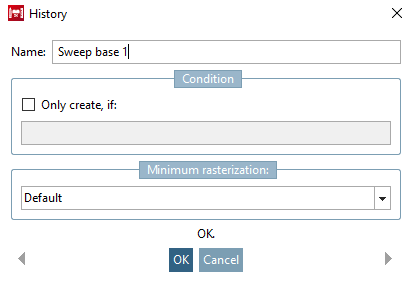
-> The History dialog box appears.
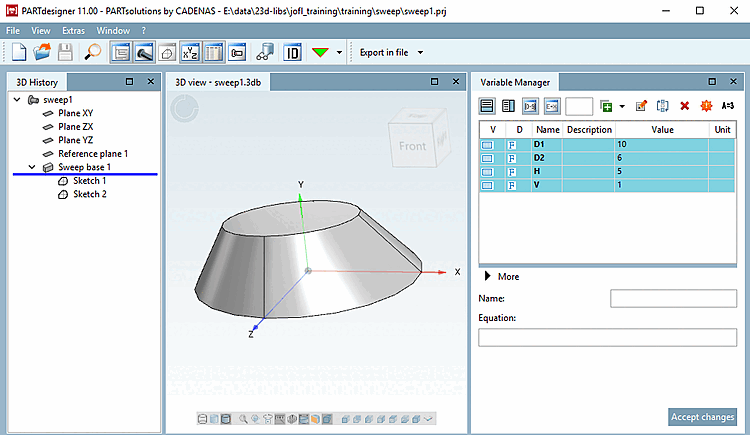
-> The sweep is displayed in the 3D view.
![Create basic gradient [Create sweep base] / Create section gradient [Create sweep cut]](resources/img/img_cb27e5cf00a141cf858f78ca86f5587b.png)
![[Note]](images/note.png)