5.8.2.2.16.
Output
5.8.2.2.16.5.
Project dependencies
|  |
| Prev | Next |
With this function you create a diagram which displays project dependencies.
Prerequisite: In the
Configuration file prjdependency.cfg is in the block Settings
the key GENERATEDEPENDENCIESONINDEXUPDATE with
value ='1'.
Call up the context menu command at project level.
PARTproject → Right-click in the project selection [Project selection] at project level → Output → Project dependencies
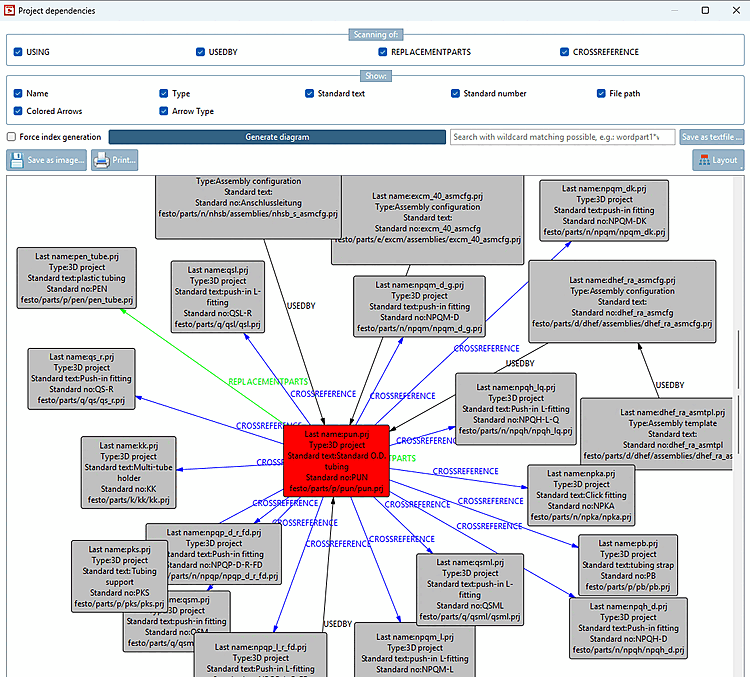
In the Scan from [Scanning of] area, you determine which type of dependencies should be displayed:
In the Display [Show] area, you can select which information is to be displayed for the respective dependency. You can select the name [Name], type [Type], standard text [Standard text], standard number [Standard number], file path [File path], colored arrows [Colored Arrows], arrow type [Arrow Type] (the type is placed on the arrow).
If an index does not yet exist, it will be created when the diagram is created. A corresponding message appears. Via Force index generation, the index is updated as soon as you click on Generate diagram.
You can display the diagram as a tree [Tree] or spring model [Spring model] using the Layout button.
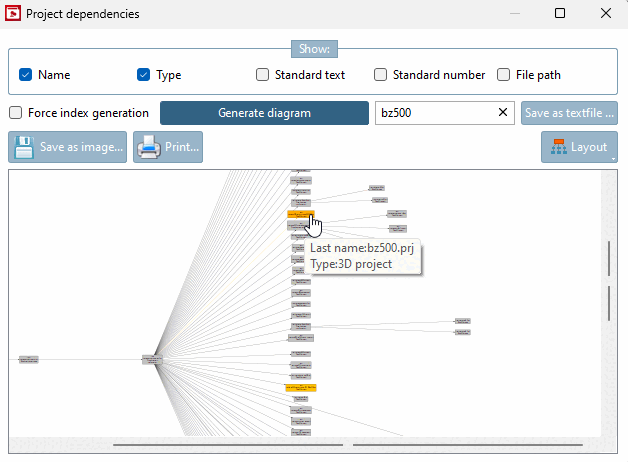
If required, it is possible to find a node in the displayed diagram using the search bar. The term can be anywhere in the project. If you have entered a search term and there are hits, these are highlighted in yellow.
You can save the displayed diagram to your computer via Save as text file... [Save as textfile ...] or Save as image... or click directly on Print... directly.