Chapter 12. FAQ 12.1. Help
|  |
| Prev | Next |
In
3Dfindit call up the online help in the CAD system, in the ENTERPRISE 3Dfindit menu or in the
Toolbar by clicking on  Help.
Help.
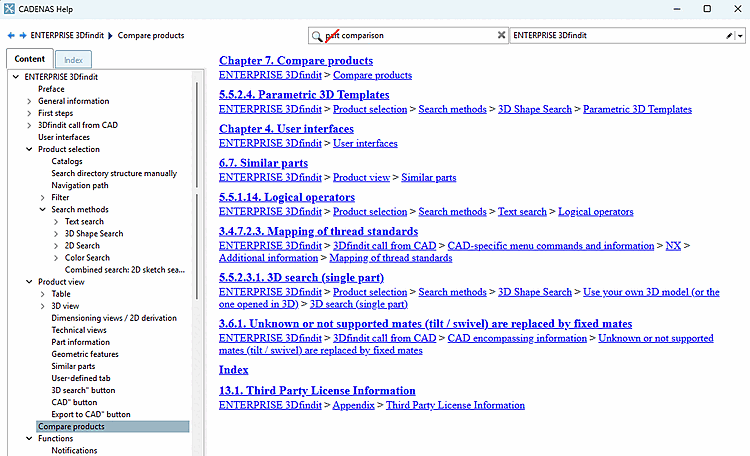
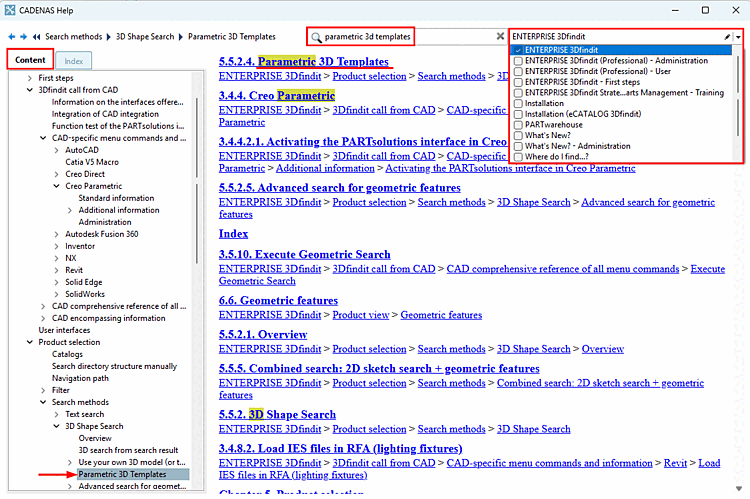
Optionally, expand the list field on the right to specify the manuals to be searched. This helps to avoid unwanted hits.
Start the search by clicking on the Return key.
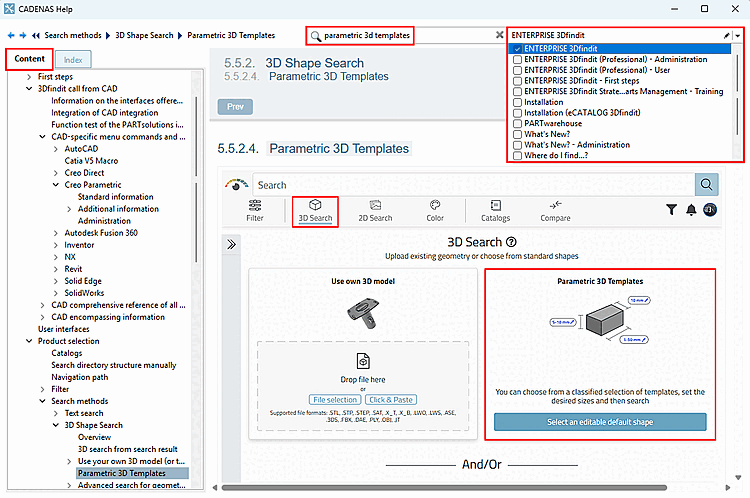
-> By default, the Contents [Content] Tabbed page is activated on the left. The search results are displayed on the right.
-> When you click on a result, the corresponding content is displayed on the right and the corresponding chapter is highlighted on the left in the table of contents.
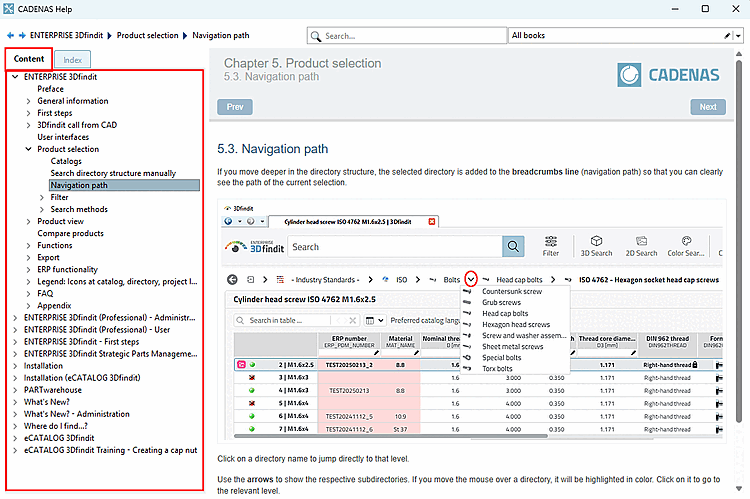
When you open the help, the Contents [Content] Tabbed page is displayed on the left by default.
Click on the desired chapter in the table of contents on the left to load the corresponding page on the right.
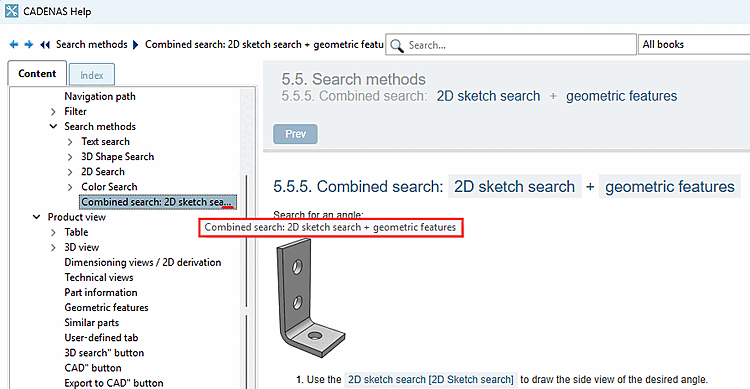
In the table of contents, truncated headings (recognizable by ...) are displayed in full length in the tooltip.
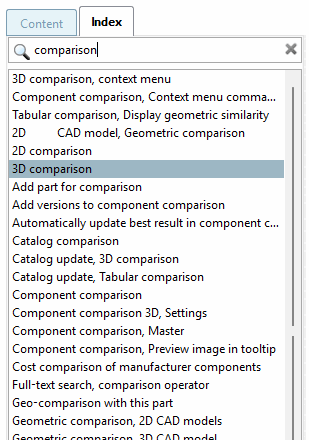
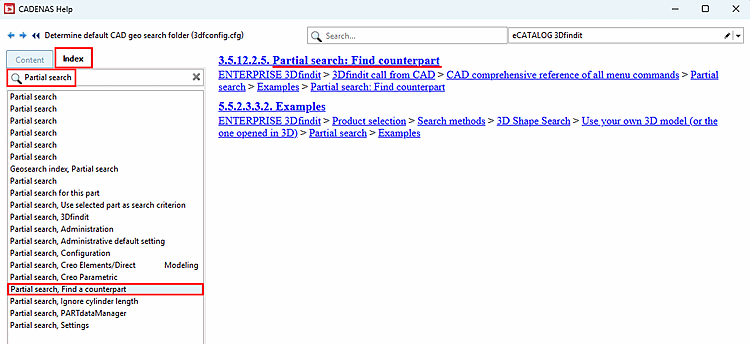
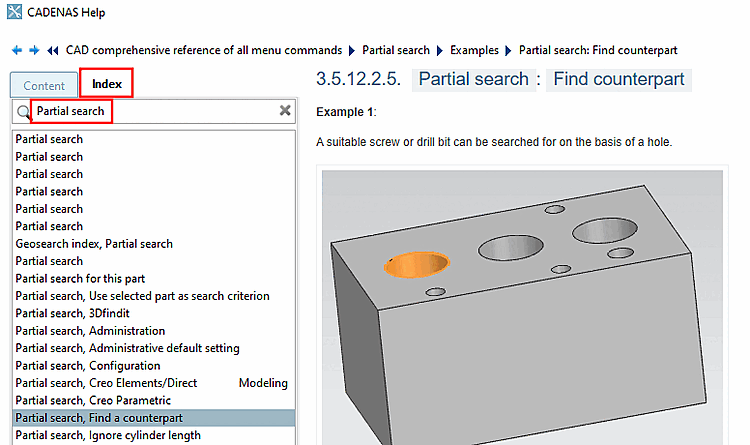
Select the Index Tabbed page on the left.
Enter a term. You will only receive results if the entered term appears exactly as it does in the index.
-> You will now see the corresponding index terms.
-> The search result is now displayed on the right.
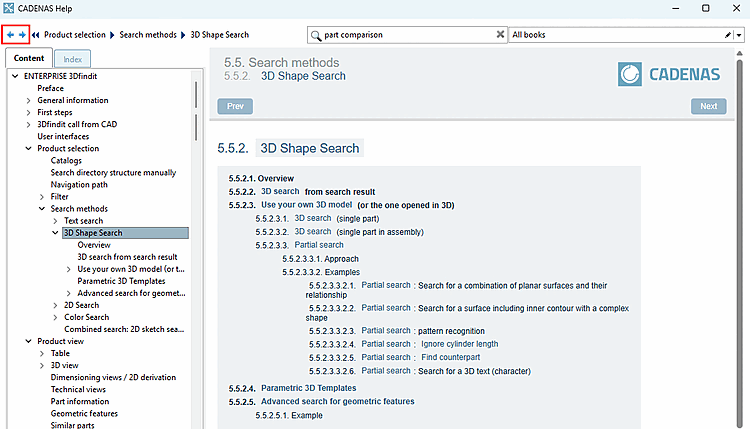
Back and forth
according to the sequence of the pages already accessed, you will be taken to
the blue arrow keys
 and
and  .
.
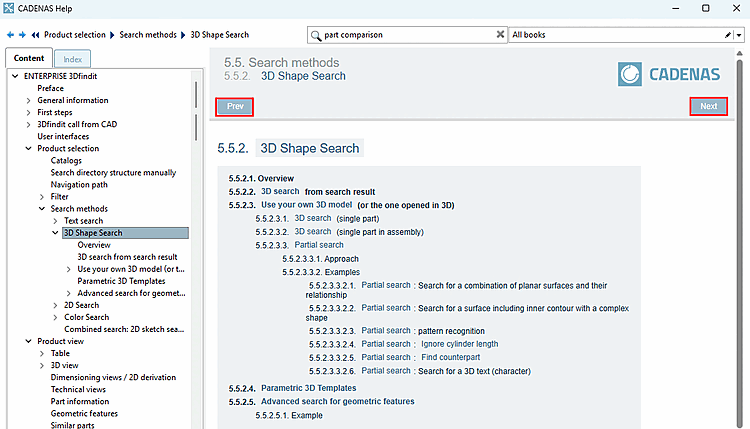
You can go back and forward in terms of the structure of the table of contents using the and buttons.
Pressing takes you to the next higher chapter in the hierarchy (the button can be found at the bottom of the page).
takes you to the first page of the relevant manual (the button can be found at the bottom of the page).
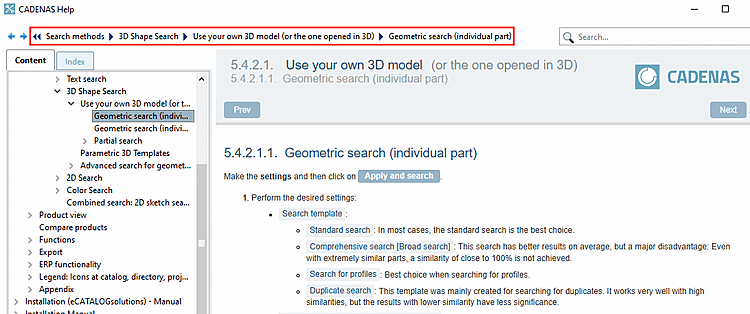
The search path shows where you are currently located. This is particularly helpful if you have followed cross-book links.
The path components are links so that you can easily jump to the relevant chapters.
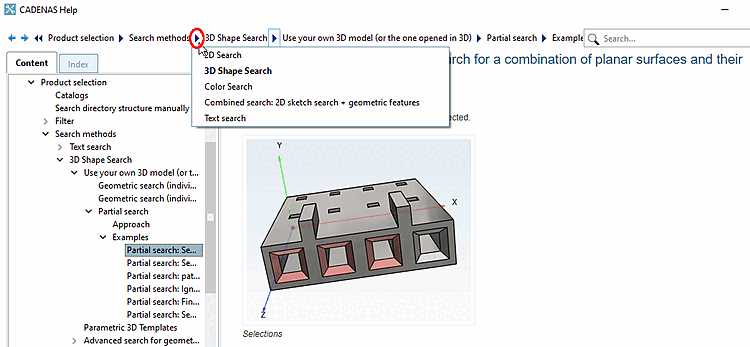
With
Click on an arrow  in the search path, the
chapter.
in the search path, the
chapter.


![[Note]](images/note.png)
![[Tip]](images/tip.png)